Creating a new add-on
Add an add-on when clients should be able to book an optional extra with a service. After you save it, attach the add-on on the services that should offer it.
Before you start
- Know the name, short description, duration, and price clients should see.
- Create any Fields you want to collect for this add-on before you attach them here.
- On a Studio team with more than one member, decide whether any staff need a different price or duration, or cannot offer the add-on.
Create the add-on
- Open Appointments → Catalog → Add-ons.
- Click Add New.
The New add-on form opens with Details, Duration and price, Fields, and Member overrides.
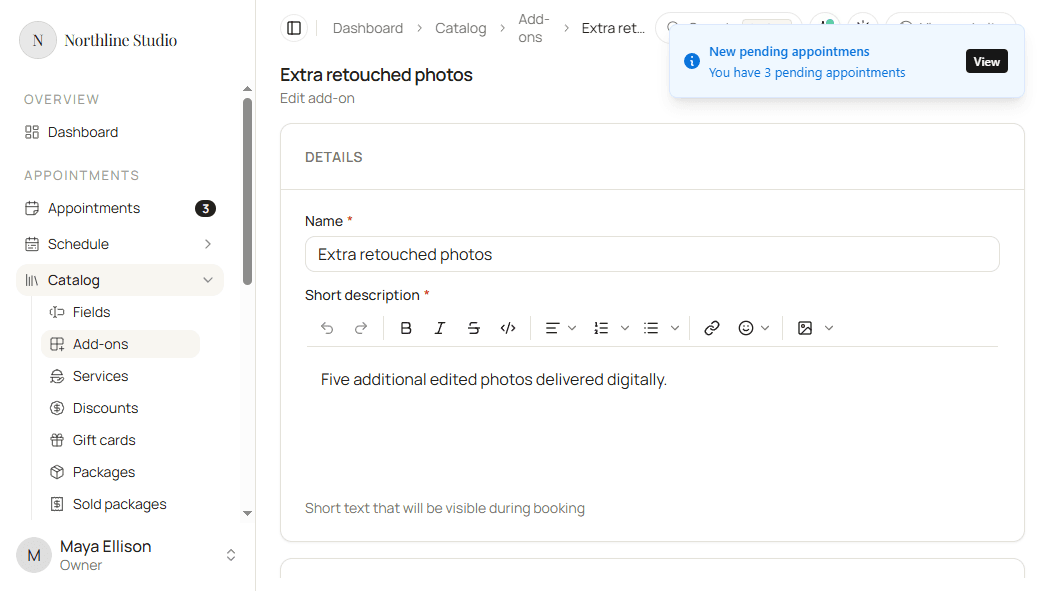
- Enter a unique Name.
- Enter a Short description. Use the markdown editor for formatting clients see during booking.
- Under Duration and price, set Duration (hours and minutes) and Price.
- Optionally add fields and member overrides (see below).
- Click Save.
Hacado opens the saved add-on so you can keep editing if needed.
Fields
Attach catalog fields when this add-on needs its own booking questions.
- Under Fields, click Add a new item.
- Open Field and pick a field from the catalog.
- Turn Required on if clients must answer before they can finish booking, or leave it off if the answer is optional. If field’s own configuration marks it as required, field will be required regardless of addon’s field requirement.
- Use the trash control on a field card to remove it. Confirm in the dialog if asked.
- Drag the grip on a field card to reorder when you have more than one.
Good to know
A field must already exist under Catalog → Fields. Creating a field there does not put it on this add-on until you add it here.
Member overrides
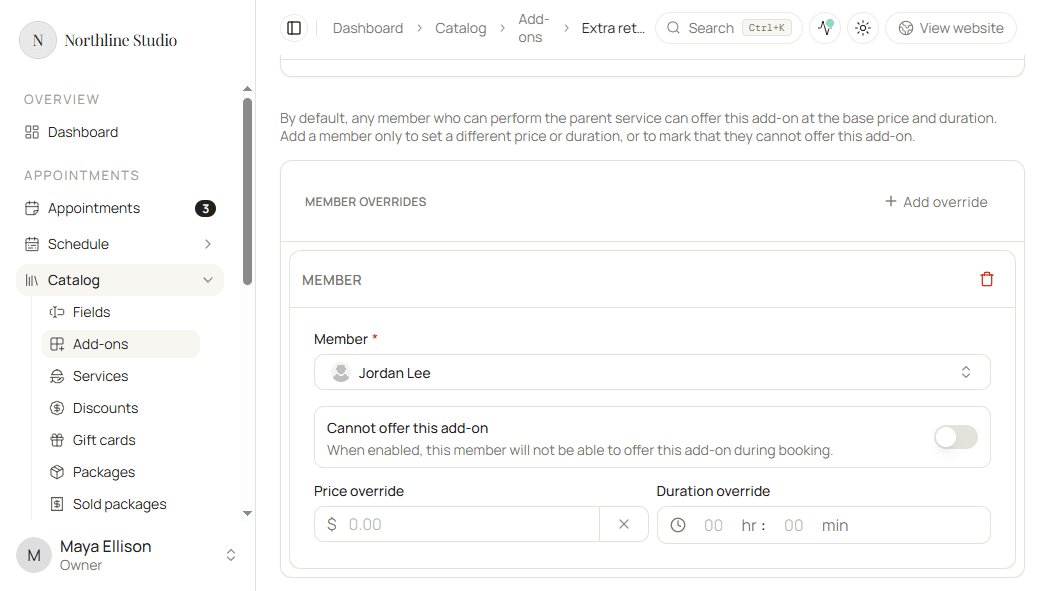
By default, any member who can perform the parent service can offer this add-on at the base price and duration. Add an override only to set a different price or duration for one member, or to mark that they cannot offer this add-on.
- Under Member overrides, click Add override.
- Open Member and pick a team member - for example a second photographer on a Studio plan.
- Leave Cannot offer this add-on off to set overrides.
- Optionally enter a Price override and a Duration override.
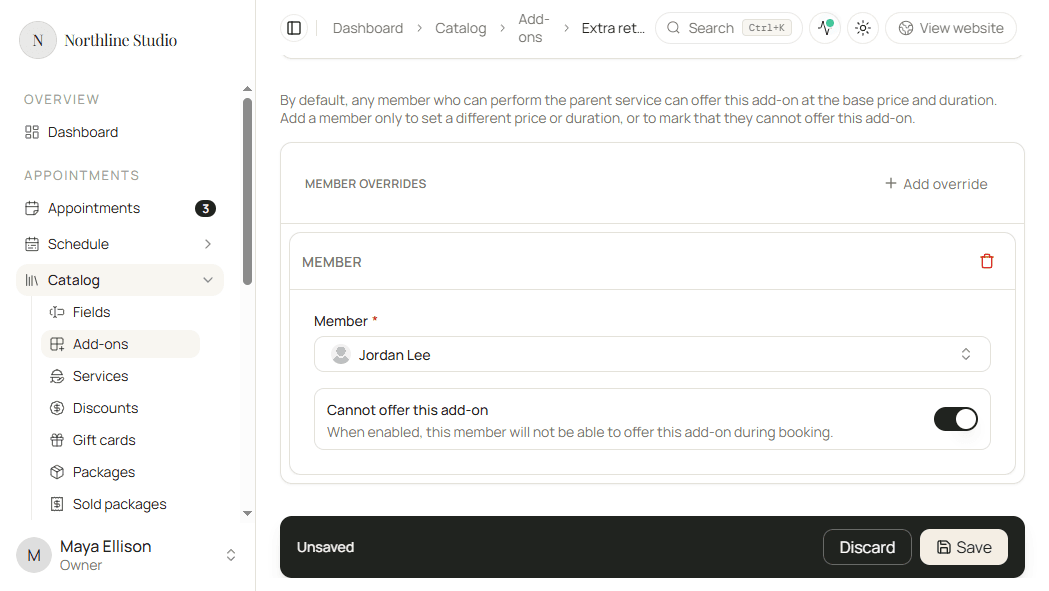
- Or turn Cannot offer this add-on on so that member cannot offer the add-on during booking. Price and duration overrides hide while that switch is on.
- To remove an override, click the trash control on that card and confirm Delete in the dialog, or Cancel to keep it.
Good to know
- You can also start from an existing add-on: open the row menu and choose Clone, then edit and save.
- An add-on is not offered on a booking until you attach it on a service.
- Each member can appear in at most one override card on the same add-on.