Listing packages
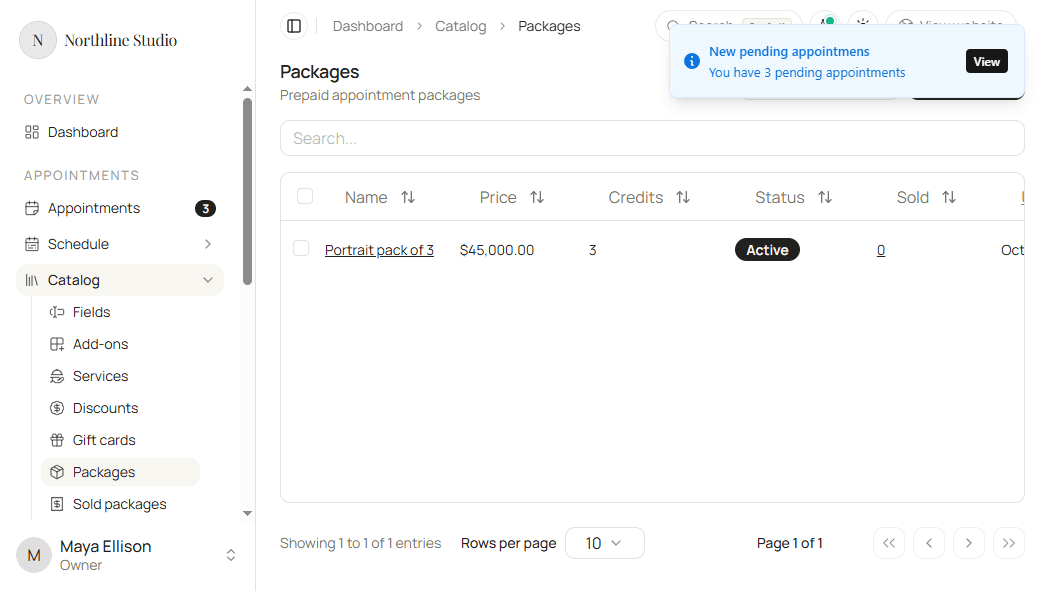
The Packages list shows every prepaid package in your catalog. Use it to find a package, open one to edit, sell it to a customer, or delete it when it has no purchases.
Open Appointments → Catalog → Packages.
Add a package
- Click Add New.
Search
- Click the search box above the table.
- Type part of the package name.
The list updates to matching rows. Clear the box when you want every package again.
Row menu
- Open the menu on a package row.
- Choose Update, Sell (when the package is Active), or Delete.
- Update opens the package for editing. You can also click the package name.
- Sell opens the sell dialog. See Selling a package.
- Delete asks you to confirm. Delete fails if the package already has purchases. See Deleting a package.
Good to know
Saving a package does not put it on your public booking page by itself. Manage availability under Services and packages.