Creating a new package
Add a package when clients should buy a prepaid bundle of visits for one service. After you save, sell it from Catalog or list it for public booking under Settings → Appointments → Services and packages.
Before you start
- Create the service the package redeems.
- Know the package Price, how many Sessions are included, and whether credits expire.
- Decide whether Eligible staff should restrict who can perform redeemed visits.
Create the package
- Open Appointments → Catalog → Packages.
- Click Add New.
The New package form opens.
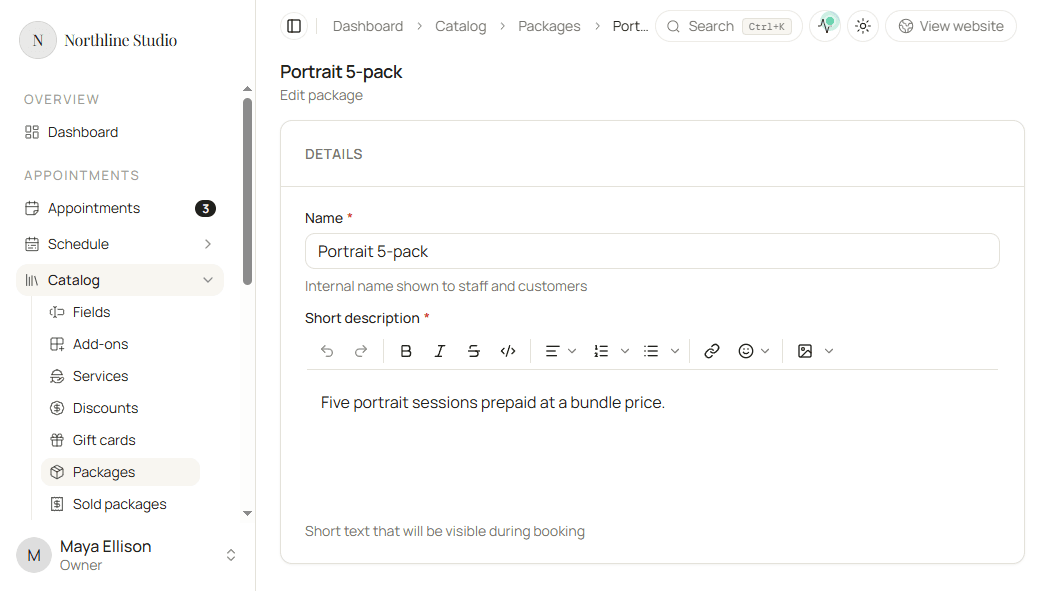
Details
- Enter a unique Name. Staff and customers see this name.
- Enter a Short description. Use the markdown editor for formatting clients see during booking.
Example: name Portrait 5-pack, description “Five portrait sessions prepaid at a bundle price.”
Service
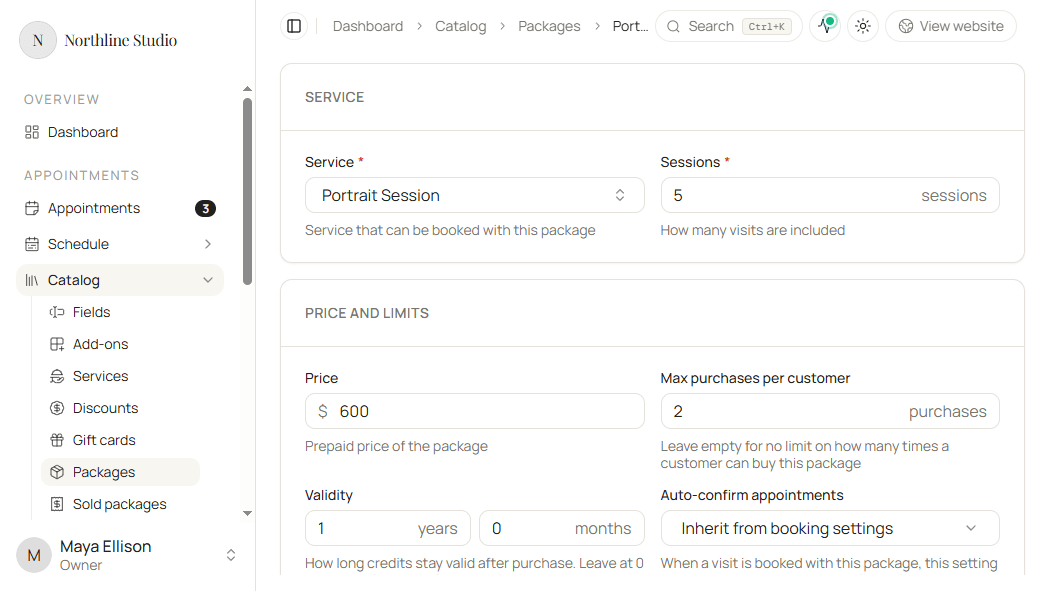
- Pick the Service this package redeems. Every visit sold with this package must be that service.
- Set Sessions to how many visits (credits) are included. Each redemption uses credits when the customer books.
Example: Portrait Session + 5 sessions → five visits of Portrait Session after purchase.
Price and limits
Same screenshot shows price, purchase cap, validity, and auto-confirm.
| Field | What it does | Example |
|---|---|---|
| Price | Prepaid price charged when the package is sold (or listed for online purchase). | $600 for five sessions |
| Max purchases per customer | How many times one customer may buy this package. Leave empty for no per-customer buy limit. | 2 → that person can own at most two of these packs |
| Validity | How long credits stay valid after purchase (years + months). 0 years and 0 months = never expire from age alone. | 1 year 0 months → credits expire one year after buy |
| Auto-confirm appointments | When a visit is booked using this package, overrides the service auto-confirm rule. | Inherit from booking settings, Always, or Never |
Auto-confirm options
| Option | Effect on package redemptions |
|---|---|
| Inherit from booking settings | Follow the service / workspace auto-confirm rules. |
| Always | Package visits confirm without staff approval. |
| Never | Package visits stay pending until you confirm. |
Eligible staff
By default, any member assigned to the Service can perform visits paid with this package.
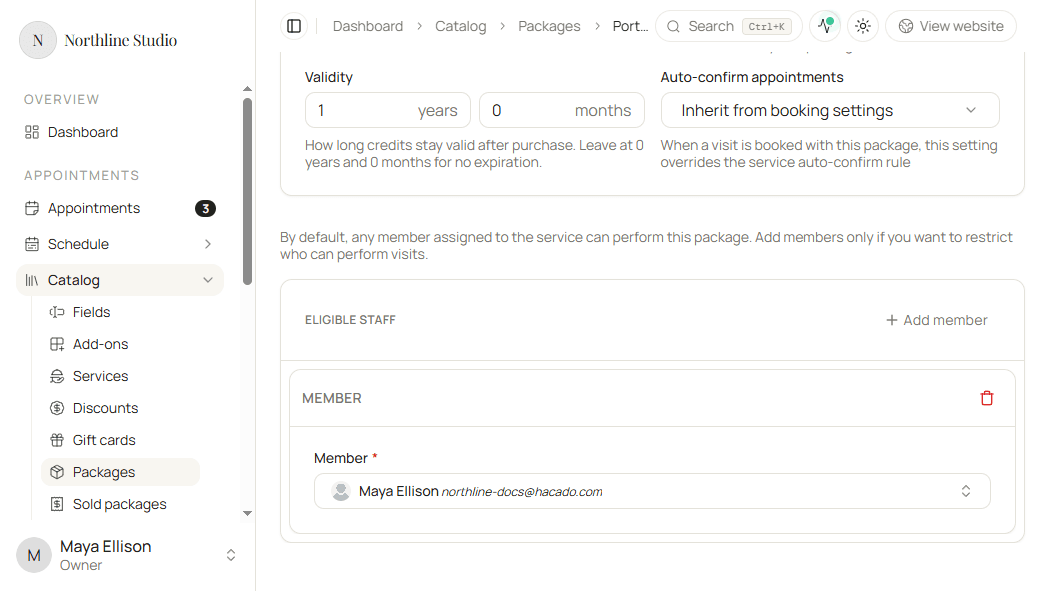
- Click Add member only when you want to restrict who can perform those visits.
- Pick a Member on each card.
- Remove a card when that person should leave the restricted list.
If the list is empty, anyone who can deliver the service can redeem the package. If you add members, only those members can perform package visits.
Example: only Maya Ellison on Eligible staff → package bookings cannot be assigned to other photographers even if they offer Portrait Session.
Save
- Click Save.
Hacado opens the saved package so you can keep editing.
There is no create-time booking-availability dialog for packages. Add the package under Services and packages when clients should buy it on your booking page.
Good to know
- To issue a package from the admin without public booking, use Selling a package after the package is Active.
- Promo codes that should only discount this package use Limit to → packages on a discount.