Get to know your dashboard
After setup, Hacado opens your dashboard. This is where you run the business day to day. The side menu takes you to other tools. The tabs on this screen keep the morning briefing in one place.
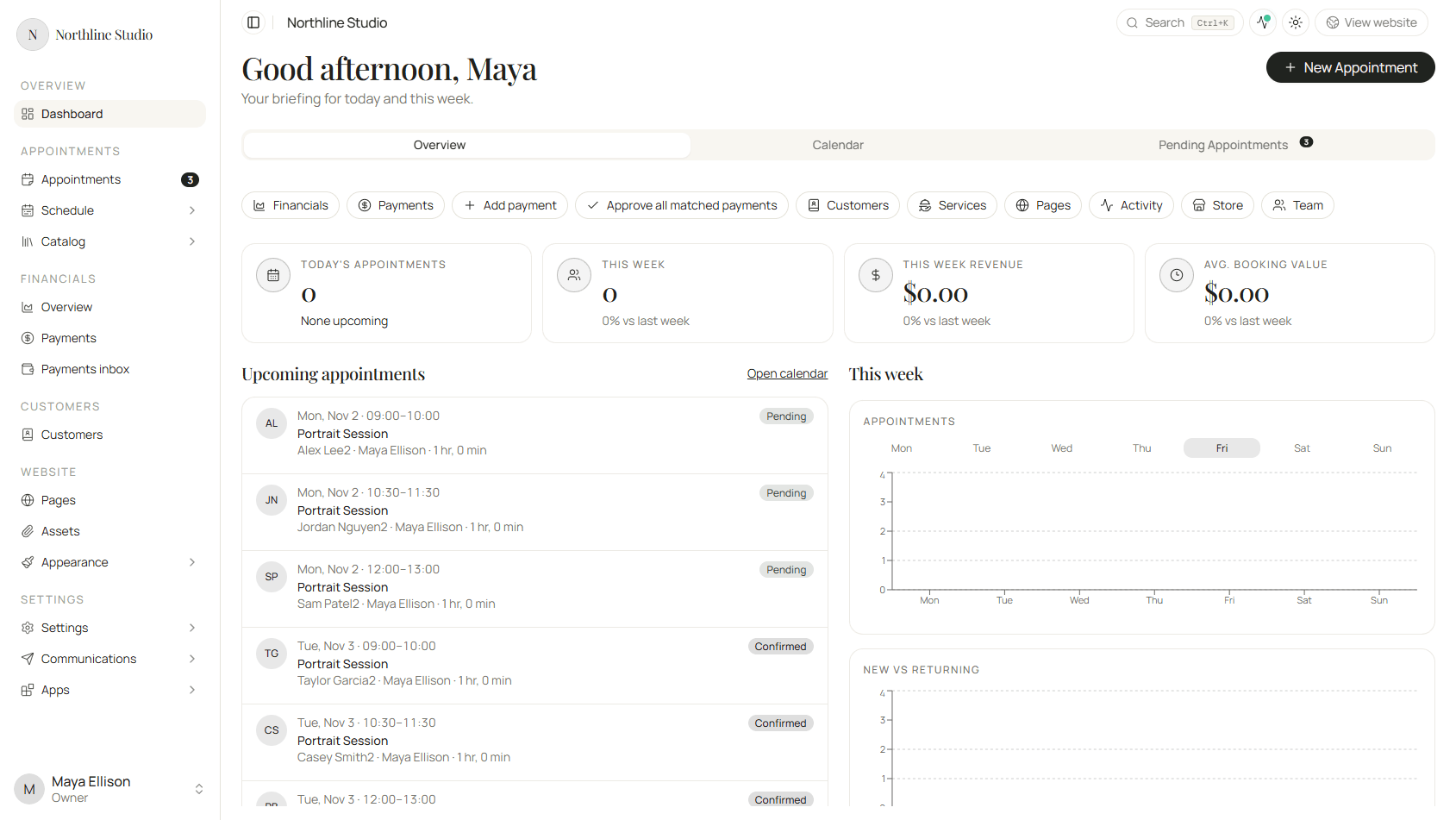
The side menu
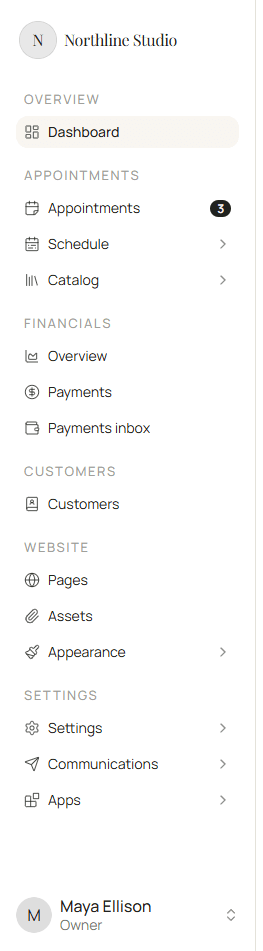
The left menu groups everyday work. Click a label to open that area. Some rows open a short list when you click the arrow.
| Group | What it is for |
|---|---|
| Overview | The Dashboard home you are on now. |
| Appointments | Every booking, your weekly hours under Schedule, and bookable items under Catalog. |
| Financials | Money in and out. You can leave this for later. |
| Customers | People who have booked or that you added by hand. |
| Website | Public pages, images, and site appearance. |
| Settings | Brand, booking rules, messages, and apps. |
Your name at the bottom opens your personal account. View website at the top opens your public booking site.
The tabs
On the dashboard home, three tabs sit under the greeting. Installed apps can add more tabs later; this tour covers the ones that are always there.

Overview
Overview is your briefing for today and this week.

- The number cards show today’s appointments, this week’s count, revenue, and average booking value.
- Quick links under the tabs jump to common places such as Customers, Services, and Store.
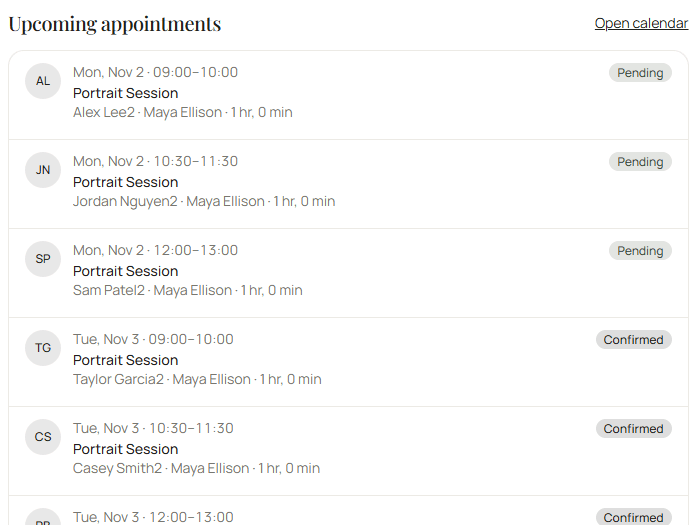
- Upcoming appointments lists the next visits. Click a row to open that booking.
- This week shows a small chart of how busy the week looks.
- Needs attention calls out work that waits on you, such as pending requests.

Click Review on that banner to jump to the Pending Appointments tab.
Calendar
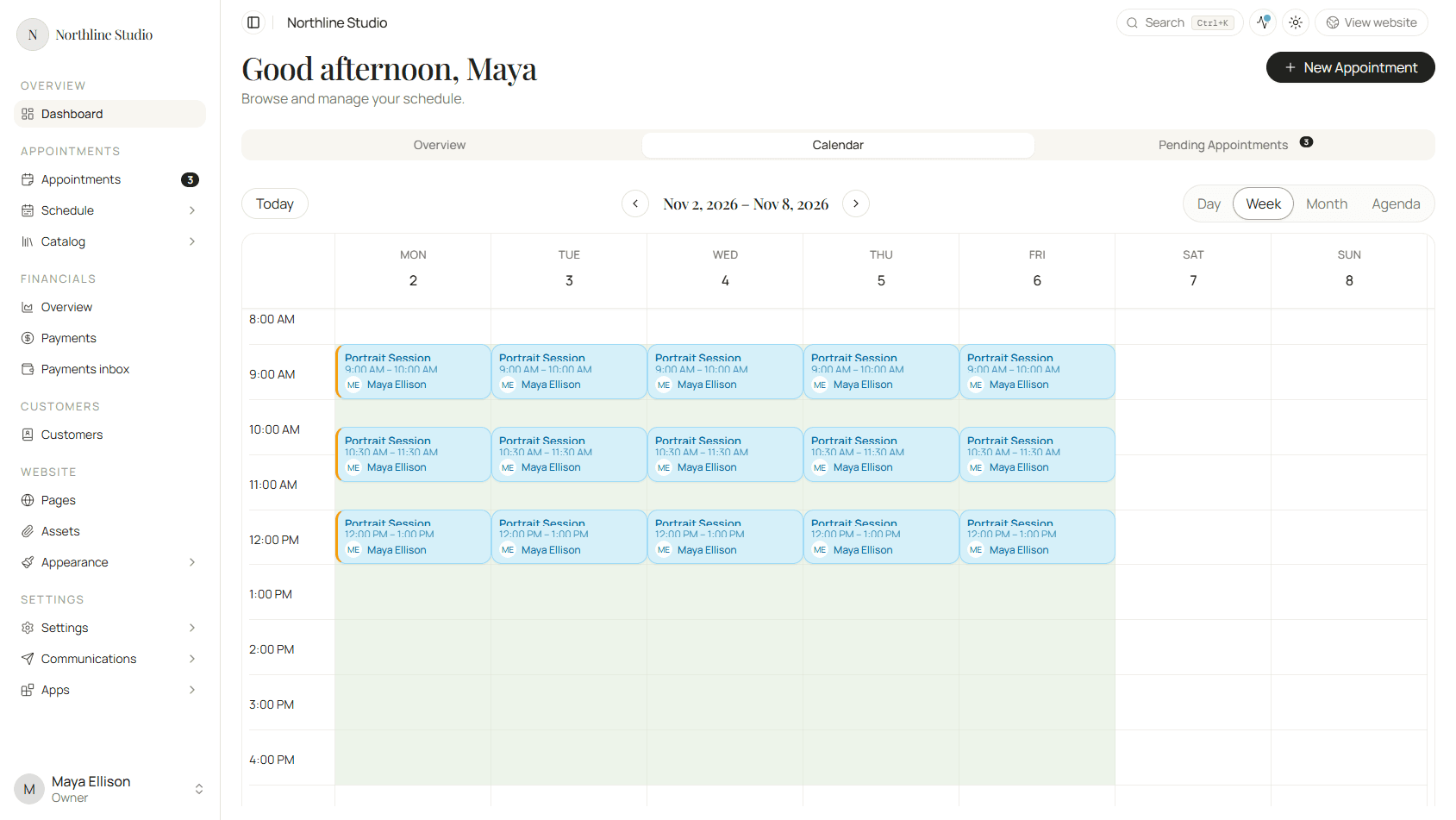
Calendar shows the same bookings on a day, week, month, or agenda layout. Use Today and the arrows to move around. Click an appointment block to open it.
Pending Appointments
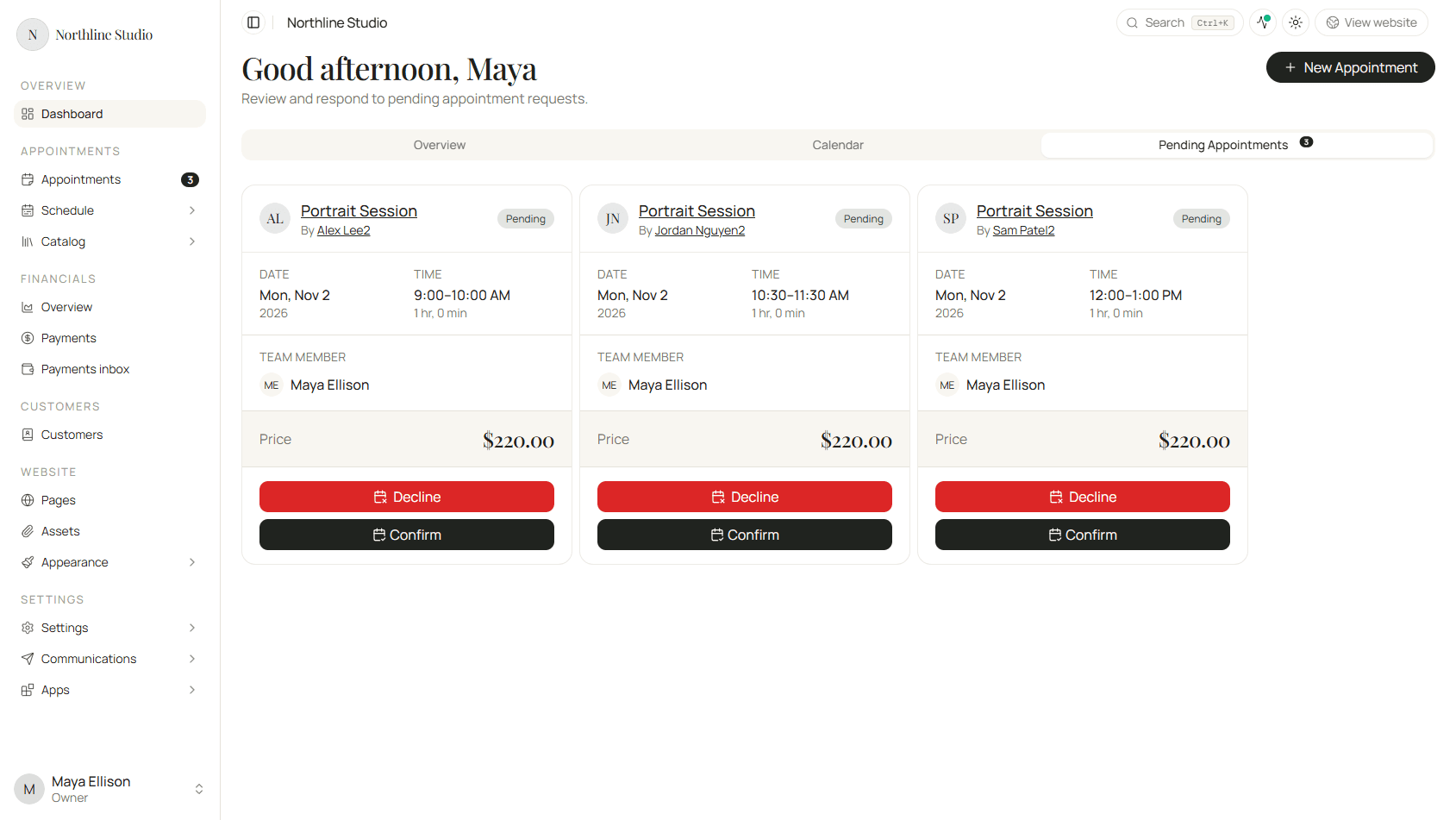
Pending Appointments lists booking requests that still need your answer. Each card shows the service, client, time, and price. Use Confirm to accept or Decline to turn it down.
If you turn on Auto-confirm bookings in payments settings, new bookings skip this list and land as confirmed. You can still open any booking later under Appointments.
What to do next
Work through the checklist starting with Complete your business profile. When bookings start coming in, return here each morning.