Updating an existing service
Change a service when the name, length, price, staff, or policies no longer match how you book. Edits apply the next time someone books that service. Past appointments keep what they already stored.
Open the service
- Open Appointments → Catalog → Services.
- Click the service name, or open the row menu and choose Update.
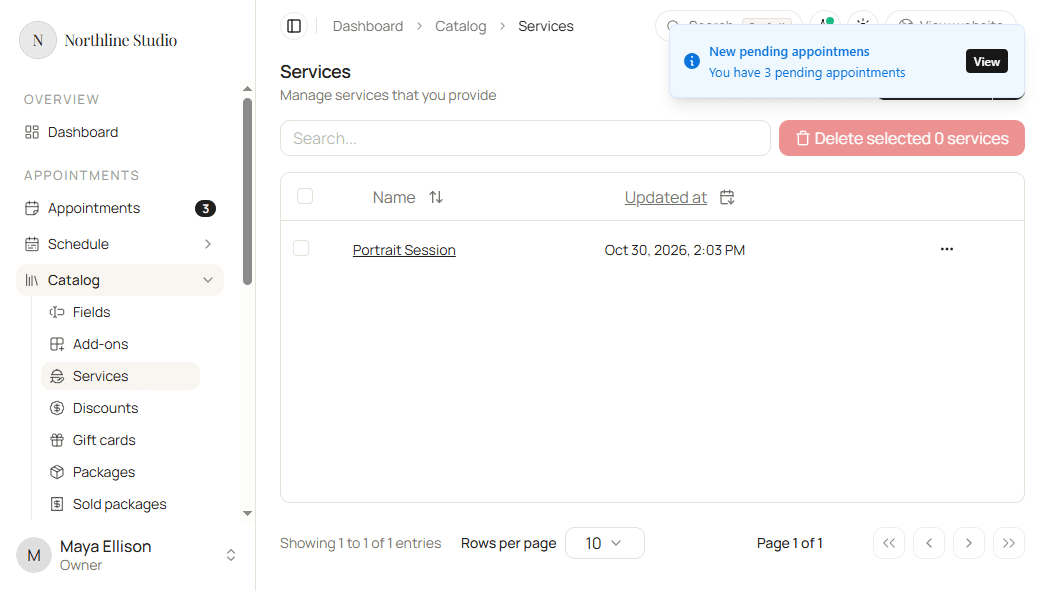
The form opens on General, with the same tabs as create: Fields, Add-ons, Staff, Payments, Duplicates, Cancellations, and Reschedules.
Change General settings
- Update Name or Short description when clients should see different wording.
- Switch Duration type between Fixed and Flexible when the booking length model changes.
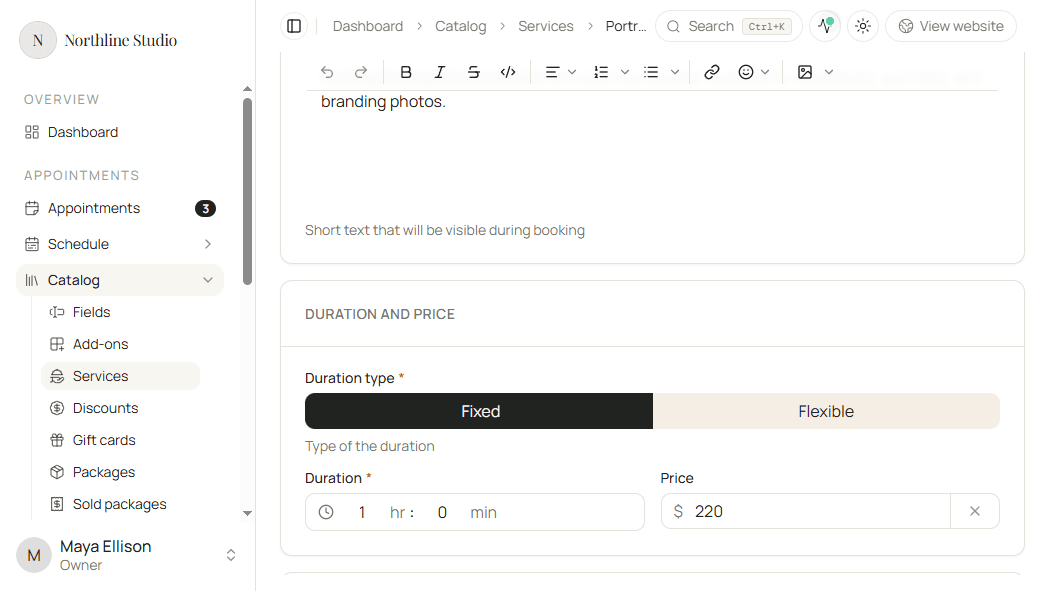
- For Fixed, edit Duration and Price.
- For Flexible, edit Minimum duration, Duration max, Duration step, and Price per hour.
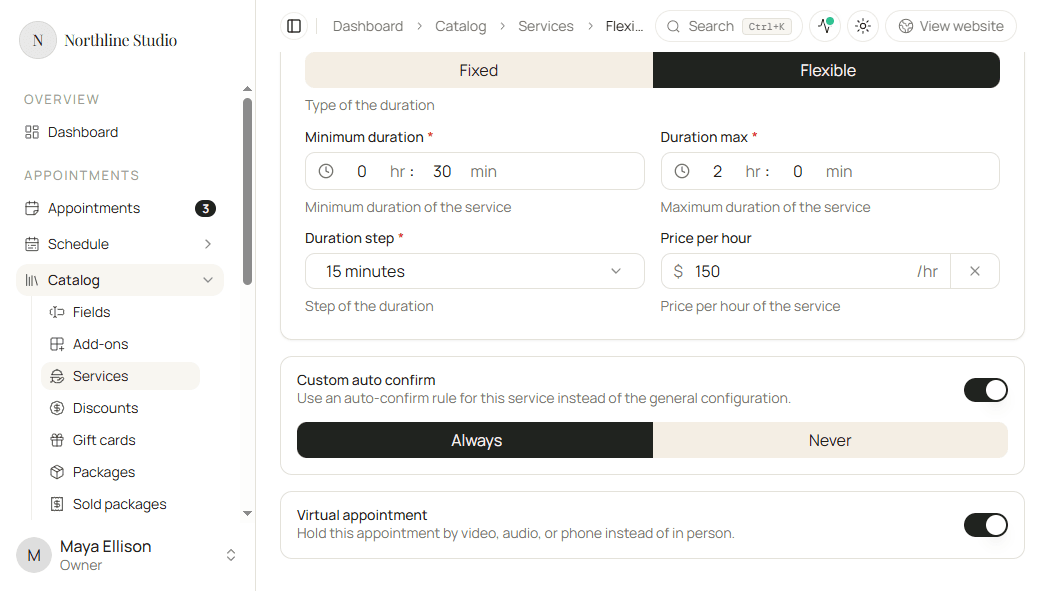
- Turn Custom auto confirm on or off, and choose Always or Never when it is on.
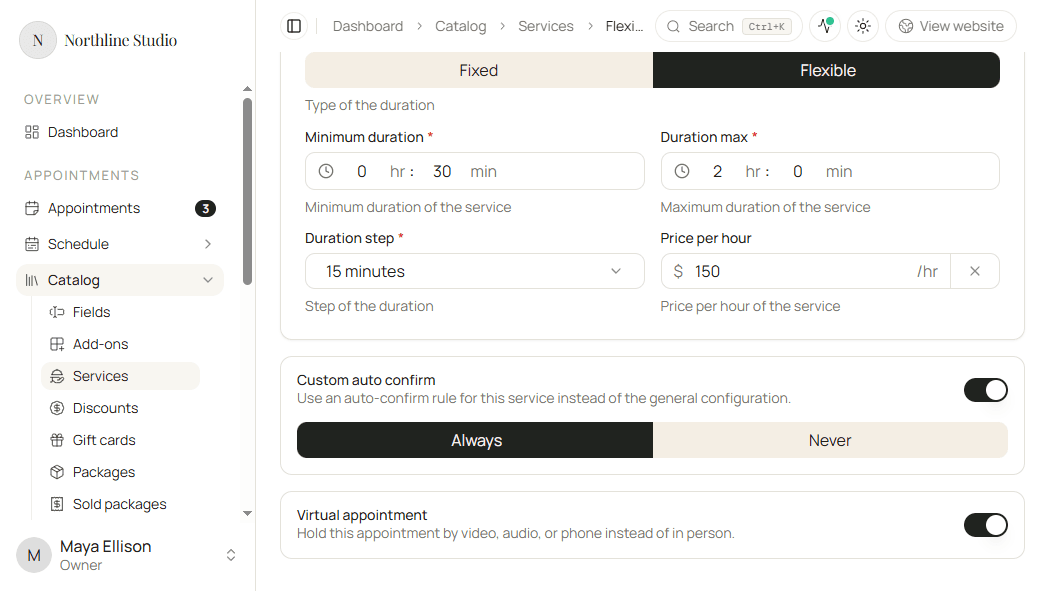
- Turn Virtual appointment on or off.
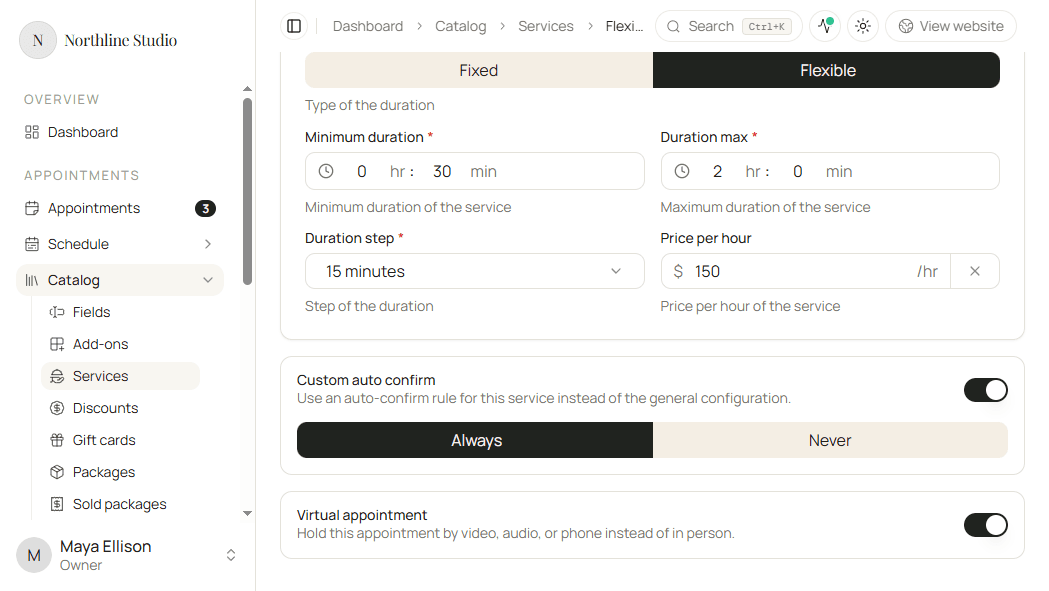
If you turn it on, each staff member on the service still needs a Meeting URL provider on their profile - yours under Profile (/dashboard/users/me/profile), or a teammate’s under Settings → Team → their profile (/dashboard/settings/team/<memberId>/profile). See Creating a new service.
Good to know
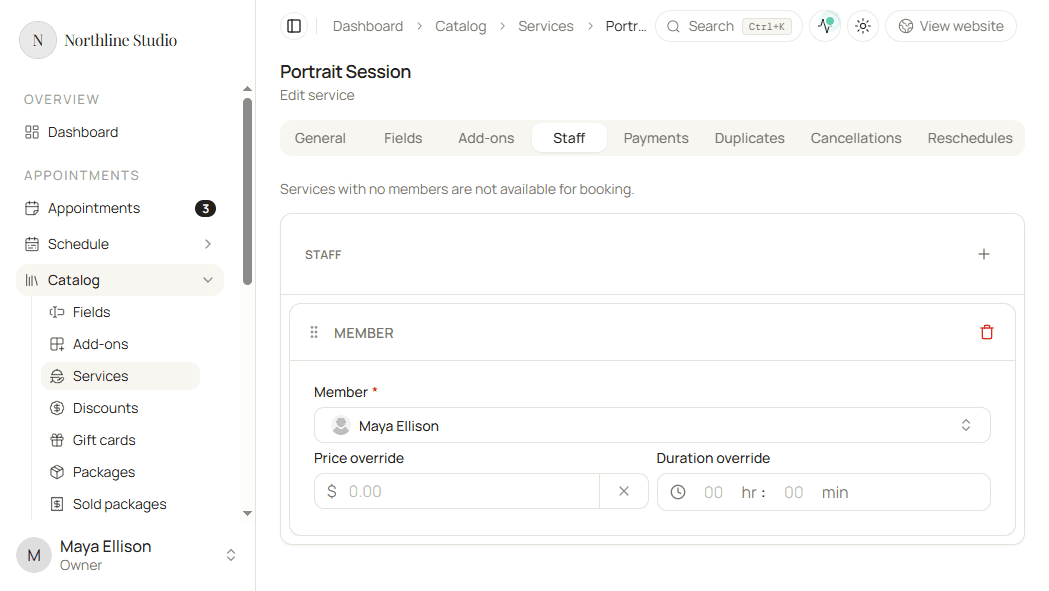
Switching to Flexible clears per-member duration overrides on the Staff tab. Price overrides stay.
Fields, Add-ons, and Staff
Use the same controls as when creating:
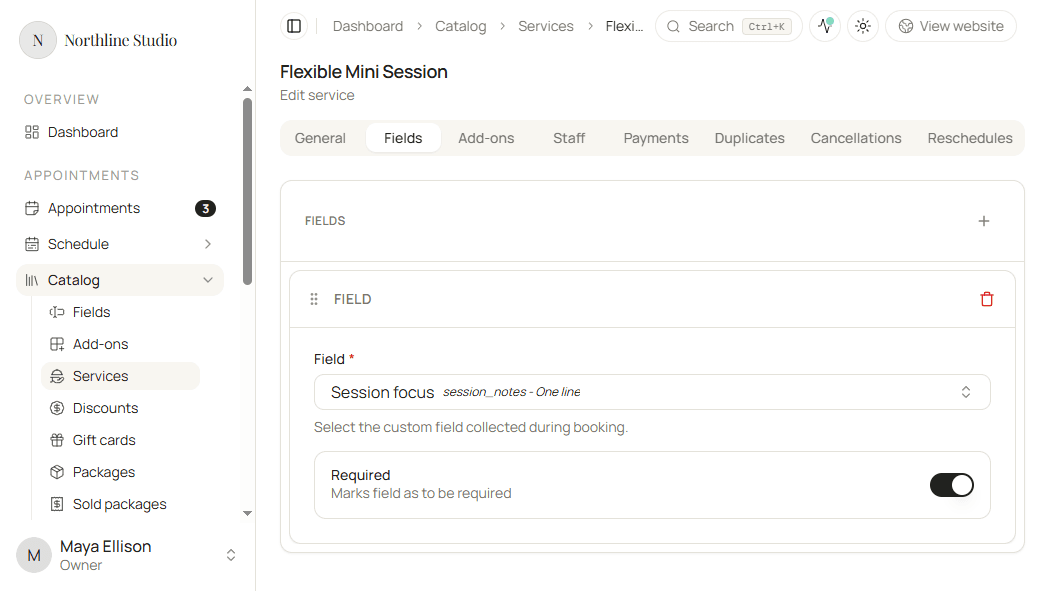
- Fields - add, reorder, or remove field cards. See Fields.
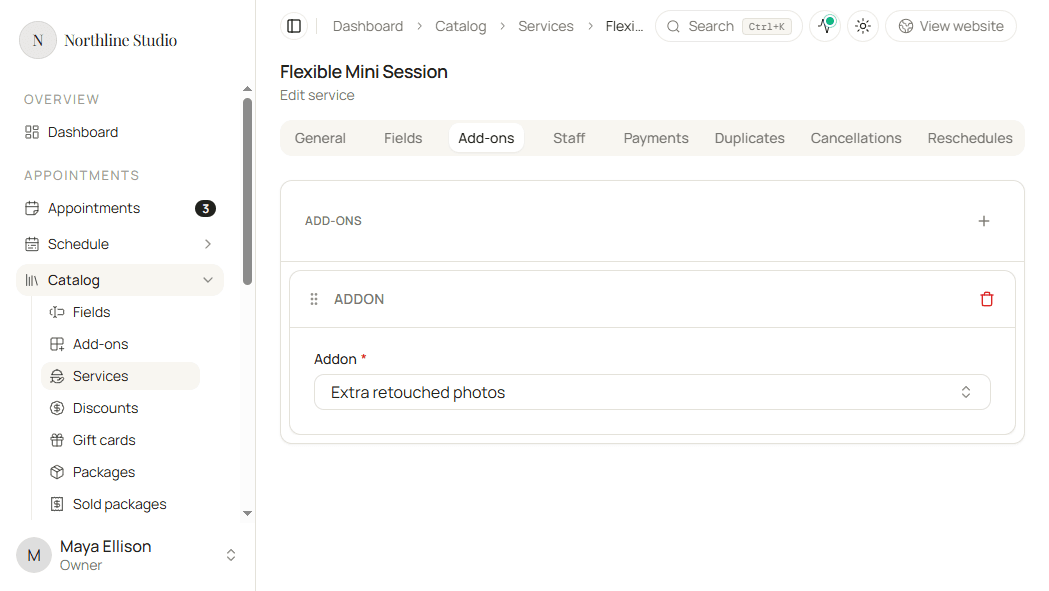
- Add-ons - add, reorder, or remove add-on cards. See Add-ons.
- Staff - assign members, set Price override and (for Fixed) Duration override, and reorder cards. Keep at least one member if clients should still be able to book.
Payments, Duplicates, Cancellations, and Reschedules
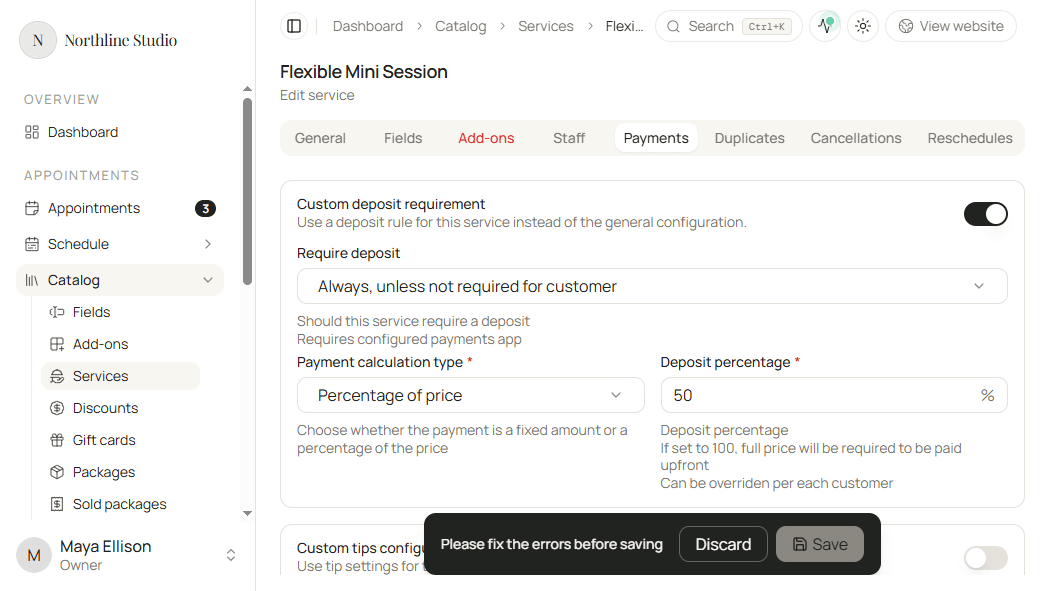
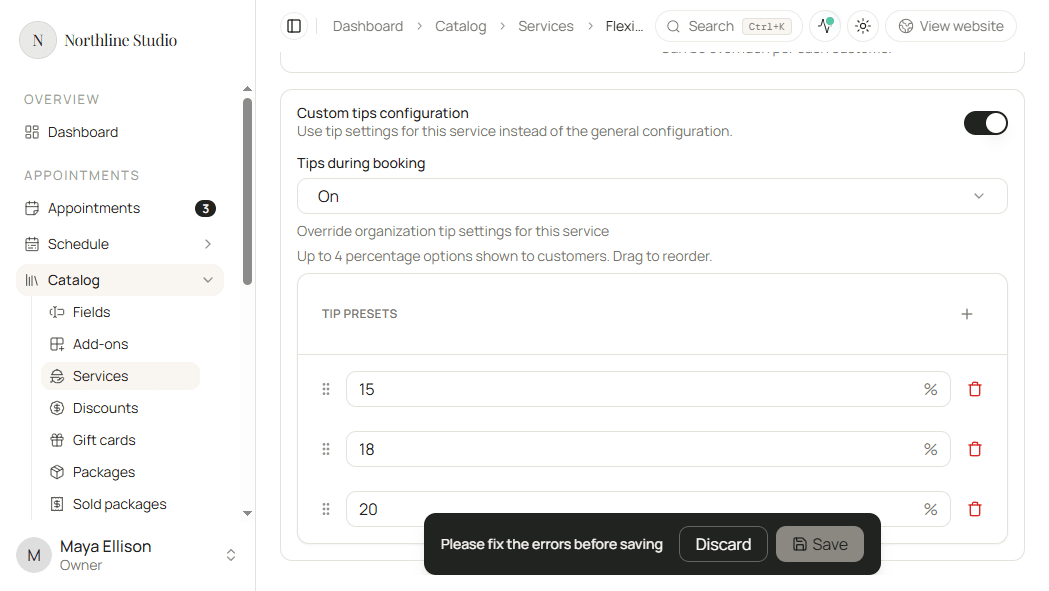
- Payments - turn Custom deposit requirement or Custom tips configuration on or off, then adjust deposit and tip options.
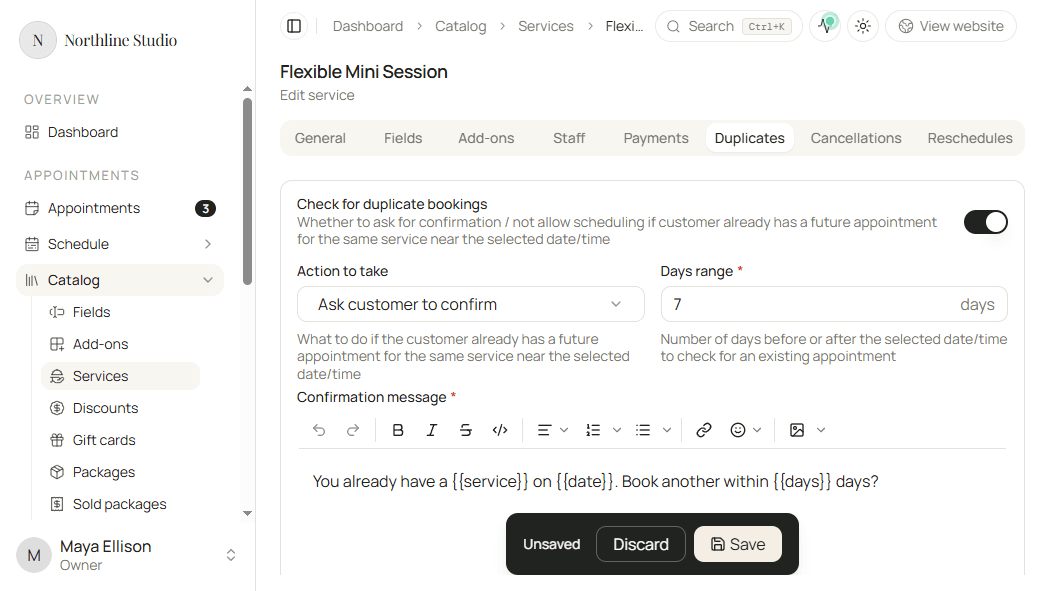
- Duplicates - enable or disable Check for duplicate bookings, then update the action, days range, and message.
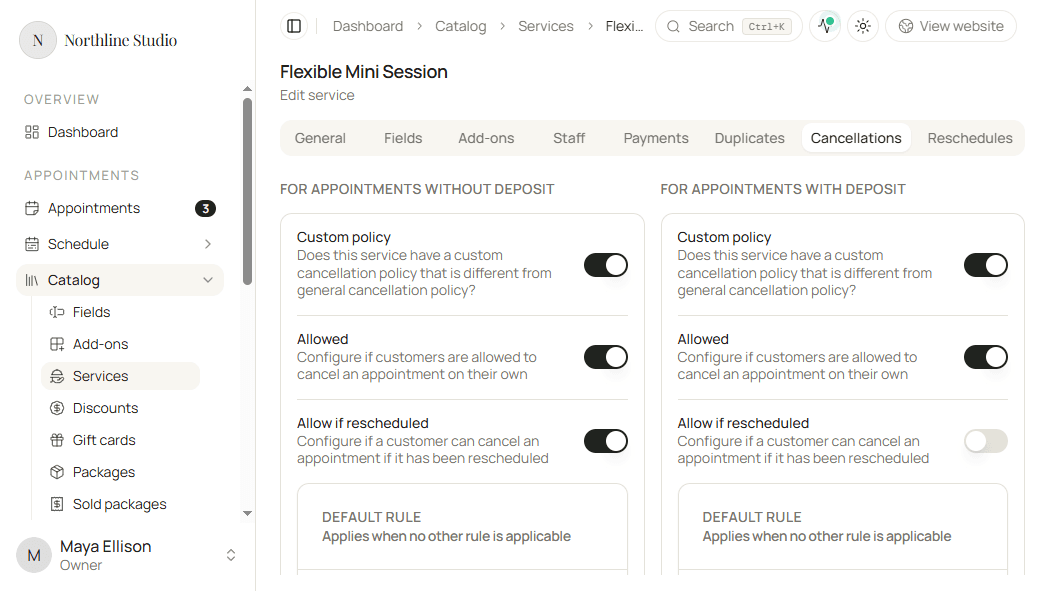
- Cancellations - for appointments with or without a deposit, set a Custom policy and its rules.
- Reschedules - set a Custom policy, enable rescheduling, and adjust limits and rules.
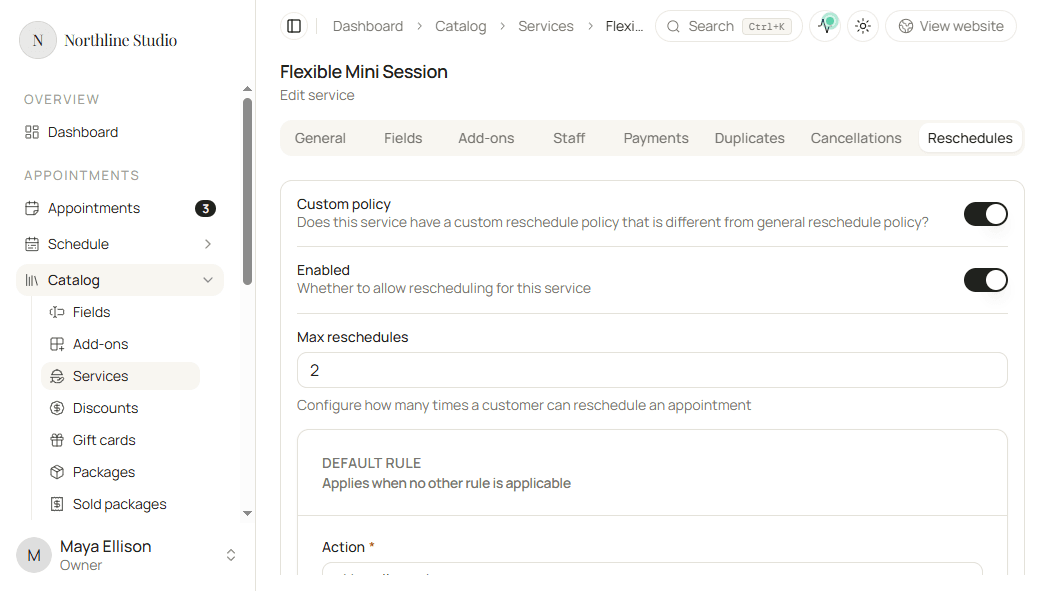
Full create-time detail for each control is in Creating a new service.
Save
- Click Save.
Hacado keeps you on the service page and confirms that your changes were saved.
Updating a service does not change whether it appears on the booking page. Manage that under Services and packages. The post-create availability dialog appears only when you first create a service.
Good to know
For a lighter first pass on names and prices, see Set up your services.