Creating a new discount
Add a discount when clients should pay less by entering a promo code during booking or package checkout. After you save, any of the codes you added work while the discount is Active and within its date, usage, and Limit to rules.
Before you start
- Know whether the discount is a Percentage or a Fixed amount, and the value.
- Decide which promo codes clients will enter (1–10, unique across your discounts).
- Optionally decide which services, add-ons, or packages the code may apply to.
Create the discount
- Open Appointments → Catalog → Discounts.
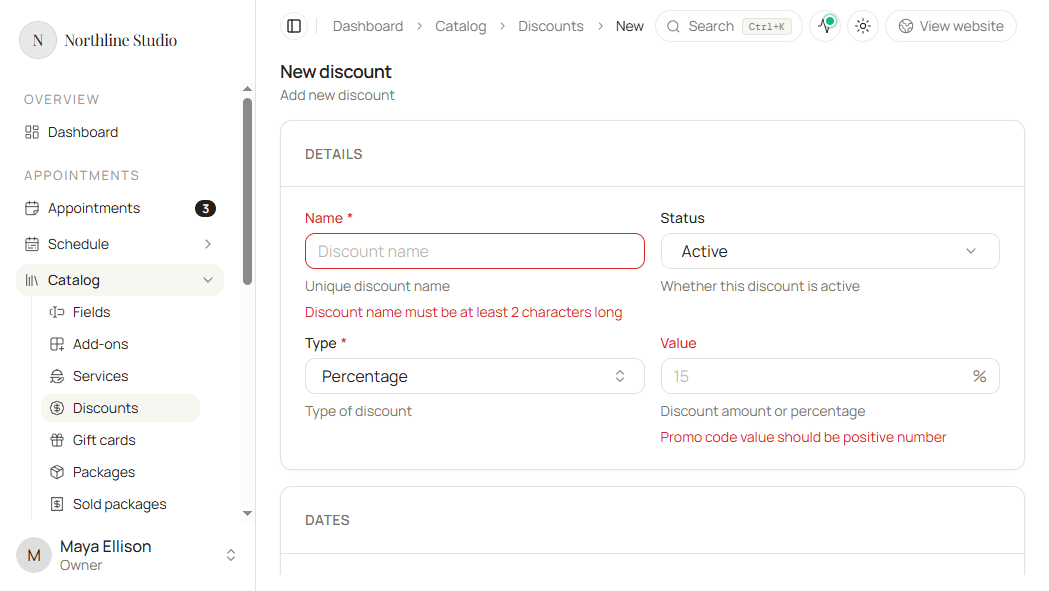
- Click Add New.
The New discount form opens.
You can also open an existing row menu and choose Clone.
Details
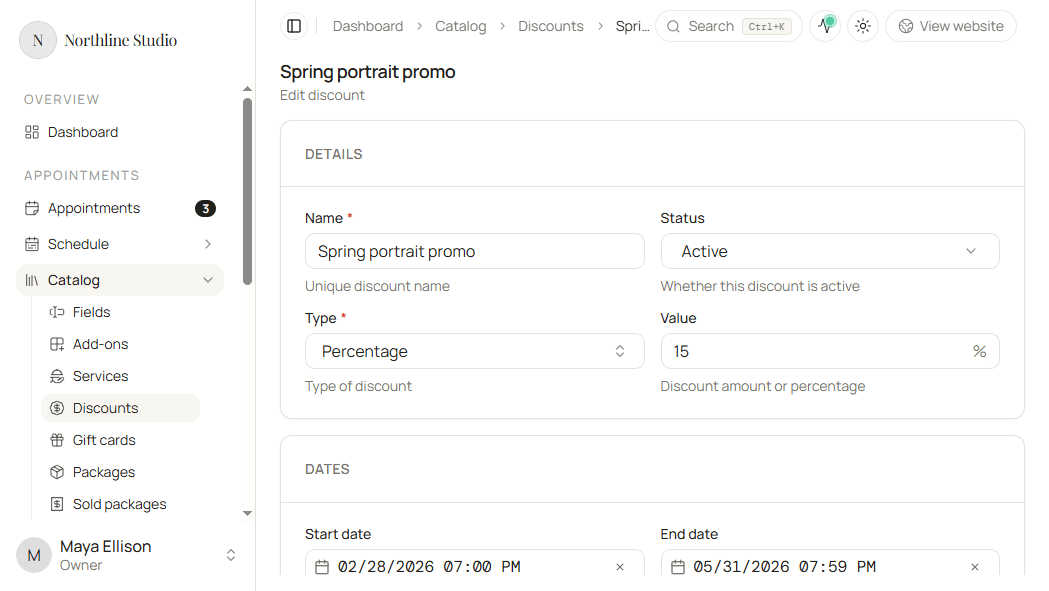
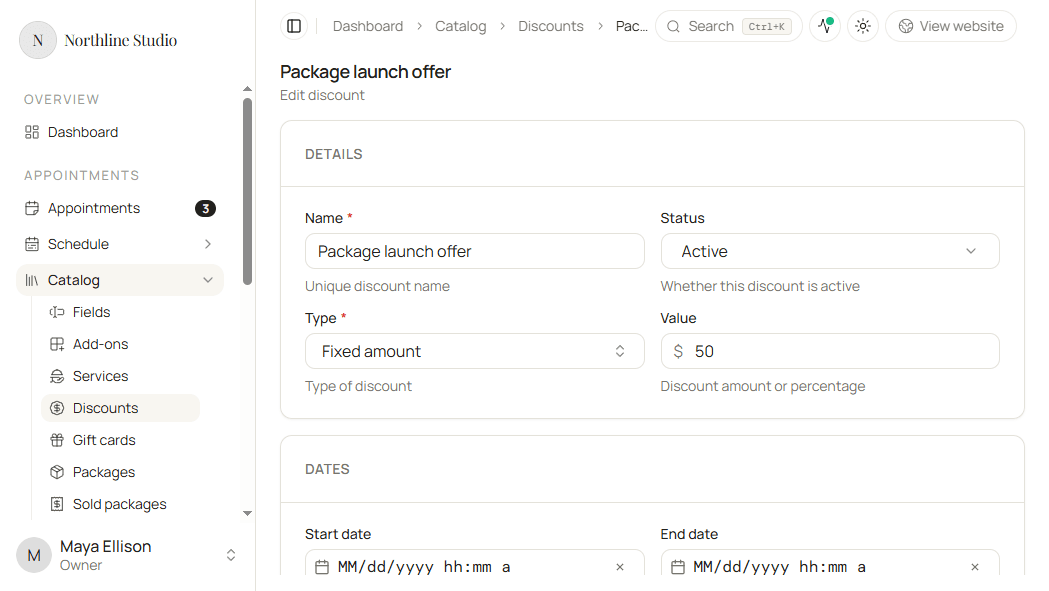
- Enter a unique Name (internal label; clients never see this).
- Set Status:
- Active - codes can apply when other rules allow.
- Disabled - codes never apply, even if dates and limits would match.
- Choose Type:
- Percentage - take a percent off the eligible price (for example 15 → 15%). Value must be 1–100.
- Fixed amount - take a set currency amount off (for example 50 → $50). Hacado never reduces a line below zero.
- Enter Value for that type.
Example: Percentage + 15 with code SPRING15 takes 15% off a matching booking. Fixed amount + 50 with code PACK50 takes $50 off a matching package purchase.
Dates
All four date fields are optional. Leave them empty when the discount should not be time-bound beyond Status.
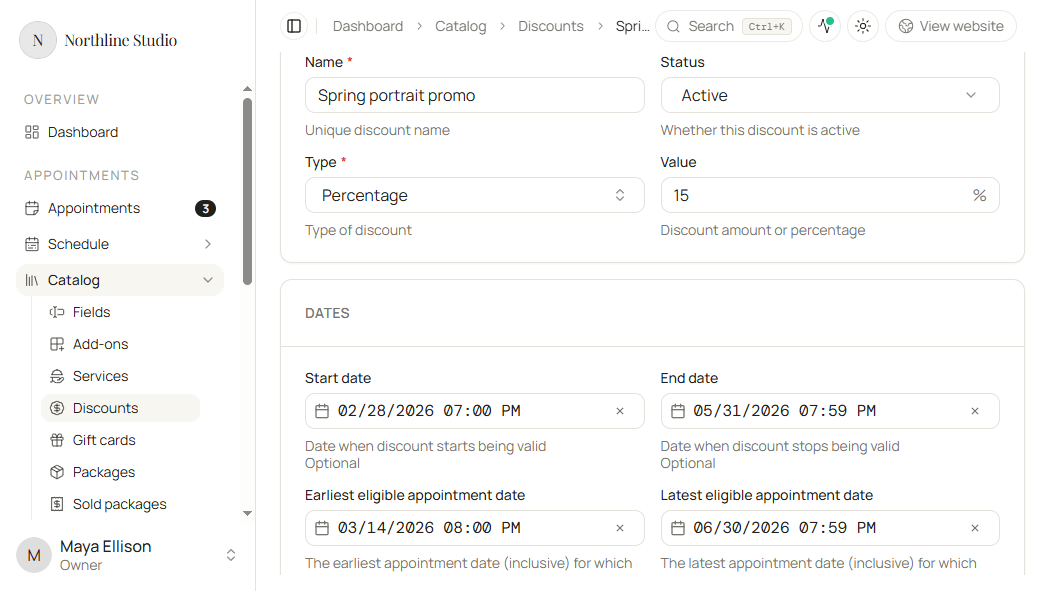
| Field | What it controls | Example |
|---|---|---|
| Start date | Earliest moment a client may enter the code | Promo opens 28 Feb |
| End date | Latest moment a client may enter the code | Promo closes 31 May |
| Earliest eligible appointment date | Appointment (or package-related booking) datetime must be on or after this | Only sessions on/after 15 Mar |
| Latest eligible appointment date | Appointment datetime must be on or before this | Only sessions on/before 30 Jun |
Start / End gate when the code can be redeemed. Earliest / Latest eligible appointment gate which appointment times the discount may cover. You can sell a spring booking sale in March that only applies to sessions in late spring.
Example with both: clients may apply SPRING15 from late February through May, but only if the appointment itself falls between mid-March and end of June.
Maximum uses
| Field | What it does | Example |
|---|---|---|
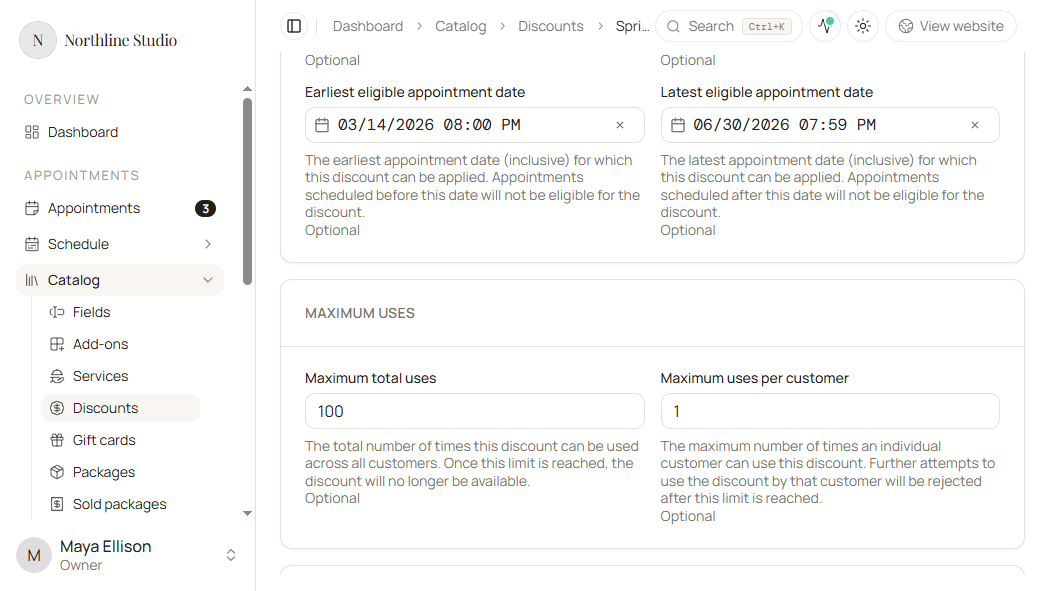
| Maximum total uses | Cap across all customers (confirmed + pending appointments that used this discount). When reached, nobody else can use it. | 100 total redemptions workspace-wide |
| Maximum uses per customer | Cap for one customer. Further attempts by that person fail. | 1 → each client uses the code once |
Leave empty for no usage caps beyond dates, status, and Limit to.
Example: 100 total and 1 per customer → up to 100 different customers can each use the code once.
Promo codes
Clients must enter one of these codes to apply the discount. At least one code is required; up to 10 per discount.
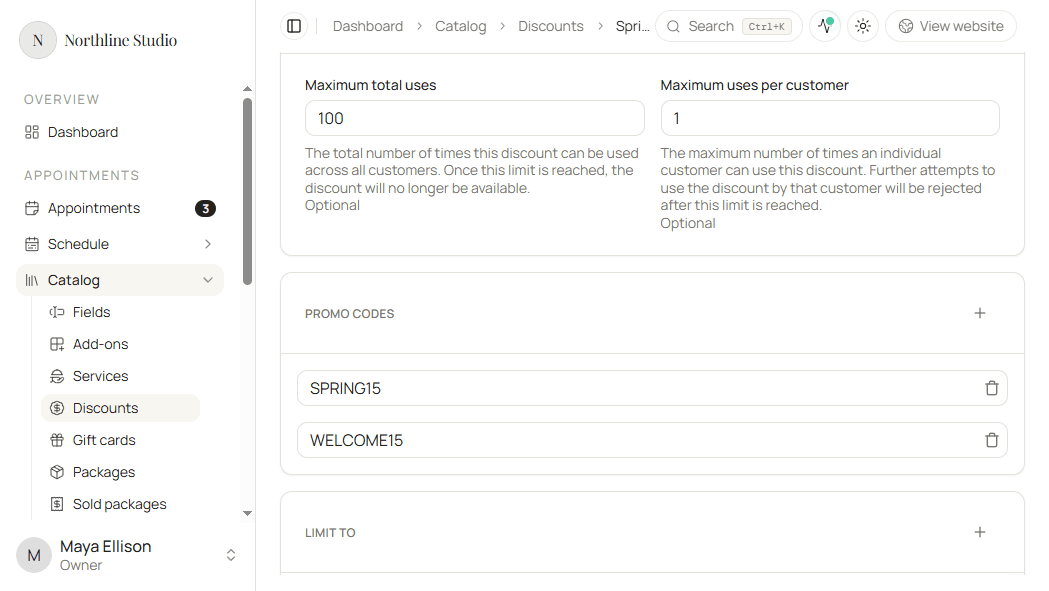
- Click + under Promo codes to add a row.
- Enter the code (for example
SPRING15). Minimum 3 characters. - Add more codes as needed (for example a second public code
WELCOME15). - Remove a code with the trash control when that string should stop working.
Good to know
- Each code must be unique across all discounts in the workspace.
- Different codes on the same discount share the same rules, dates, and usage counters.
Limit to
By default (no limit cards), the discount can apply to any service booking or package purchase that otherwise matches dates and usage.
Use Limit to when the code should only work for specific items. Multiple limit cards are combined with Or: the booking matches if any card matches.
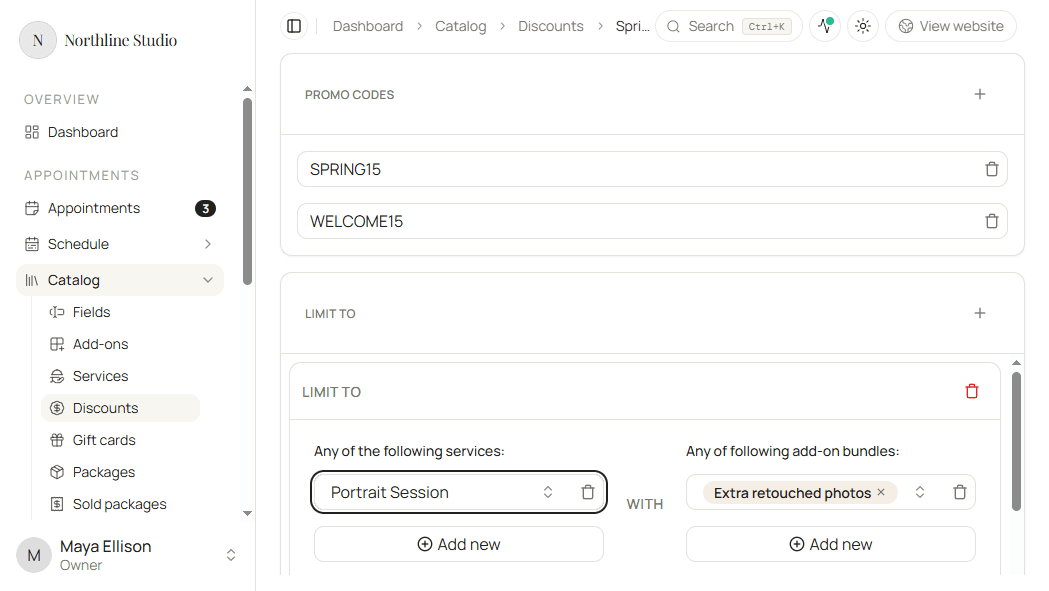
Anatomy of one limit card
Inside a card:
| Area | Label in the UI | Matching rule |
|---|---|---|
| Services | Any of the following services | Booking service must be one of the listed services. Empty = any service for this card’s service side. |
| Add-on bundles | Any of following add-on bundles (joined with With) | At least one bundle must fully match: every add-on in that bundle must be on the booking. Empty = no add-on requirement. |
| Packages | Any of following packages (under Or) | For package purchases, the package must be one of the listed packages. Empty = no package list on this card. |
Service bookings and package purchases are separate:
- A card that only lists services / add-ons applies to service bookings, not to buying a package.
- A card that only lists packages applies to package purchases, not to ordinary service bookings.
- A service booking never matches just because a package that contains that service exists.
Examples
1. Service + required add-on
One card: service Portrait Session, add-on bundle Extra retouched photos.
- Portrait Session with Extra retouched photos → discount applies.
- Portrait Session alone → does not apply.
- Flexible Mini Session with that add-on → does not apply (wrong service).
2. Service only (any add-ons)
One card: service Flexible Mini Session, no add-on bundles.
- Any Flexible Mini Session booking matches, with or without add-ons.
3. Two cards = Or
Card A: Portrait Session with Extra retouched photos.
Card B: Flexible Mini Session (no add-on requirement).
- Portrait + Extra retouched photos → matches card A.
- Flexible Mini Session → matches card B.
- Portrait alone → matches neither.
4. Package purchase only
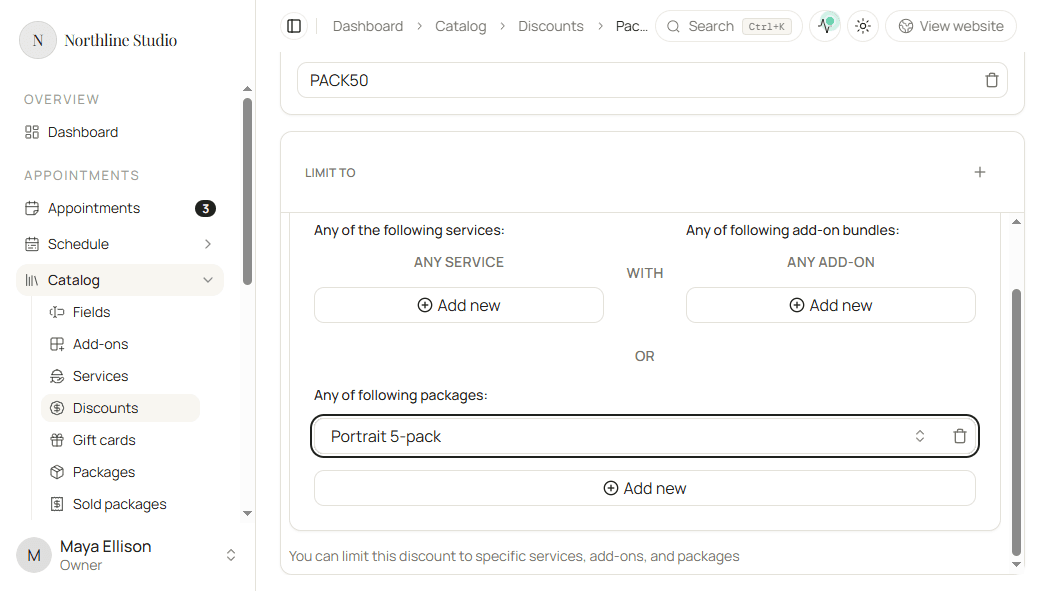
One card: package Portrait 5-pack, no services.
- Buying that package with the code → applies.
- Booking Portrait Session as a normal appointment → does not apply.
5. Unrestricted
No limit cards → any service or package purchase can use the code (still subject to dates and max uses).
Build a limit card
- Under Limit to, click + to add a card.
- Under Any of the following services, click Add new and pick a service. Repeat for more services on the same card (any one of them can match).
- Under Any of following add-on bundles, click Add new and pick one or more add-ons in that bundle. Every add-on in a bundle must be present on the booking. Add another bundle row when an alternate add-on set should also qualify.
- Under Any of following packages, click Add new and pick a package when this card is for package checkout.
- Add another Limit to card for an alternate path (Or).
- Remove a card with Remove limit when that path should no longer qualify.
Save
- Click Save.
Hacado opens the saved discount so you can keep editing.
Good to know
- Clients apply codes on the booking payment / checkout step, not in Catalog.
- Changing Status to Disabled stops all codes immediately without deleting the discount.