Text messaging
Settings → Text messaging lets customers opt in to texts on your booking and waitlist forms.
Open Settings in the side menu, then Text messaging. Or use the Text messaging card on the Settings hub.
Every plan can turn this on, including Free. You can buy SMS credits on Brand → General. Free always uses Hacado’s built-in wording. Custom templates start on the Solo plan.
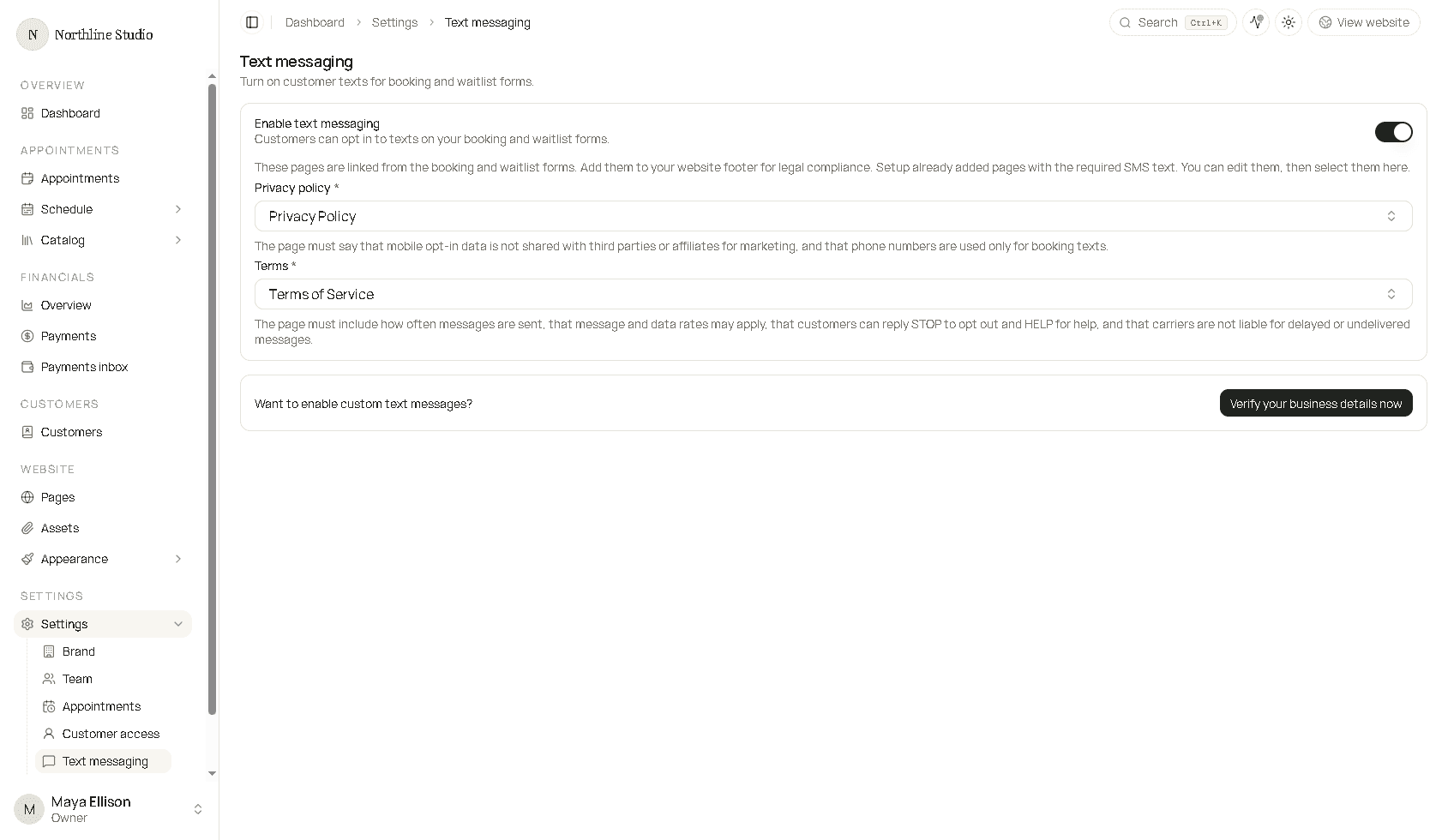
Enable text messaging
- Turn on Enable text messaging.
- Select your Privacy policy page and Terms page. Both are required.
Setup often already created pages with the required SMS wording. Edit those pages if needed, add them to your website footer, then select them here.
- Click Save.
Customers can then opt in on booking and waitlist forms. The box starts unchecked, and they can finish booking without it. Platform texts use your SMS credits (see billing on Brand → General).
What the texts may say
Once Enable text messaging is on, every customer text has to stay inside this program. The texts are purely transactional. Each one is about a booking, waitlist, payment, or account sign-in that customer already started. They are not marketing.
You may send:
- A request received, confirmed, declined, canceled, rescheduled, or marked as a no-show.
- A reminder before an appointment, or a follow-up after one.
- A waitlist opening, or confirmation that the customer left a waitlist.
- A payment link for an amount you requested.
- A one-time sign-in code. That code can go out without the booking checkbox, and it still stops if the customer has replied STOP.
Keep each message inside these rules:
- Name your business in the text.
- Send it because of that customer’s own booking activity. Do not send promotions, sales, newsletters, or anything that is not about their visit, waitlist, payment, or sign-in.
- Let them opt in on the booking or waitlist form before appointment texts start.
- Let them reply STOP to opt out and HELP for help.
- Tell them that message frequency varies with their appointments, and that message and data rates may apply.
- Use the phone number only for these booking texts. Do not share the number, or the record that they opted in, with anyone for marketing.
What the legal pages must say
| Page | Must include |
|---|---|
| Privacy policy | That mobile opt-in data is not shared with third parties or affiliates for marketing, and that phone numbers are used only for booking texts. |
| Terms | How often messages are sent; that message and data rates may apply; that customers can reply STOP to opt out and HELP for help; that carriers are not liable for delayed or undelivered messages. |
Custom text messages
Custom text messages are on the Solo plan and above. The Free plan never gets them: no custom templates, and no dedicated-number verification.
On Solo and above, the Want to enable custom text messages? banner is only for businesses in the United States and Canada. That is the country on your business profile.

On Solo and above, businesses in every other country already have custom text templates. There is no verification step and no dedicated-number form. Customer texts use the template you save under Communications → Templates.
United States and Canada
Until you verify, customer texts use Hacado’s built-in wording on a shared number. After verification, texts can use a dedicated number and a template you wrote, as long as that template still follows the rules above.
- Click Verify your business details now.
- Fill in business type, legal name, trade name if it differs from the legal name, EIN or business number (a sole proprietor can leave this blank), website, address, and contact person.
- Submit. Review can take up to several business days.
- While review is pending, customers keep using the shared number. When it is verified, open Communications → Templates and select your template where the app asks for one.
If verification fails, open the details from the same settings area, fix the form, and submit again.
Good to know
Turning custom messaging off later starts verification over. You may be given a different number, and replies to the old number will not reach you.
On Solo and above, a connected texting app can use custom templates without the dedicated-number verification. Free still uses the built-in wording.
Related
- Customer access - send sign-in codes by SMS once texts are on
- Text message templates - write the wording apps send
- Apps - Customer Appointment Updates and related notification apps