Creating a new field
Add a field when you need a new question clients can answer during booking. After you save it, attach the field to the services or add-ons that should show it.
Before you start
- Know the question clients should answer and which field type fits it.
- Pick an internal Name that is unique. Use letters, digits, and underscores only.
Create the field
- Open Appointments → Catalog → Fields.
- Click Add New.
The New field form opens with a Details card.
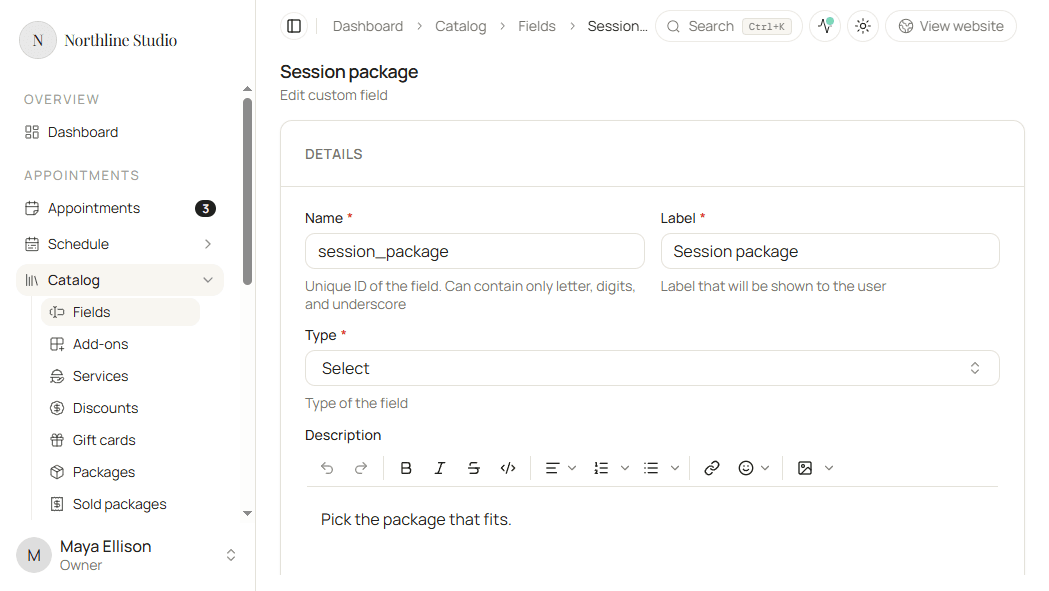
- Enter a unique Name. This is the internal ID - letters, digits, and underscore only.
- Enter the Label clients see on the booking form.
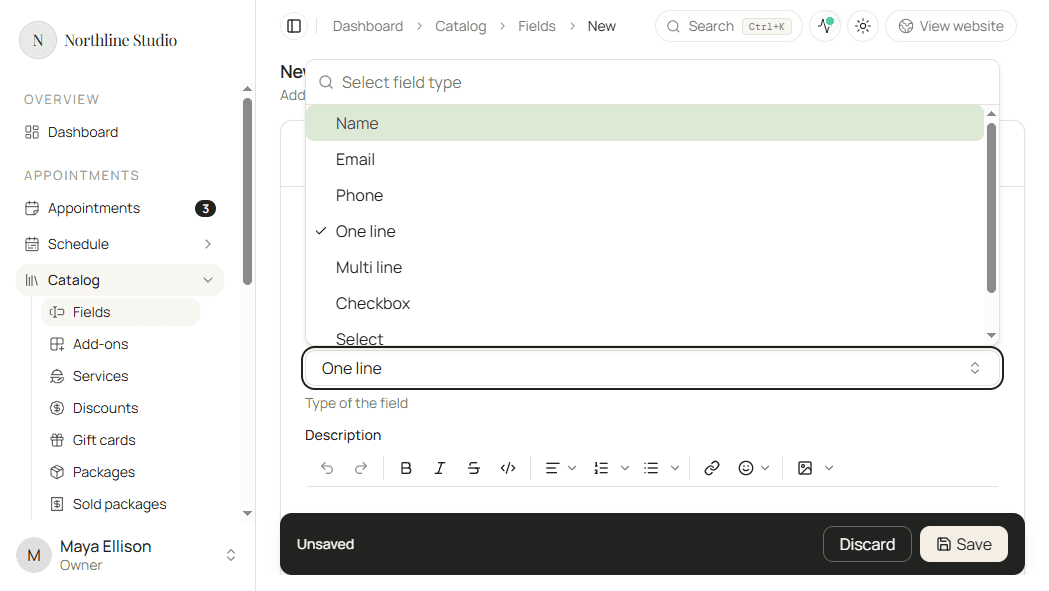
- Open Type and pick the field type.
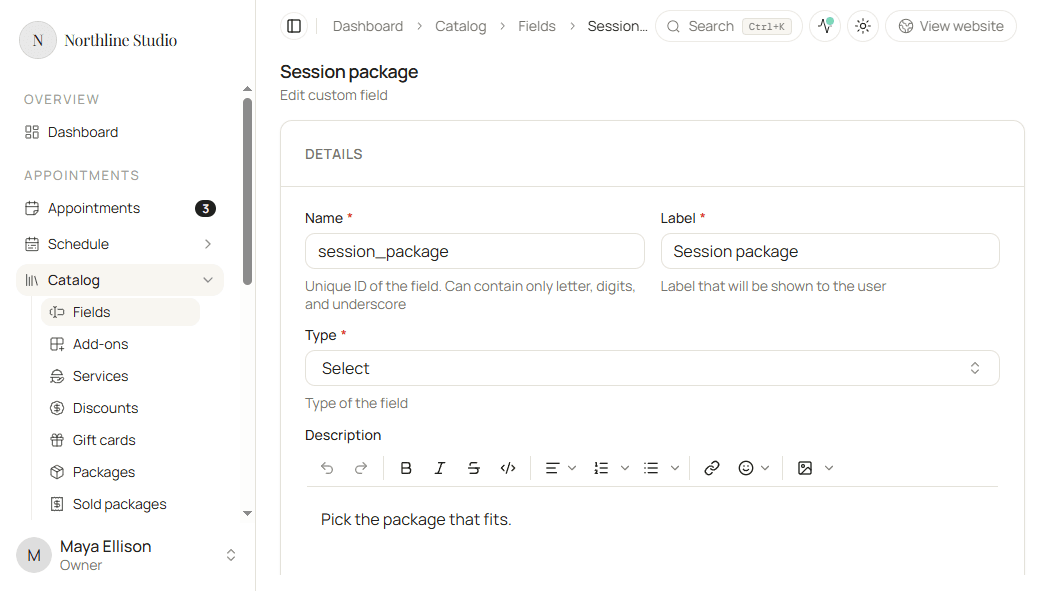
- Optionally write a Description to explain the question under the label.
- Turn Required on if clients must answer before they can finish booking, or leave it off if the answer is optional.
- If the type is Select, add at least one option under Options. See Field types.
- If the type is File, set File settings (max size and accepted types). See Field types.
- Click Save.
Hacado opens the saved field so you can keep editing if needed.
Good to know
- New fields default to One line until you change Type.
- You can also start from an existing field: open the row menu and choose Clone, then edit and save.
- A field is not shown on a booking until you add it on a service or add-on.