Text message templates
A text template is the body of one customer text. It is not a marketing blast. Apps send it when something happens for that customer: a booking, a reminder, a waitlist change, a payment link, a sign-in code, or an auto-reply.
When you can create one
Text message shows in Add new template only when custom text messages are turned on for this workspace.
| Situation | What you get |
|---|---|
| Free plan | No custom text templates. Customer texts use Hacado’s built-in wording. |
| Solo or higher, business country is not the United States or Canada | Custom templates are available. There is no verification form. |
| Solo or higher, United States or Canada, not verified yet | The Text message type stays hidden. Texts use the built-in wording on the shared number. |
| Solo or higher, United States or Canada, verified | You can write templates, and texts can use your dedicated number. |
| Solo or higher, with your own texting app connected | Custom templates can be used without the dedicated-number form. Free still cannot. |
Turn texts on, buy credits, and complete US or Canada verification under Text messaging.
Write the message
- Create a template with type Text message. Pick Empty template or a text starter. See Create a template.
- Name it.
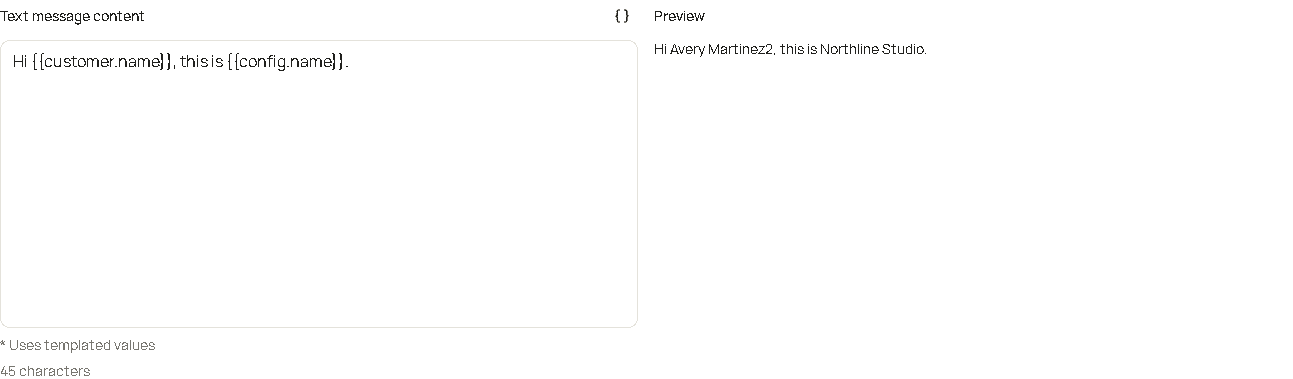
- Write the message in Text message content.
- Read Preview, then click Save.
- Select this template in the app that should send it.
Preview fills placeholders with sample data so you can read the text the way a customer would. The line under the box is the character count of that preview, not a promise of how many text segments a carrier will bill.
Placeholders
Placeholders use Mustache . {{customer.name}} is replaced with that value. A {{#member.jobTitle}}...{{/member.jobTitle}} block is included only when that value is present, and a list repeats the block once per item. The patterns, and the paths you can copy, are in Using template expressions.
Type {{ in the message. A list opens under the cursor. Each row is a path, with the sample value under it. Keep typing to narrow the list. Choose a row to insert it as {{customer.name}} or whatever path you picked.
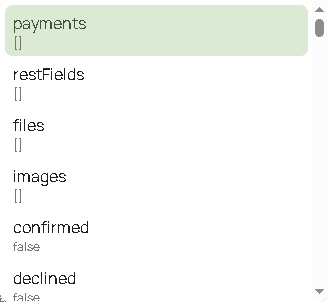
A row whose sample is [] is a list. Choosing it inserts a repeating block, {{#payments}}{{.}}{{/payments}}, instead of a single value.
Context values
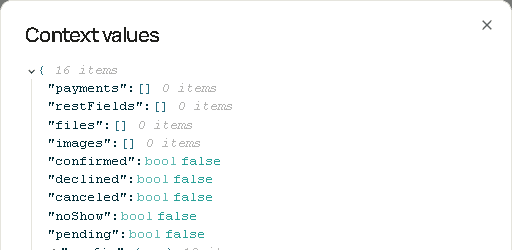
The button on Text message content is View context. It opens Context values, the same sample data as the list, shown as a tree. Expand a group to read the sample. Copy path on a value copies the dotted name, such as customer.name, so you can paste it between braces.
Examples
Preview on a new template uses a sample booking: customer John Smith, service Demo service, staff member Joe Doe (Senior Hair Specialist), and November 20, 2024 at 9:00 AM EST. {{config.name}} is your business name. A real send uses that customer’s appointment instead of the sample.
Sign-in code
{{config.name}}: your verification code is {{otp}}. Valid for 5 minutes. Do not share this code with anyone.Preview:
Northline Studio: your verification code is 123456. Valid for 5 minutes. Do not share this code with anyone.{{otp}} is the sample code 123456. Keep a sign-in text to the code and who it is from.
Confirmed appointment
Hi {{fields.name}}, {{config.name}} confirmed {{service.name}} on {{dateTime.full}} with {{member.name}}{{#member.jobTitle}} ({{member.jobTitle}}){{/member.jobTitle}}.Preview, because the sample staff member has a job title:
Hi John Smith, Northline Studio confirmed Demo service on November 20, 2024 at 9:00 AM EST with Joe Doe (Senior Hair Specialist).The part between {{#member.jobTitle}} and {{/member.jobTitle}} is sent only when that staff member has a job title. If the title is empty, the parentheses are left out.
Reminder
Hi {{fields.name}}, this is a reminder from {{config.name}} about {{service.name}} on {{dateTime.date}} at {{dateTime.time}}.Preview:
Hi John Smith, this is a reminder from Northline Studio about Demo service on November 20, 2024 at 9:00 AM.{{dateTime.full}} is the long form, with the time zone. {{dateTime.date}} and {{dateTime.time}} are the shorter pieces. Use the short form when the text should stay in one or two segments.
How to write one
Worked examples, including what Preview fills in, are in How to write excellent text message templates.
Keep the same rules as every other customer text. The full list is on Text messaging. For the template itself:
- Name your business in the text.
- Say what happened for this customer: requested, confirmed, declined, canceled, rescheduled, no-show, reminder, waitlist, payment link, or sign-in code.
- Do not add a sale, a newsletter, a review request that is not part of the booking, or any other promotion.
- Leave room for the customer to reply STOP to opt out and HELP for help. Hacado still enforces those replies. Do not tell people to ignore them.
- Mention that message frequency follows their appointments, and that message and data rates may apply, when the text is part of the booking program.
- Use placeholders for names, times, and links. Do not paste one customer’s details into a template you will reuse.
- Keep it short. A sign-in code text should be the code and who it is from. A booking text should say the service and when.
Good to know
- Preview data is sample data. The real text uses the customer and appointment on the send.
- Deleting a template does not delete messages already sent. Those stay in Communications → Logs.
- Turning custom messaging off in the United States or Canada starts verification over. See Text messaging.