Updating an existing field
Change a field when the question, type, or options no longer match how you book. Edits apply everywhere that field is already attached.
Open the field
- Open Appointments → Catalog → Fields.
- Click the field name, or open the row menu and choose Update.
The edit form shows the current Details, Required setting, and any type-specific sections.
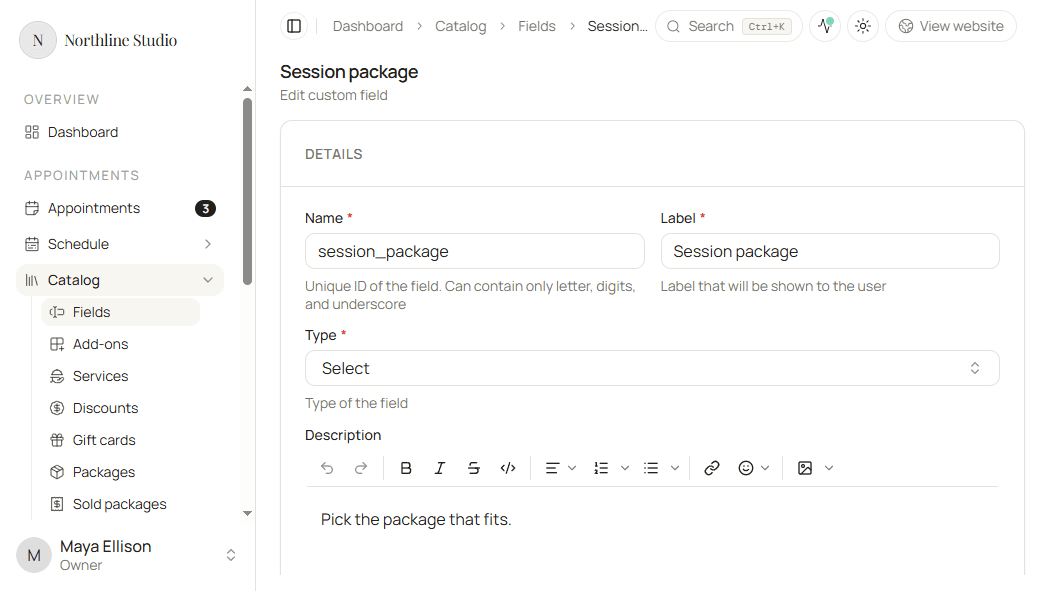
Change details
- Update Name if you need a different internal ID. It must stay unique and use only letters, digits, and underscores.
- Update Label to change what clients read on the booking form.
- Change Type if the answer should use a different input. See Field types.
- Edit Description when clients need more help under the label.
- Turn Required on or off.
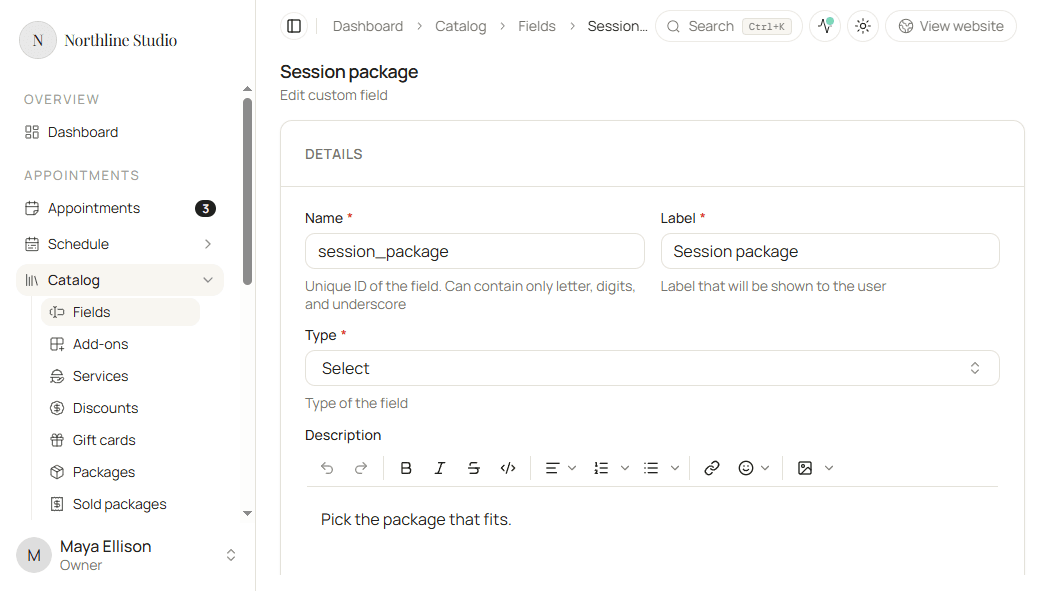
Type-specific settings
- Select - edit, reorder, add, or remove choices under Options.
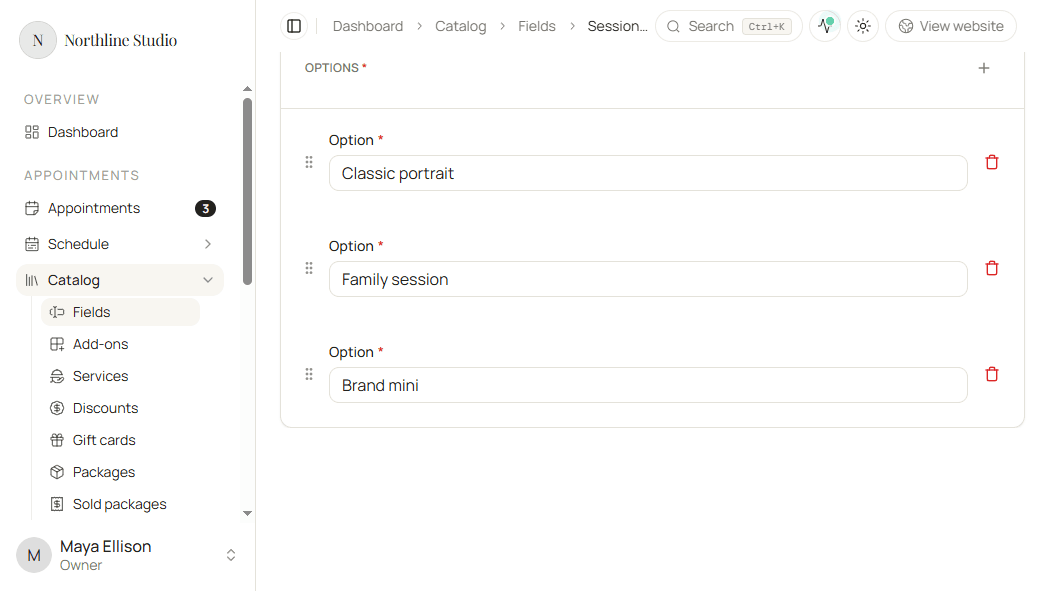
- File - adjust Max file size (MB) and Accepted files under File settings.
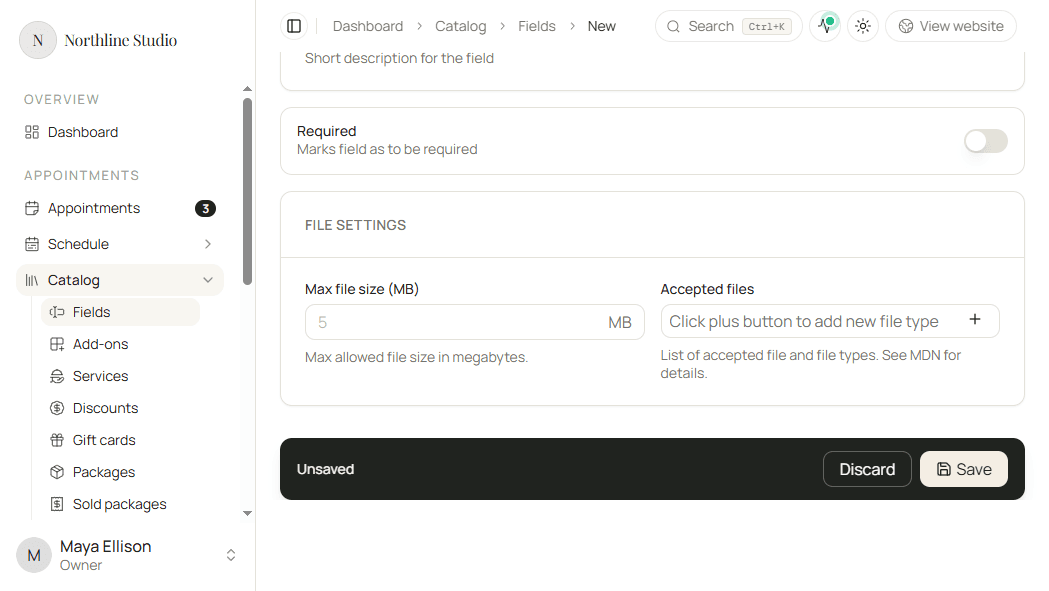
If you switch away from Select or File, those extra sections no longer apply to the new type.
Save
- Click Save.
Hacado keeps you on the field page and confirms that your changes were saved.
Good to know
Changing a field updates every service and add-on that already uses it. Review those attachments if the question or type changes in a big way.