Creating a new gift card
Issue a gift card when a client buys prepaid credit they can spend on bookings. You record payment in person (Cash or Card) or send a Payment link so they pay online. After save, the code is fixed; you cannot change it later.
Before you start
- Know the Amount and whether the card should expire.
- Have the Customer in your client list.
- For a Payment link, install a payment app under Apps (for example Stripe, Square, or PayPal). Payment link only appears in the payment method list when at least one such app can send a link.
Create the gift card
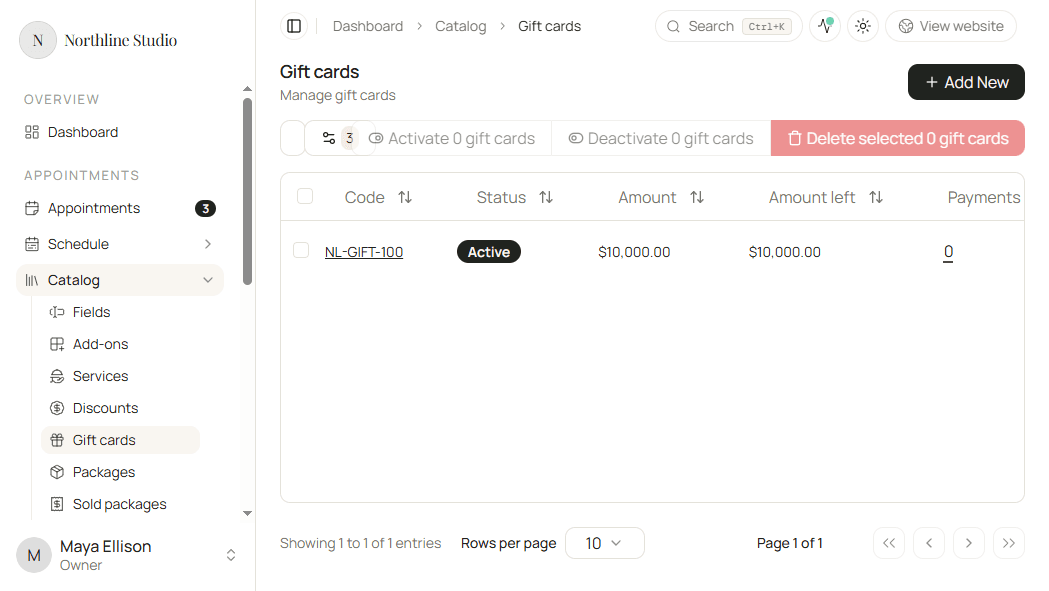
- Open Appointments → Catalog → Gift cards.
- Click Add New.
The New gift card form opens.
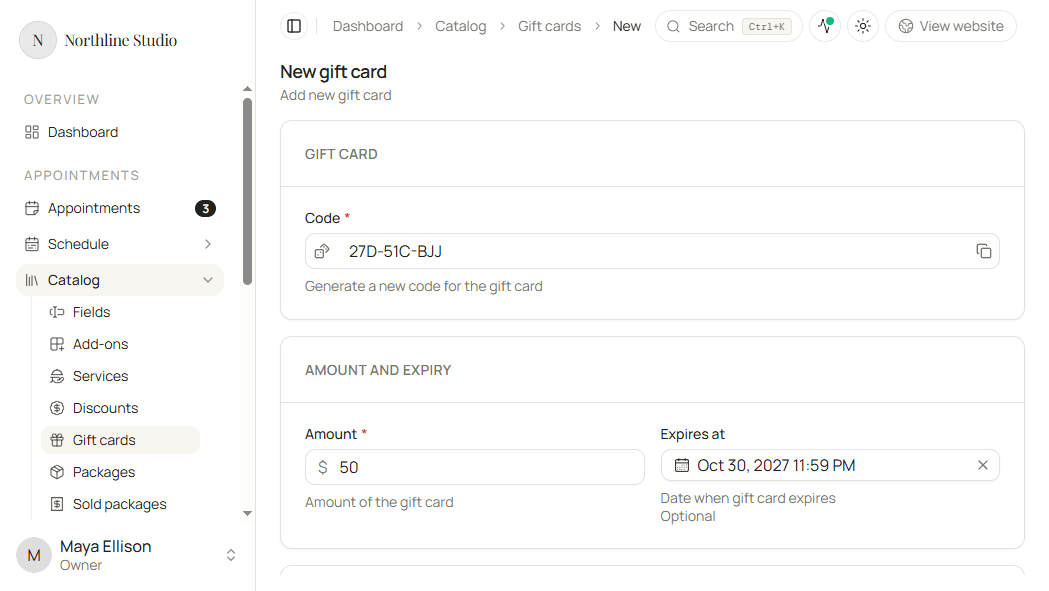
Gift card code
- Keep the generated Code, or click the dice / regenerate control for another unique code.
- Optionally copy the code with the copy control so you can send it outside Hacado.
Rules:
- Required, unique in the workspace.
- Length is limited (typically a short segmented code such as
27D-51C-BJJ). - You cannot edit the code after the gift card is saved.
Amount and expiry
- Enter Amount - the prepaid balance the customer can spend (currency). Must be greater than zero.
- Optionally set Expires at. Leave empty for no expiry. After that date the card cannot be used for new payments even if balance remains.
Example: $100 with expiry 31 Dec 2027 → client can redeem until that datetime, up to $100 of bookings.
Customer and payment
- Pick the Customer who bought the card. Required. Credits and history stay tied to that customer.
- Choose Payment method:
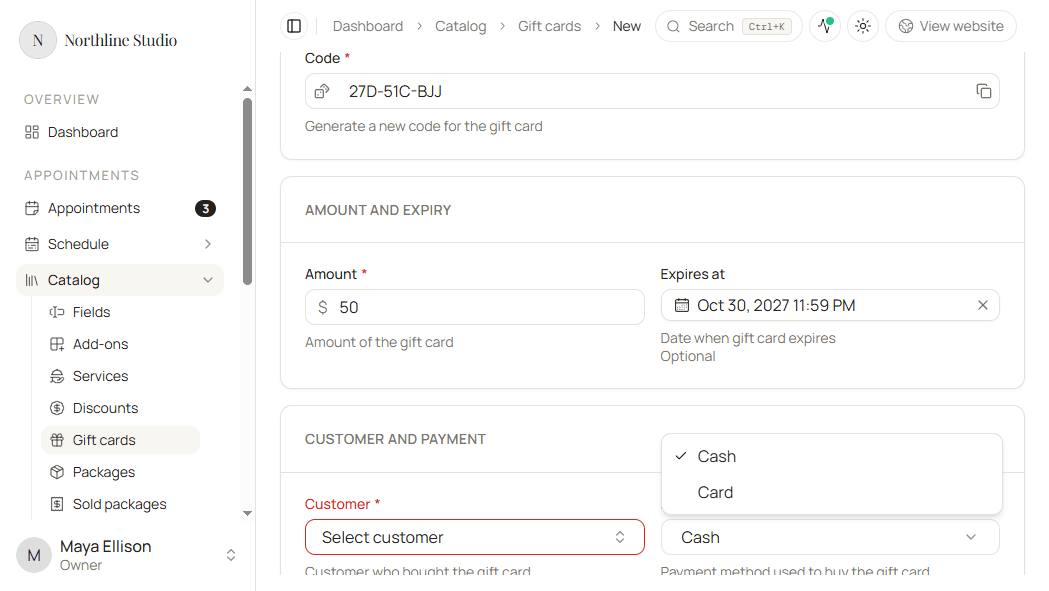
| Method | When to use | What happens on Save |
|---|---|---|
| Cash | Paid in person with cash | Gift card is created and treated as paid. |
| Card | Paid in person by card (terminal / offline) | Same as cash: created as paid in Catalog. |
| Payment link | Customer will pay online | Appears only when a payment-link app is available. Card stays pending until the link is paid (or cancelled). |
Payment link
- Choose Payment link as the payment method.
- If more than one payment app is installed, pick the App.
- Set Send via:
- Email - send the link to a customer email destination.
- SMS - send by text (requires SMS setup and consent when Hacado asks).
- Copy link - Hacado copies the URL after create so you can paste it yourself.
- For Email or SMS, pick the Destination from the customer’s known contacts.
- Click Save.
In-person payment
- Choose Cash or Card.
- Click Save.
Hacado records the in-store payment and creates the gift card immediately.
Save
- Click Save.
Hacado opens the gift card (or confirms create). For Copy link, copy the URL from the confirmation when shown.
Good to know
- Configure a default payment app under Apps → Default apps if create fails with a payment-app error.
- Activating or deactivating later is covered in Activating and deactivating.
- Delete rules (when delete is blocked) are in Deleting a gift card.