Listing add-ons
The Add-ons list shows every add-on in your catalog. Use it to find an add-on, open one to edit, clone it, or delete one or more at once.
Open Appointments → Catalog → Add-ons.
Empty list
If you have no add-ons yet, or a search finds nothing, the table shows No results found. Use Add New to create the first one.
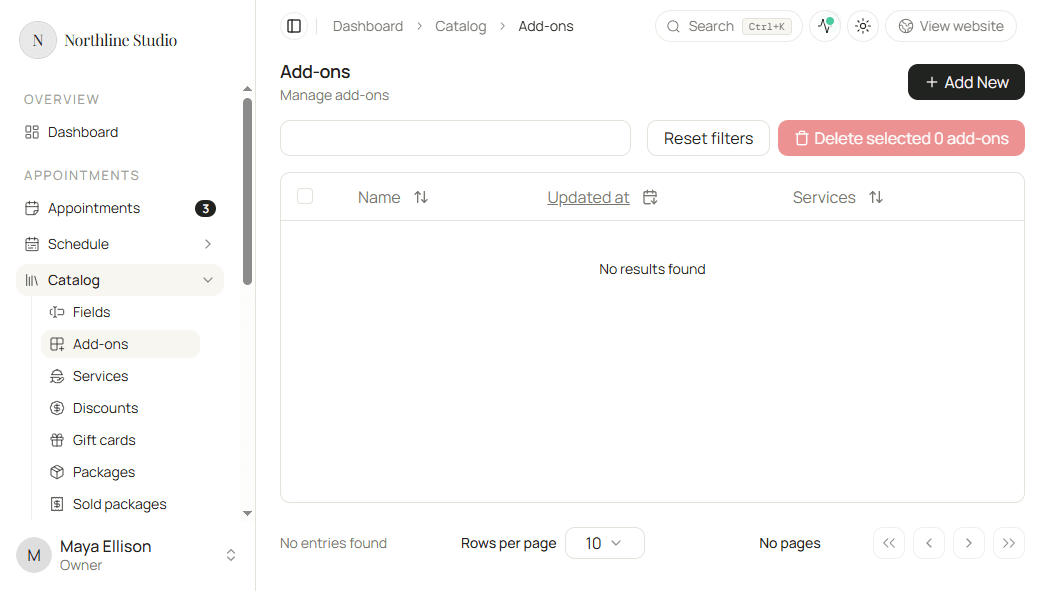
Add-ons list
When add-ons exist, each row shows Name, Updated at, and a Services count for services that use that add-on. Click an add-on name to open it.
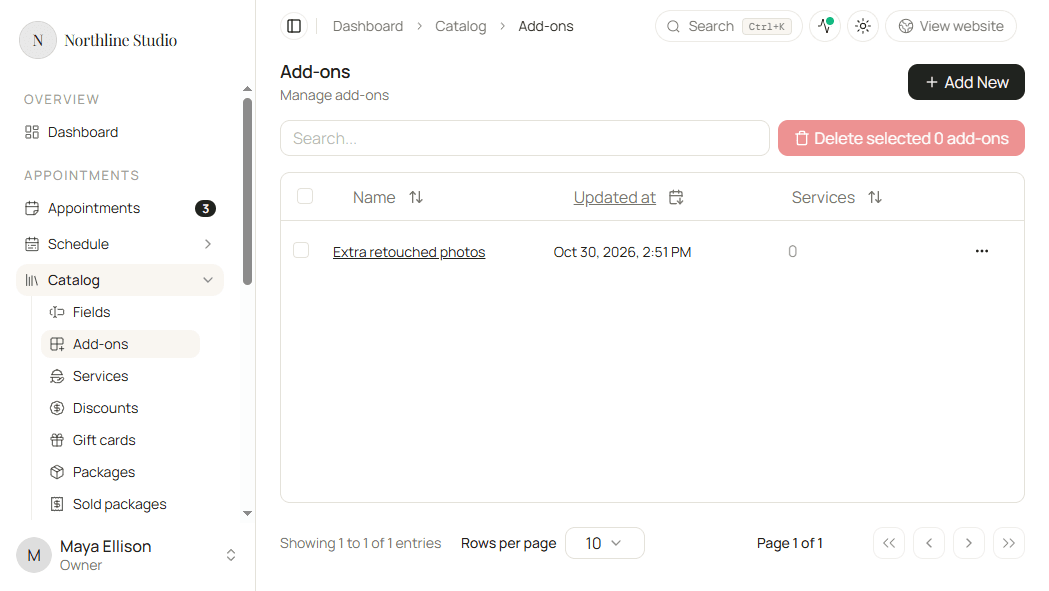
Search
- Click the Search… box above the table.
- Type part of the add-on name.
The list updates to matching rows. Clear the box, or choose Reset filters, when you want every add-on again.
Row menu
- Open the menu on an add-on row.
- Choose Clone, Update, or Delete.
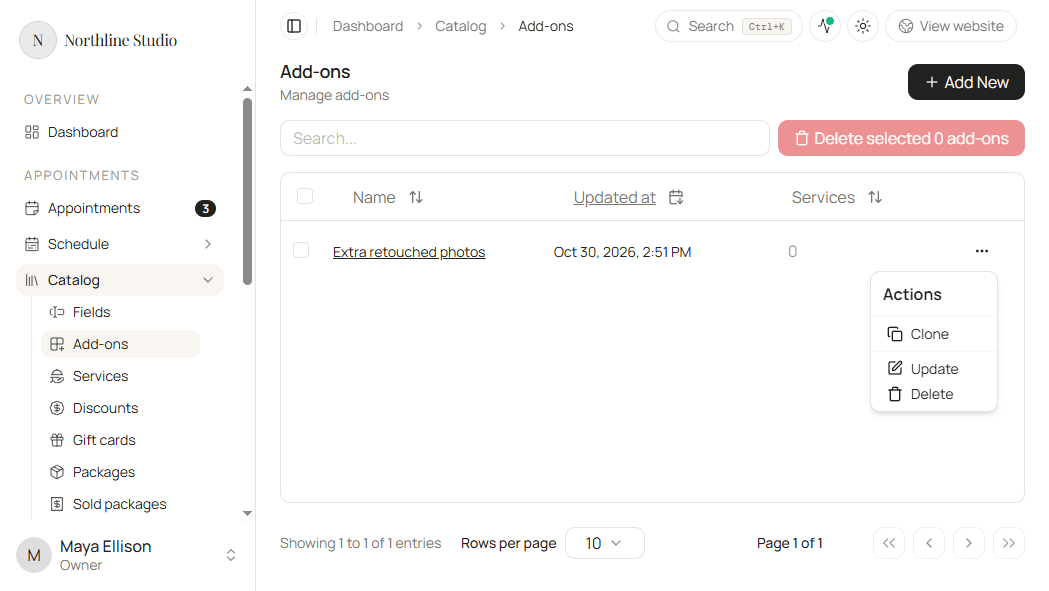
- Clone opens a new add-on form filled from that add-on so you can save a copy.
- Update opens the add-on for editing.
- Delete asks you to confirm, then removes the add-on. See Deleting an add-on.
Delete several add-ons
- Check the rows you want to remove, or use Select all.
- Click Delete selected.
- Confirm in the dialog.
The confirm text explains that selected add-ons are removed from every service that used them. This cannot be undone.
Good to know
Delete selected stays disabled until at least one row is checked. The Services count on a row opens a dialog that lists the services using that add-on when the count is greater than zero.