Communication logs
A communication log is the record of one email or one text. It keeps the wording, who it was for, when it happened, and whether it was sent, received, skipped, or failed.
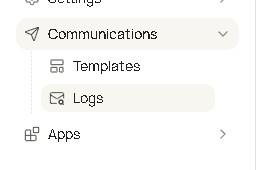
Open Communications → Logs. The page title is Communication logs, and the line under it is Monitor all sent and received messages.
The same messages also appear on a customer and on an appointment. Those two places show a shorter list, as cards. The Logs page is the full table.
The Logs page
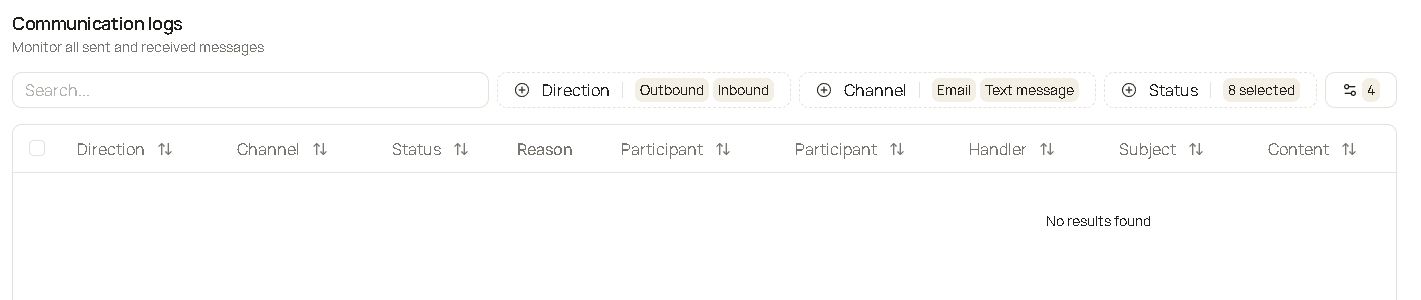
The table is wide. Scroll sideways to see Data, Date & time, Appointment, Customer, and Team member.

When nothing is recorded yet, or nothing matches the search and filters, the table says No results found. The footer says No entries found and No pages.
The box at the start of a row selects that row. Select all checks the rows on the current page. This page does not show a button that deletes logs.
What each column means
| Column | What it tells you |
|---|---|
| Direction | Outbound means Hacado sent it. Inbound means a customer texted you. |
| Channel | Email or Text message. |
| Status | Where that message is in the send. Failed rows use a red badge. The status section lists every value. |
| Reason | Why a text was skipped, blocked, or why a send failed. Other statuses leave this blank. A long reason shows the first 50 characters, then View more. That opens a dialog titled Reason, with the full text and Close. |
| Participant (first) | Customer or Member. Member means the message was for a team member. |
| Participant (second) | The email address or phone number on that message. |
| Handler | What produced the message: a booking notice, a reminder, a sign-in code, and so on. |
| Subject | The email subject. A text usually has no subject, so this cell is empty. |
| Content | A short preview of the message. At 50 characters or more, the cell shows the start and View more. |
| Data | View, and only when extra technical detail was stored with the send. Most rows leave this blank. |
| Date & time | When the log was written, in your business time zone. A typical value looks like Nov 4, 2026, 1:39 PM. Newest is first until you sort another way. |
| Appointment | The service name, when the message belongs to an appointment. Click it to open that appointment. |
| Customer | The customer’s name. Click it to open that customer. |
| Team member | The team member tied to the message. |
View more on Content opens a dialog titled Message content. An email is shown as the email the customer would see. A text is shown as the message. If the full message cannot be loaded, Hacado reports Could not load the full message. View on Data opens a dialog titled Log data. That dialog is the technical record of the send. You do not edit it there.
On a customer
Open the customer, then Communications.

This list is already limited to that customer, and only to messages whose participant is a customer. Team-member messages stay on the Logs page.
The messages are cards, not a table. There is no Customer filter and no Participant filter, because both are already decided. Search, Direction, Channel, Status, Team member (when your role can see every team member’s messages), and the date range still apply.
Send new sits at the top of the customer page. It is hidden when the customer has been deleted. A message you send from there is added to this list and to Logs once Hacado records it.
If this customer has no messages, the area under the filters stays empty. There is no “no results” line on the card list.
On an appointment
Open the appointment, then Communications.

This list is only the customer messages for that appointment. There is no search box and no filter row. Send message in the appointment header is separate from the list. A message sent for this appointment shows up here and on Logs.
How to read a card
Each card is one log.
- The icon is an envelope for email and a speech bubble for a text.
- The title is the subject. When there is no subject, the title is the handler.
- The time on the right is relative, such as “2 hours ago”, with a dashed underline. Point at it, or focus it, for the exact date and time in your business time zone.
- Under the title is the preview. Longer than 200 characters, it ends in
.... View more opens Message content, the same full message as on the table. - The badges, in order, are: status, channel, direction, Handler: and the handler name, and Participant: and the email or phone.
- Failed, Skipped, No consent, and Opted out also show the reason as a badge when a reason was stored.
- A failed card adds Can be retried or Will not be retried, and a count such as 1 retries used, 2 left.
- When extra send detail was stored, a Data badge opens Log data.
The card status says Failed. The retry count is those extra badges. The table puts the retry count inside the status badge instead. See Failed.
Cards load 10 at a time. Scroll down and the next 10 load. There are no page buttons on a customer or an appointment.
Search
The box says Search…. It looks through the customer’s name, the appointment’s service name, the subject, the email or phone, and the words in the message. Matching ignores capital letters. The list updates about a second after you pause.
Clear the box to search everything again.
Filter
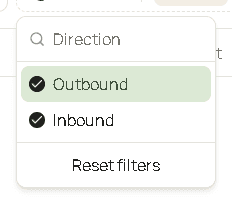
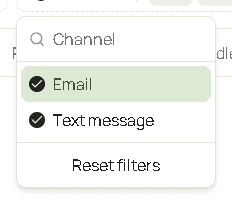
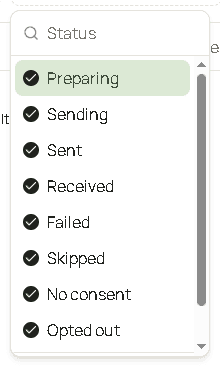
Every checklist starts with all of its options turned on, which means that filter is not hiding anything. A checkmark means “include this.” Click a checked row to hide it. Click it again to include it. Reset filters at the bottom of that menu turns all of its options back on. Unchecking the last option does the same thing: the filter returns to every option.
When two or fewer options are on, their names sit on the button. When more than two are on, the button shows a count, such as 8 selected.
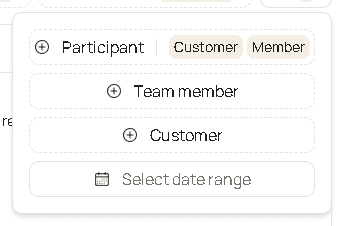
Direction, Channel, and Status sit beside search. Filters that do not fit move into the Filters button, the sliders icon with a count of how many are inside. On a typical window that button holds Participant, Team member, Customer, and the date range. Widen the window and more of them sit in the row. The count drops, and the button goes away when everything fits.
| Filter | What it keeps |
|---|---|
| Direction | Outbound, Inbound, or both. |
| Channel | Email, Text message, or both. |
| Status | Any mix of the eight statuses. All eight on means every status. |
| Participant | Customer, Member, or both. This filter is on the Logs page only. |
| Team member | Messages tied to the people you check. The menu lists active team members, and shows the email under the name when both exist. |
| Customer | Messages for the customers you check. The menu shows the email under the name. This filter is on the Logs page only. |
| Select date range | Messages whose date falls in the range, in your business time zone. |
Team member is shown when your role can read every team member’s messages. If you do not see it, the list is already limited to your own messages.
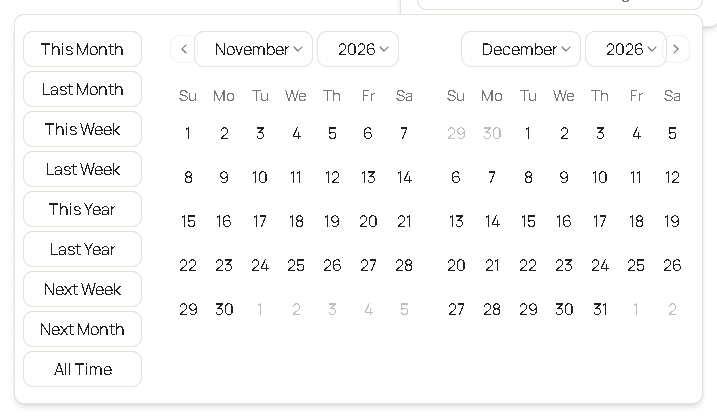
Select date range offers This Month, Last Month, This Week, Last Week, This Year, Last Year, Next Week, Next Month, and All Time. All Time is a very wide span around today. You can also click a start day and an end day on the two months. The button then shows the range, such as Nov 01, 2026 – Nov 30, 2026.
On a customer, Team member usually fits on the row, and Filters then holds only Select date range. An appointment’s Communications tab has none of these controls.
Reset filters, the button beside the filters, appears after you change search, direction, channel, status, participant, team member, or the date range. It clears those. Choosing a customer does not by itself show that button. Open Customer and use Reset filters at the bottom of its menu to clear only that choice. The same Reset filters line is at the bottom of Team member.
Sort
A column title with an arrow can be sorted. Date & time starts sorted with the newest message at the top. Its heading uses a calendar arrow. Click a title to sort by that column. Click the same title again to reverse the order.
Reason and Data have no arrow. They stay in place while the other columns sort.
Sorting happens on the Logs table. The cards on a customer and on an appointment stay in time order, newest first, and do not have column titles to click.
Pages
The footer is only on the Logs table.

Rows per page is 10, 20, 30, 40, or 50. The list starts at 10.
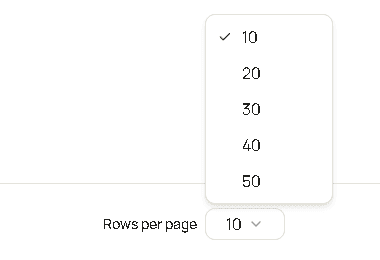
The four buttons are the first page, the previous page, the next page, and the last page. They stay off when there is a single page or no rows. The footer also says how the list is split, or No pages when it is empty.
What each status means
| Status | Meaning |
|---|---|
| Preparing | Hacado has lined the email or text up. It has not gone out. |
| Sending | A send is in progress. |
| Sent | The email service or the phone carrier accepted it. Hacado is done with that attempt. A later bounce or delivery failure can still move the row to Failed. |
| Received | A text the customer sent you. It is Inbound and Text message. |
| Failed | The send did not succeed. See the retry wording below. |
| Skipped | Hacado did not send the text. The reason says why. |
| No consent | The customer has not agreed to texts, so the text was not sent. |
| Opted out | The customer has opted out of texts, so the text was not sent. |
Failed
On the table, a failed row that Hacado will try again shows Failed: 1/3 retries. The first number is tries already used. The second is the most tries for that message. When no tries are left, the badge is Failed. with a period, and it is red either way.
On a card, the status badge is Failed. Next to it, Can be retried means another try is still planned. Will not be retried means Hacado will leave it. The last badge is the count, in the form 1 retries used, 2 left.
The Reason cell, or the reason badge on a card, explains the failure. A delivery problem that arrives after a successful send uses Delivery failed: followed by a short detail from the email service or the carrier.
Skipped, no consent, and opted out
These are texts Hacado did not hand to the carrier. The status is chosen from the reason:
- No consent, with the reason Customer has not agreed to texts.
- Opted out, with the reason Customer opted out.
- Skipped, for every other “not sent” reason.
A skipped text uses one of these reasons when they apply:
| Reason | What it means |
|---|---|
| Text messaging is off | Texting is turned off for the workspace. |
| Invalid phone number | The number could not be used. |
| Text credits are used up | There is no credit left to send another text. |
| Too many texts this minute. | The short sending limit was hit. |
| Daily text limit reached. | The day’s sending limit was hit. |
| Text limit reached. | A sending limit was hit. |
| Text number is not ready | The sending number is not set up to send yet. |
| Message had only a link | The text had nothing in it except a link, so it was not sent. |
Any other skip reason is shown as the text Hacado stored. Credits, consent, and the sending number are covered in Text messaging.
How Hacado sets the status
You do not pick a status. Hacado changes it as the message moves.
- An email or a text you or an app sends is recorded as Preparing as soon as it is lined up.
- When the send actually starts, it becomes Sending.
- When the email service or the carrier accepts it, it becomes Sent. The reason is cleared, and Hacado does not retry that send.
- If the message cannot even be lined up, it is recorded as Failed immediately, and it Will not be retried.
A text that must not go out never reaches Sending. Hacado writes No consent, Opted out, or Skipped, using the reasons above, and it will not retry that text.
A text that fails in a way that might succeed later stays Failed with tries remaining. Hacado sends it again. Each try increases the used count and lowers the left count. A text that fails for good is Failed, Will not be retried, and the left count is 0. The table then shows Failed.
Sent is not always the end. If an email later bounces, fails, or is reported as a complaint, or if the carrier later says the text was not delivered, Hacado moves that log from Sent to Failed and sets the reason to Delivery failed: plus the detail. When the carrier reports that the number has opted out, Hacado also records the opt-out, so a later text to that number is Opted out instead of being sent.
A text the customer sends to your number is stored at once as Received, Inbound, and Text message. It does not pass through Preparing or Sending. Emails in the log are messages Hacado sent, so they are Outbound.
Good to know
- The second Participant column, and the Participant: badge on a card, is an email address or a phone number. Treat the page as private.
- A customer page and an appointment page list customer messages only. Messages for a team member stay on Logs.
- Sent can still become Failed after the carrier or the email service reports a delivery problem.
- The table writes the retry count into the Failed badge. A card keeps Failed and puts the count on its own badges.
- Team member is hidden when you can only see your own messages. The list is already limited to you.