Default schedule
The default schedule is the weekly pattern of hours when clients are allowed to book you. It lives under Appointments → Schedule → Default schedule in the side menu (not on the Settings hub cards), at Settings → Schedule.
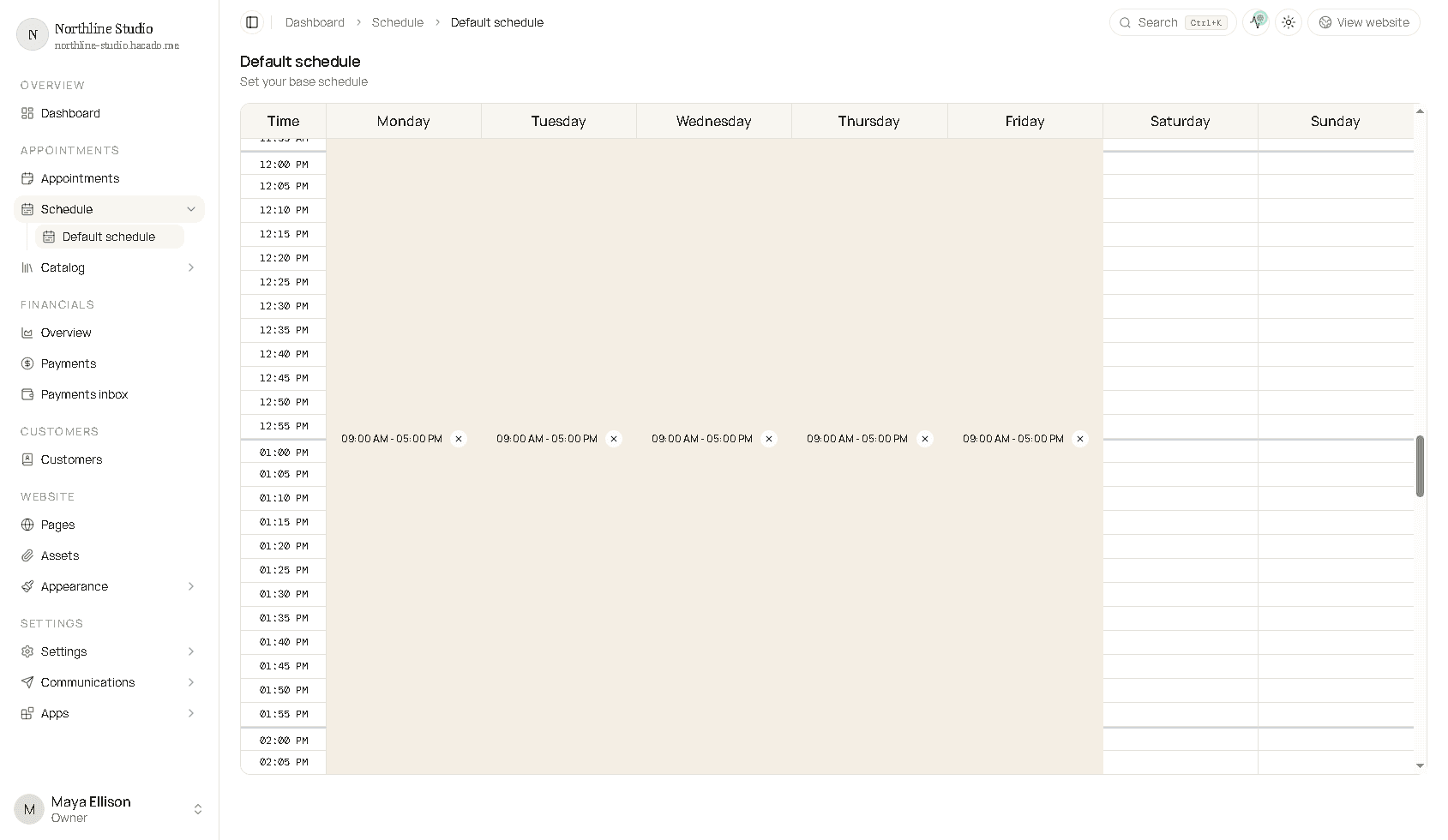
What you are editing
- Columns are days of the week; the left column is time of day.
- Coloured blocks are shifts (open for booking). Empty cells are closed.
- Each block shows its hours (for example 09:00 AM - 05:00 PM) on that day’s column.
- Scroll the grid to see morning or evening hours. Day names stay sticky at the top.
Hacado often starts with Monday–Friday daytime hours and weekend closed, matching what you chose in first-time setup.
Change hours
- Open Appointments → Schedule → Default schedule.
- Drag the top or bottom edge of a block to shorten or lengthen it, or drag the block to move it.
- Use the controls on a block to delete it when that day (or shift) should be closed.
- Click empty cells and drag to paint a new shift, or use Add Shift if your layout shows that control (mobile / compact views list days with Edit and Add Shift).
- Click Save.
A day with no shifts is a day off for the default schedule.
How this interacts with other settings
| Piece | Role |
|---|---|
| Default schedule (this page) | Baseline weekly hours. |
| Schedule provider app on Appointments → Main | Optional app that can supply schedule instead. |
| Weekly schedule app | Week-by-week overrides when hours change often. |
| Busy events / calendars | Block times inside otherwise-open hours. |
Related
- Appointment settings - booking windows, buffers, auto-confirm
- Set your availability - first-steps overview