Updating an existing add-on
Change an add-on when the name, description, duration, price, fields, or staff rules no longer match how you book. Edits apply everywhere that add-on is already attached.
Open the add-on
- Open Appointments → Catalog → Add-ons.
- Click the add-on name, or open the row menu and choose Update.
The edit form shows the current Details, Duration and price, Fields, and Member overrides.
Change details
- Update Name if you need a different unique name.
- Edit Short description in the markdown editor when clients need clearer copy during booking.
- Adjust Duration (hours and minutes) under Duration and price.
- Adjust Price.
Fields
- Under Fields, click Add a new item to attach another field.
- Open Field and pick the field.
- Turn Required on or off for that field.
- Remove a field with the trash control on its card, and confirm if asked.
- Drag the grip to reorder fields.
Member overrides
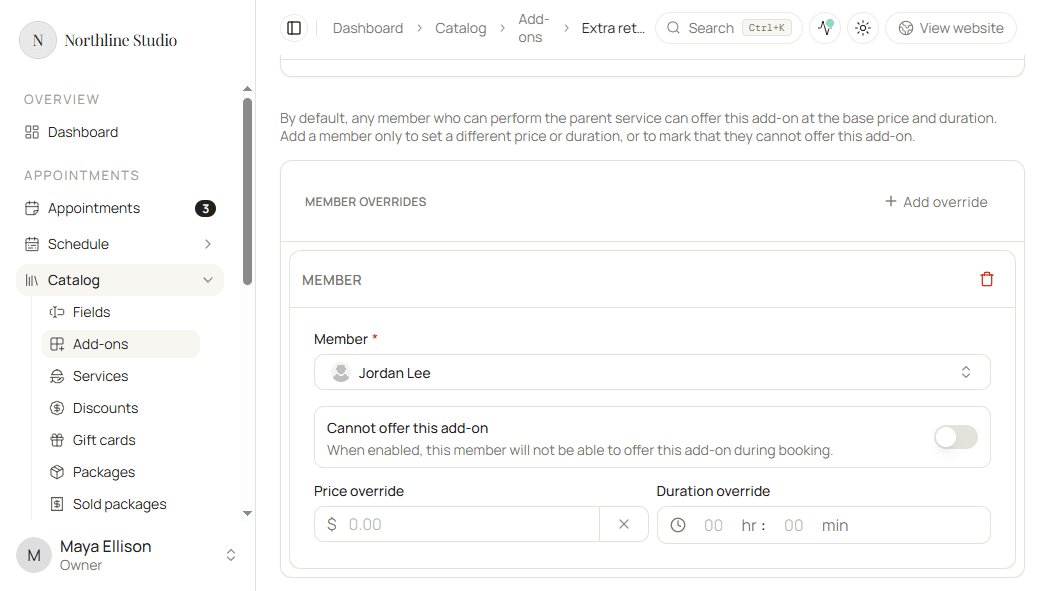
Use Member overrides when one staff member should use a different price or duration, or should not offer the add-on.
- Click Add override if you need a new card.
- Choose the Member.
- Leave Cannot offer this add-on off, then set Price override and Duration override as needed.
- Turn Cannot offer this add-on on when that member must not offer the add-on. Price and duration overrides hide while it is on.
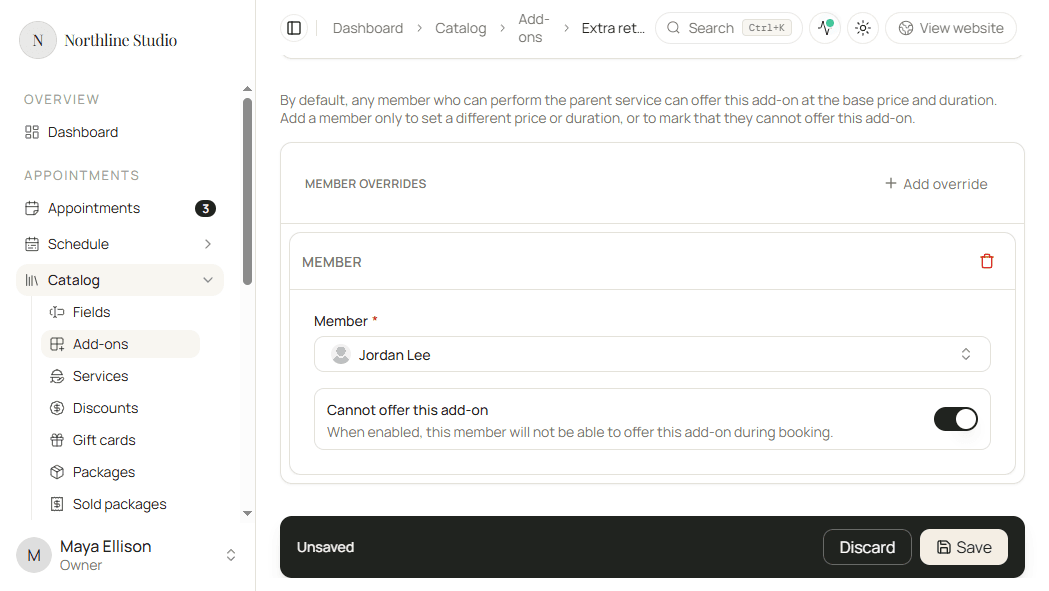
- To remove an override, click the trash control and confirm Delete, or Cancel to keep it.
Save
- Click Save.
Hacado keeps you on the add-on page and confirms that your changes were saved. Use Discard if you want to drop unsaved edits.
Good to know
Changing an add-on updates every service that already uses it. Review those attachments if the price, duration, or questions change in a big way.