Deleting a service
Delete a service when you no longer offer it. Deleting removes it from Catalog and from booking availability if it was listed there. Past appointments keep the service details they already stored.
Delete one service
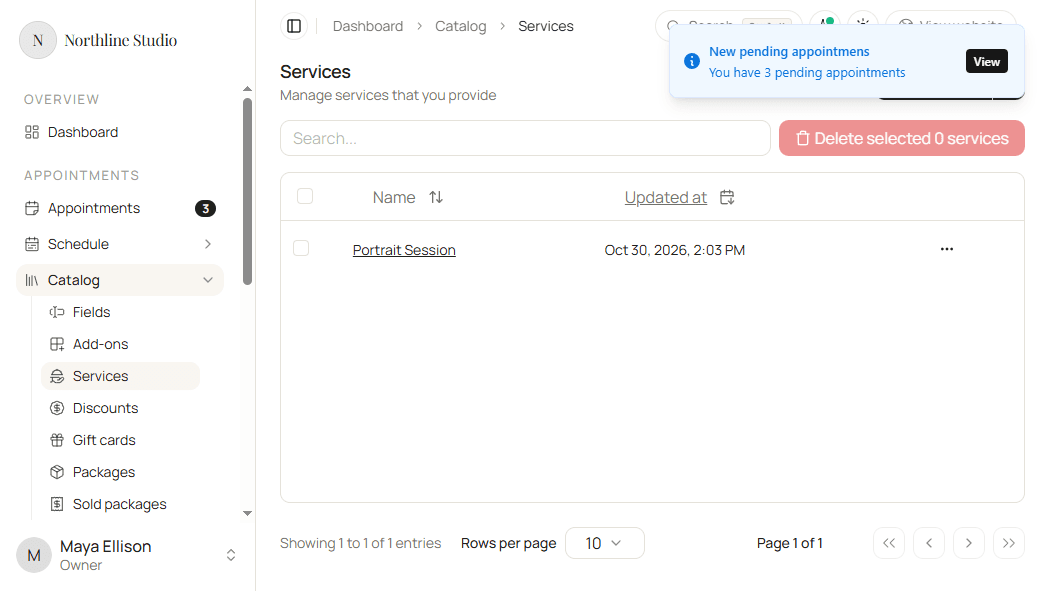
- Open Appointments → Catalog → Services.
- Open the row menu on the service.
- Click Delete.
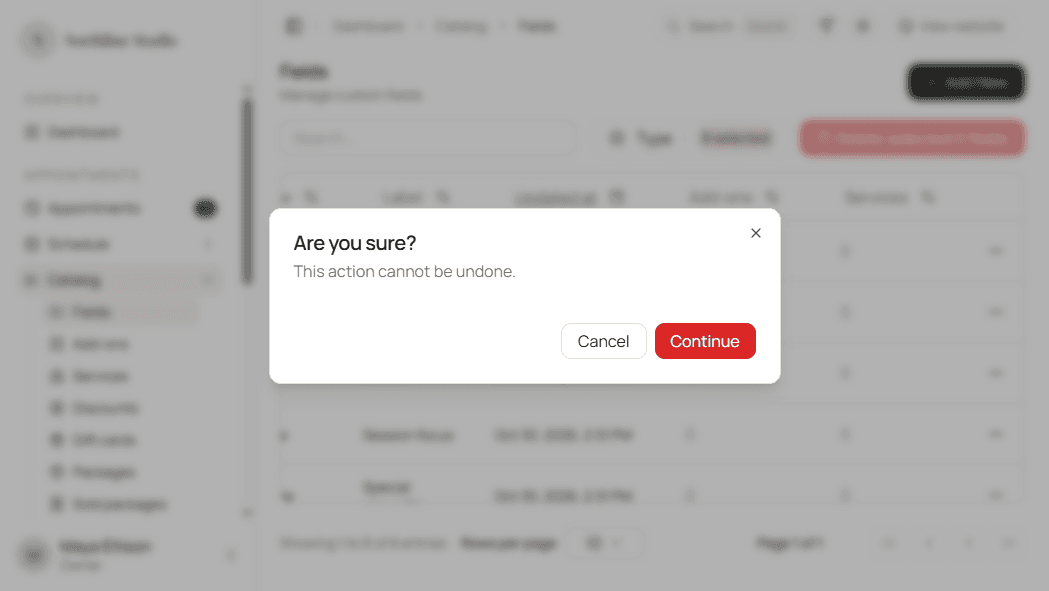
- Read the confirm dialog. It warns that the action cannot be undone.
- Confirm to delete, or cancel to keep the service.
Delete several services
- Check the services to remove, or use Select all.
- Click Delete selected.
- Confirm in the dialog.
- Click Delete selected in the dialog, or Cancel to stop.
What happens next
- The service leaves the Services list.
- Hacado removes it from Settings → Appointments → Services and packages if it was available for booking.
- You cannot undo a delete. Create the service again if you still need a similar offering - see Creating a new service.
Good to know
If the list looks empty after a delete and you expected rows to remain, clear search - you may still be filtering the list.