How to create excellent email templates
An excellent email is easy to scan on a phone. The subject says what happened. One heading repeats it. The body has the facts, then your business name. The same expressions as a text work in the subject and in the body. See Using template expressions.
Open Preview in the builder before you save. On a new template, Preview fills the sample booking: John Smith, Demo service, Joe Doe (Senior Hair Specialist), November 20, 2024 at 9:00 AM EST, and a total of $90.00. {{config.name}} is your business name. A real send uses that customer’s appointment.
How to add blocks, and what each block’s fields do, is in the Email builder.
Subject
The subject is required. It is the line in the inbox. Name the outcome, and use an expression so each customer sees their own service or date.
| Subject | |
|---|---|
| Confirmation | Your {{service.name}} is confirmed |
| Reminder | Reminder: {{service.name}} on {{dateTime.date}} |
Preview text, on the Email layout, is the short line some inboxes show beside the subject. One sentence is enough: {{config.name}} confirmed your {{service.name}} for {{dateTime.date}}.
Confirmation
Use one heading, then the facts in the same order every time: greeting, what was confirmed, when, who, the total, and your name.
Heading:
Appointment confirmedBody:
Hi {{fields.name}},

Thank you for choosing {{config.name}}. Your {{service.name}} is confirmed.

When: {{dateTime.full}}
With: {{member.name}}{{#member.jobTitle}} ({{member.jobTitle}}){{/member.jobTitle}}
Total: {{totalPriceFormatted}}

We look forward to seeing you.
{{config.name}}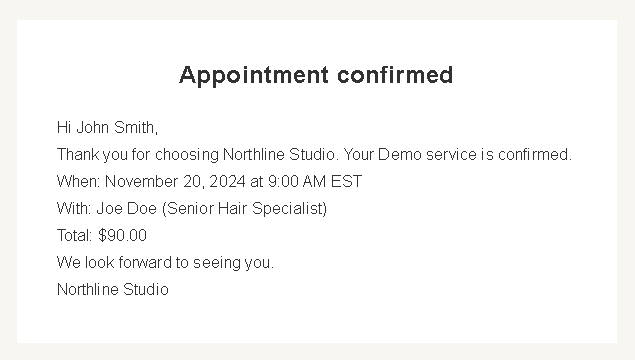
{{dateTime.full}} includes the time zone. {{totalPriceFormatted}} includes the currency symbol. The plain {{totalPrice}} is only the number. The job title, including the parentheses, is sent only when that team member has one. The sample member does, so Preview shows Senior Hair Specialist.
Reminder
A reminder points at the visit. It does not restate the price.
Heading:
See you soonBody:
Hi {{fields.name}},

This is a reminder from {{config.name}} about your {{service.name}}.

When: {{dateTime.full}}
With: {{member.name}}

See you then.
{{config.name}}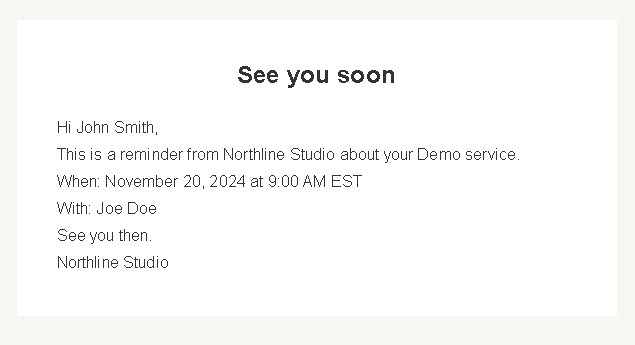
When to add another block
Add a block when it answers a question the paragraph cannot.
| The customer needs | Block |
|---|---|
| One next step, such as paying | Button. The button label says the step. The link is that step, not your homepage. |
| To join an online meeting | Online meeting |
| Add-ons, only when they booked some | Conditional with the condition addons.length > 0 |
| A list, such as payments | Loop container |
A paragraph of add-on names is enough for most confirmations: Add-ons: {{#addons}}{{name}}, {{/addons}} inside that conditional. Use the loop when each item needs its own line and price.
Good to know
- Read Preview before Save. The sample booking is not the customer who will receive the email.
- Do not paste one customer’s name, time, or price into a template you will reuse.
- A text about the same visit should stay shorter. Use
{{dateTime.sms}}there, and leave the price in the email. See Excellent text templates.