Deleting an add-on
Delete an add-on when you no longer want that extra in the catalog. Deleting also removes the add-on from every service that used it. Past bookings keep whatever add-ons they already stored.
Delete one add-on
- Open Appointments → Catalog → Add-ons.
- Open the row menu on the add-on.
- Click Delete.
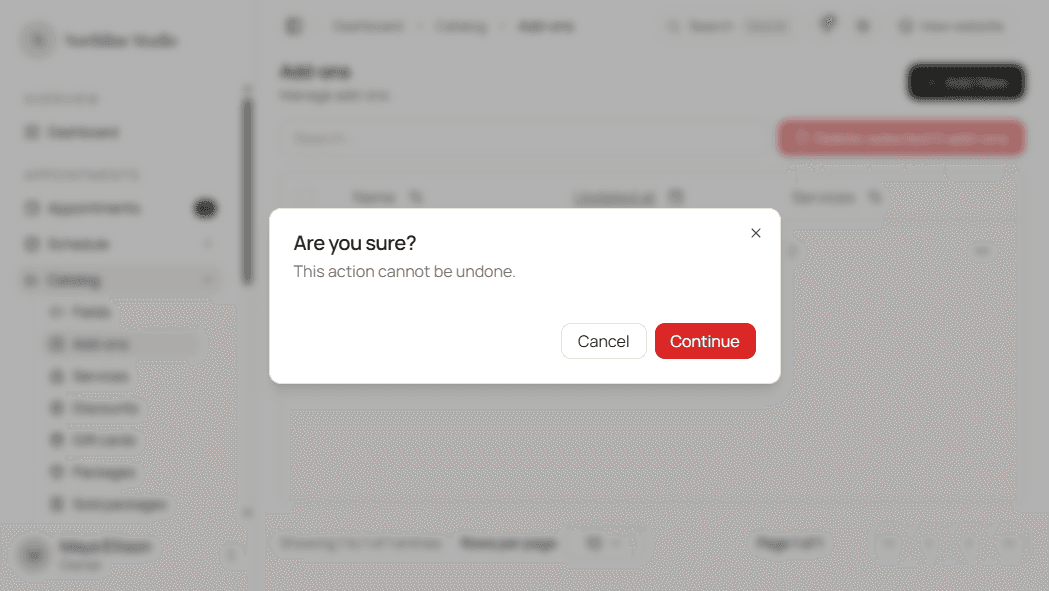
- Read the confirm dialog. It asks Are you sure? and warns that the action cannot be undone.
- Click Continue to delete, or Cancel to keep the add-on.
Delete several add-ons
- Check the add-ons to remove, or use Select all.
- Click Delete selected.
- Confirm in the dialog. That dialog also states that selected add-ons are removed from all services that use them.
- Click Delete selected in the dialog, or Cancel to stop.
What happens next
- The add-on leaves the Add-ons list.
- Hacado pulls the add-on off every service that referenced it, so new bookings no longer offer that extra there.
- You cannot undo a delete. Create the add-on again if you still need a similar extra.
Good to know
If the list looks empty after a delete and you expected rows to remain, clear search - you may still be filtering the list.