How customers are created
Customers appear in two ways: you create them in the dashboard, or Hacado creates or updates them when someone books (or submits certain forms). Matching uses contact fields so a returning client does not become a second profile.
Manual create
You add the person under Customers → Add New. See Creating a customer.
Use this when:
- Someone books by phone or walk-in and you want the record before the visit.
- You need notes, a custom deposit rule, or blocked online booking before they ever book online.
Automatic create and update
When a client finishes an online booking, Hacado looks for an existing customer using the contact details they entered. If none match, it creates a new customer. If one matches, it attaches the appointment to that profile and may store new alternate contact values under Also known as.
The same find-or-create path is used when other flows need a customer from name, email, and phone (for example some Forms submissions).
What clients enter on your site
On the booking Details step (Your Details), clients provide:
| Field | Role in matching |
|---|---|
| Name | Stored on the profile; alternate names can be kept under Also known as |
| First match key - compared to the primary email and known emails | |
| Phone | Second match key - used if email did not match; compared to the primary phone and known phones |
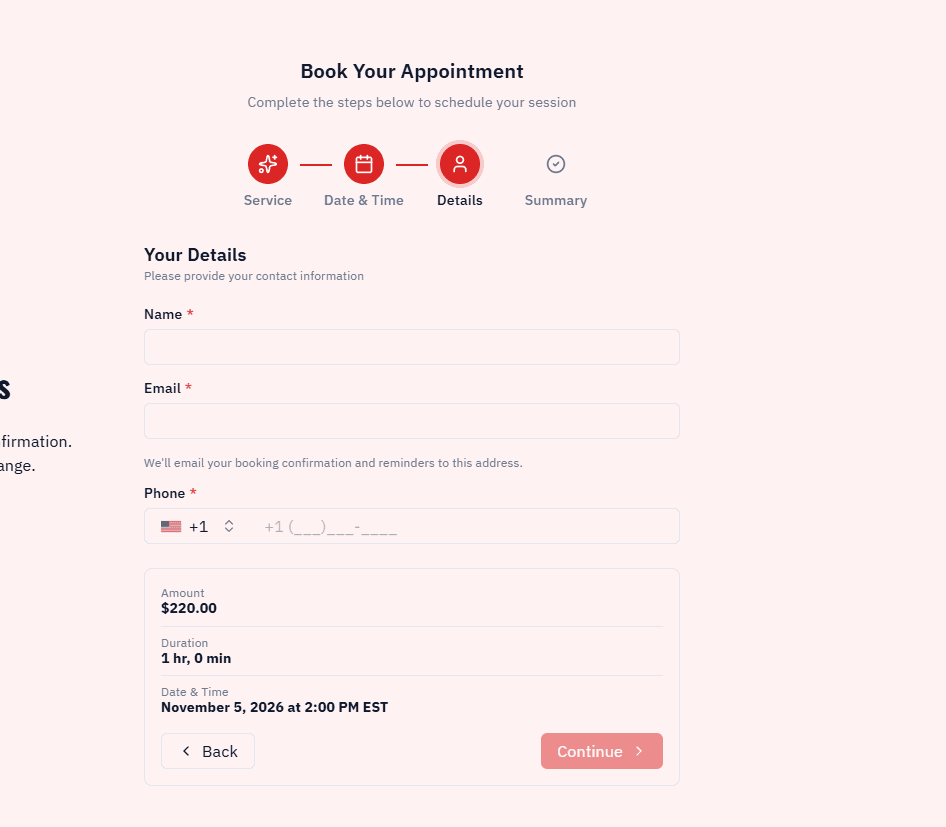
Helper text under Email reminds them that confirmations and reminders go to that address.
How matching works
- Hacado searches by email (primary email and Also known as → Emails).
- If nothing matches, it searches by phone (primary phone and Also known as → Phones).
- If a customer is found, the new appointment is linked to that customer. If the booking used a different name, email, or phone than the primary ones, Hacado can add the new values to Also known as so future bookings still match.
- If nothing matches, Hacado creates a new customer with that name, email, and phone.
Name alone does not find a customer. Two people with the same name stay separate when email and phone differ.
Also known as on the profile
On Details, Also known as explains that other details this customer may use help match new booking requests to this profile.
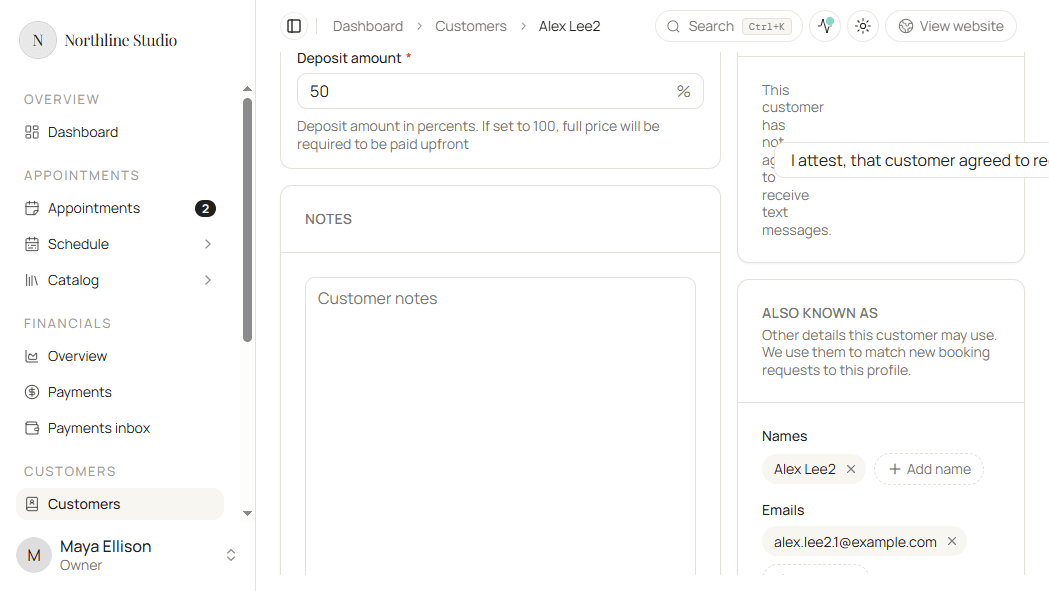
Add known alternate emails or phones yourself when a client mentions a work vs personal address, or after a merge.
Avoiding duplicate profiles
| Situation | What to do |
|---|---|
| Same person booked twice with different emails | Merge the two customers on the list, keeping the profile you want as the target. See Listing customers. |
| Client often uses a second phone | Add it under Also known as → Phones before or after the next booking. |
| You created them manually, then they booked with a typo email | Merge after the fact, or update the booking contact if you catch it early. |
Online booking blocked
If Online booking is off on the profile, that customer cannot complete a self-serve booking for themselves. Create appointments for them from the dashboard instead.
Good to know
- Primary Email and Phone on the profile are the values you edit day to day. Also known as is the safety net for extras.
- After a successful match, you still see one row on Customers - history accumulates on that profile’s tabs. See Working with a customer.