Connect essentials
During setup you may have skipped some connections to save time. Before real clients book, finish the links that keep your calendar accurate, payments smooth, and messages delivered.
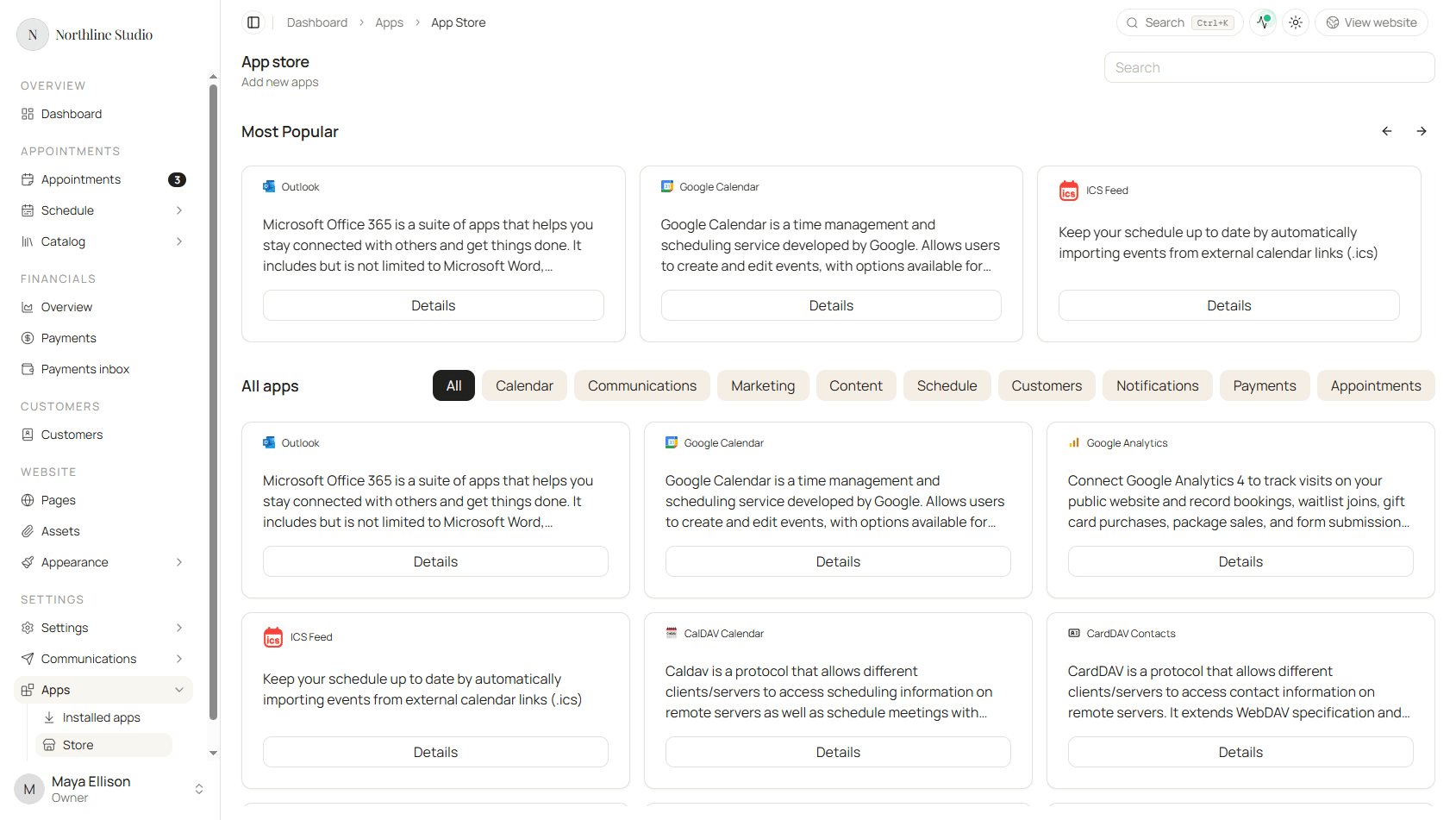
Open Settings → Apps → Store. Browse or search for what you need, then open Details and follow the on-screen steps.
Calendar
Pick the calendar you check every day. Hacado can add new bookings there and read your existing events to avoid double bookings.
| App | Best for |
|---|---|
| Google Calendar | Google Workspace or personal Gmail calendars. |
| Outlook | Microsoft 365 or Outlook.com calendars. |
| CalDAV | Other calendar providers that support CalDAV. |
| Calendar feed (ICS) | Read-only busy times from a calendar URL. |
If you chose email calendar files during setup instead of a direct connection, that still works. A direct connection is easier long term.
Payments
Connect one payment processor you already use:
After connecting, you can require a deposit or full payment at booking. Adjust deposit rules under Settings → Appointments or on each service.
Customer notifications
Make sure clients receive confirmations and updates:
Review starter wording under Settings → Communications → Templates.
Reminders and follow-ups
Appointment Reminders sends reminders before visits and optional follow-ups after. Confirm the timing still matches how you work.
Optional but popular
Install these when they fit your business - not required for launch:
- Zoom - for online appointments.
- Forms - contact or intake forms.
- Waitlist - when you are fully booked.
- My account - let clients sign in to manage their own appointments.
After you connect
Open Settings → Apps → Installed apps to confirm each app shows as connected. If something fails, see Apps troubleshooting.