Create a template
- Open Communications → Templates.
- Click Add new template.
- Choose Type.
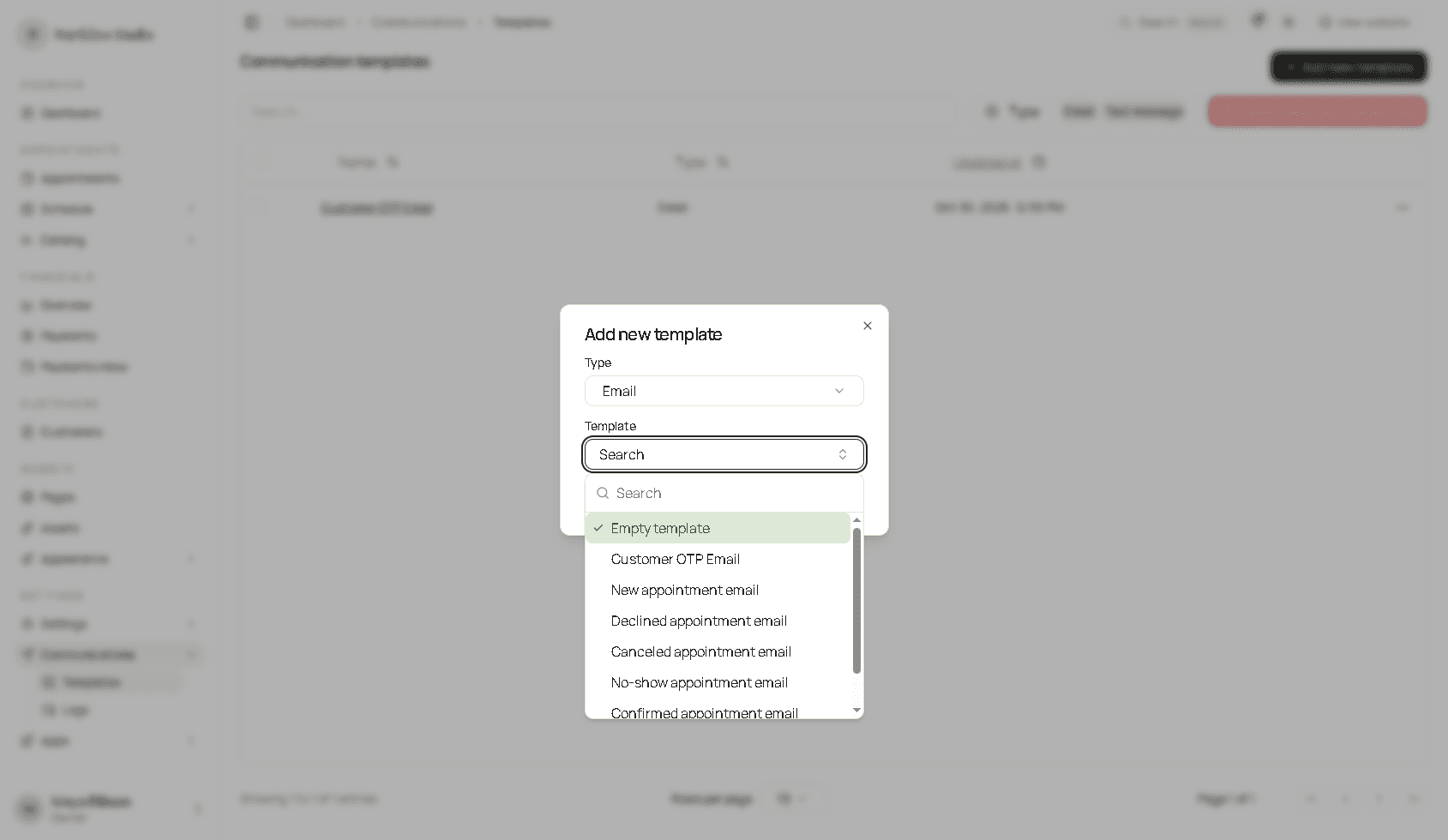
- Open Template and pick a starter, or leave Empty template when you want to write it yourself.
- Click Add new template.
The new page asks for a Template name (it must be unique) and, for email, an Email subject. The subject can include placeholders. Then build the message and click Save.
Clone on an existing row does the same job as a starter when you want a copy of something you already saved.
Empty template
Empty template is the first row in the list. Use it when none of the starters match. An email still starts with an Email layout (the page around the message). A text message starts as an empty box.
On the account used for these screenshots, Add new template stayed off while Empty template was the selected row and turned the flow toward a named starter. If the button stays off, choose a starter and delete the blocks you do not want, or Clone a template you already have.
Starters that always ship with Hacado
These are the core starters. The names follow your workspace language. In English, email starters are:
- Customer OTP Email
- New appointment email
- Declined appointment email
- Canceled appointment email
- No-show appointment email
- Confirmed appointment email
- Rescheduled appointment email
Text starters, when the Text message type is available:
- Customer OTP Text
- New appointment request text message
- Declined appointment text message
- Canceled appointment text message
- No-show appointment text message
- Confirmed appointment text message
- Rescheduled appointment text message
- Text message auto reply
A starter is a starting point. Saving it creates your own template. Editing it later does not change the starter Hacado offers the next time.
Starters from apps
Installed apps can add more rows to the same list. They are not in the core set above. You only see them when that app is installed. Examples:
| App | Extra starters |
|---|---|
| Appointment Reminders | Reminder or follow-up email and text |
| Waitlist | New waitlist entry email |
| Customer waitlist notifications | Slot opened email, slot opened text, leave-confirmation text |
| Package email notifications | Purchased, cancelled, expiring soon, expired, exhausted |
| Gift card studio | Gift card to the buyer, gift card to the recipient |
| Payment links | Payment link email, payment link text |
If a starter you expected is missing, install the app first, then open Add new template again.
After you save
- Click Save.
- Open the app that should send this message.
- Select this template in that app’s template field.
Until an app points at it, the template is only a draft in the list.