Listing gift cards
The Gift cards list shows every gift card in your catalog. Use it to find a card, open one to edit, activate or deactivate it, or delete when Hacado allows.
Open Appointments → Catalog → Gift cards.
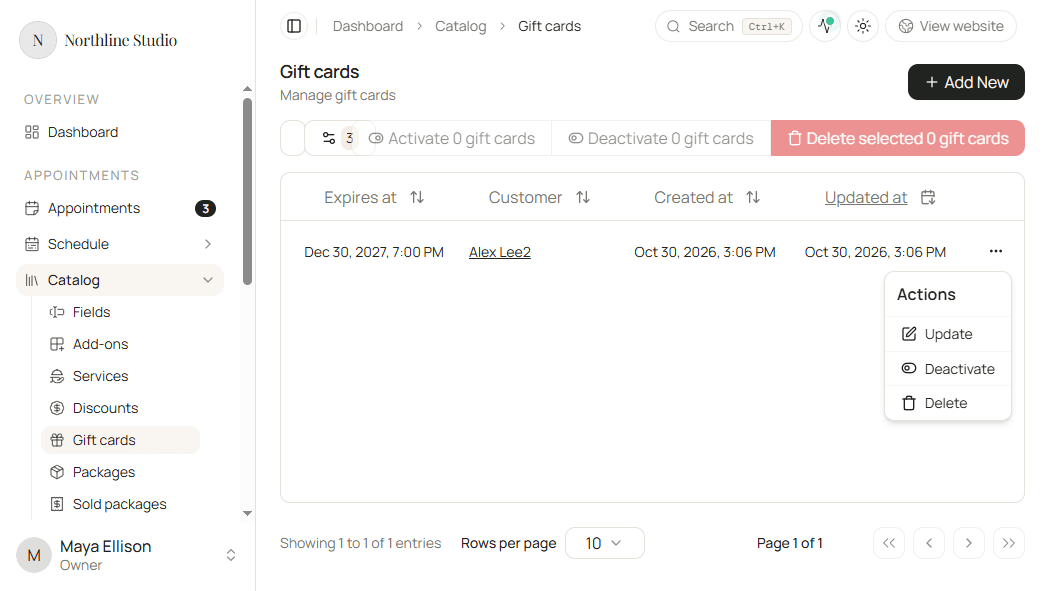
Add a gift card
- Click Add New.
Search and filters
- Click the search box above the table.
- Type part of the gift card code.
- Optionally filter by status, customer, or expiry date range.
- Click Reset filters when you want every gift card again.
Row menu
- Open the menu on a gift card row.
- Choose Update, Activate or Deactivate, or Delete when available.
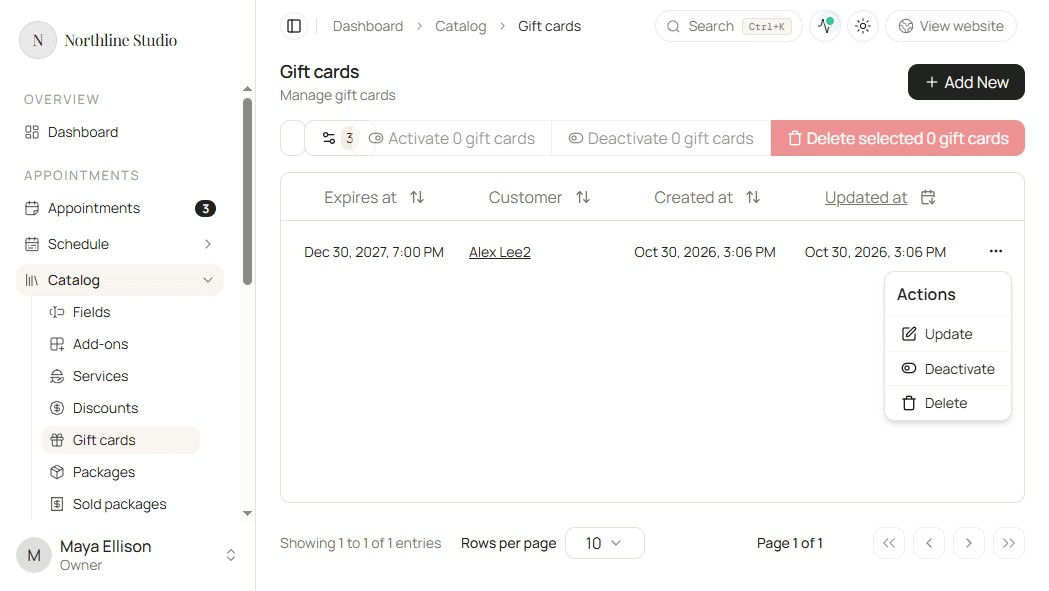
- Update opens the gift card for editing. You can also click the code.
- Activate / Deactivate change whether the card can be redeemed. See Activating and deactivating.
- Delete appears only when the card can be removed. See Deleting a gift card.
Activate or deactivate several gift cards
- Check the rows you want to change, or use Select all.
- Click Activate or Deactivate for the selection.
- Confirm in the dialog.
Delete several gift cards
- Check the rows you want to remove, or use Select all.
- Click Delete selected when it is available.
- Confirm in the dialog.
Only gift cards that are allowed to be deleted can be removed in bulk. Cards that are in use, paid online, or owned by an app stay in the list.
Good to know
If Delete is missing or disabled on a row, open Deleting a gift card for the rules.