Services and packages
Creating a service or package in Catalog does not make it bookable by itself. Settings → Appointments → Services and packages is where you choose what appears on the public booking flow.
Open Settings → Appointments, then the Services and packages tab.
Before you start
- Create services, packages, fields, and add-ons under Catalog.
- Know which items should be live for clients right now (you can leave some in Catalog only).
Add something clients can book
- Click Add new (or the + on the Catalog card).
- Choose Add service, Add package, or Add group depending on the menu.
- Pick the Catalog item on the card.
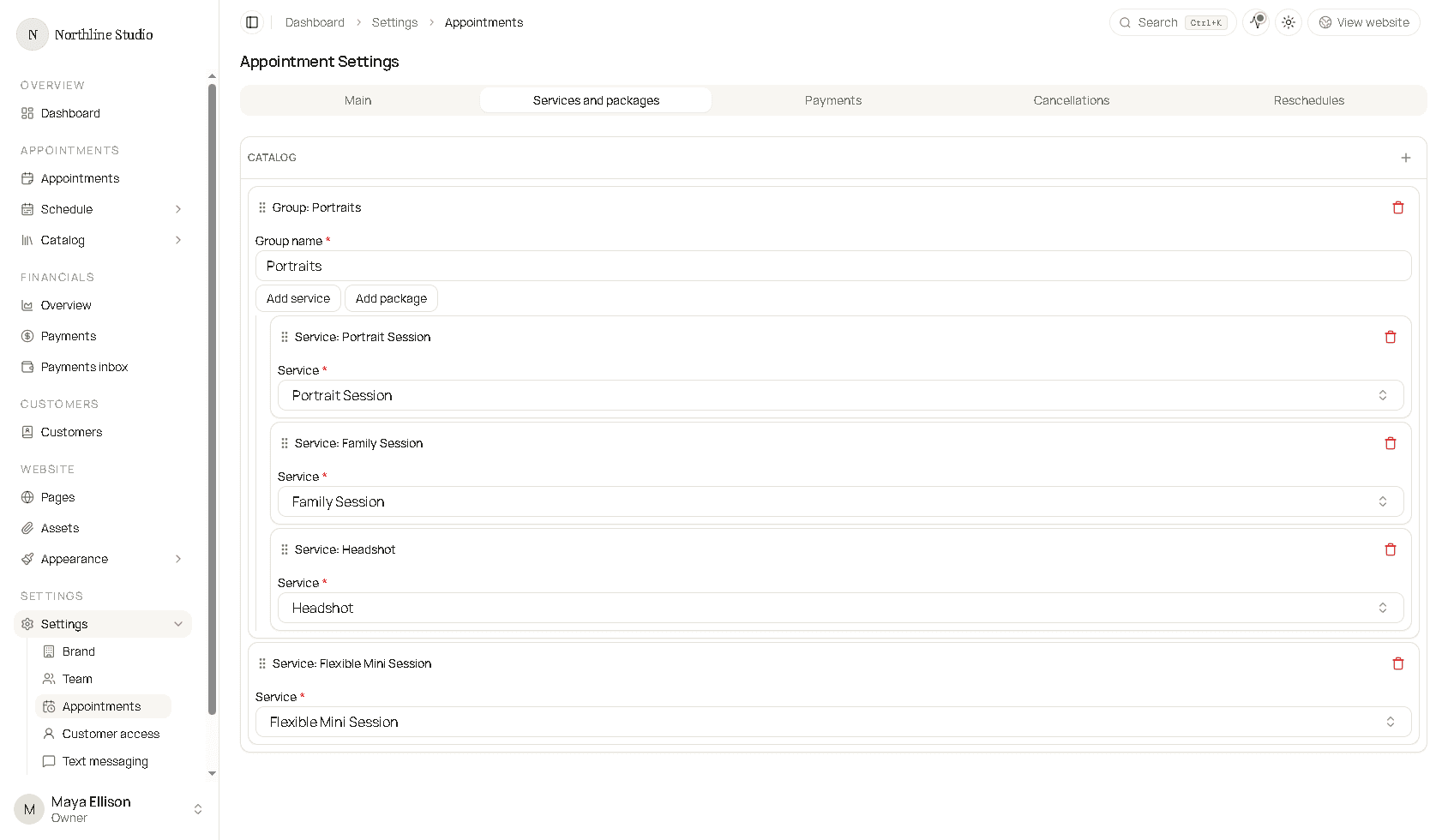
- Drag cards to set the order clients see.
- Click Save on the appointment settings form.
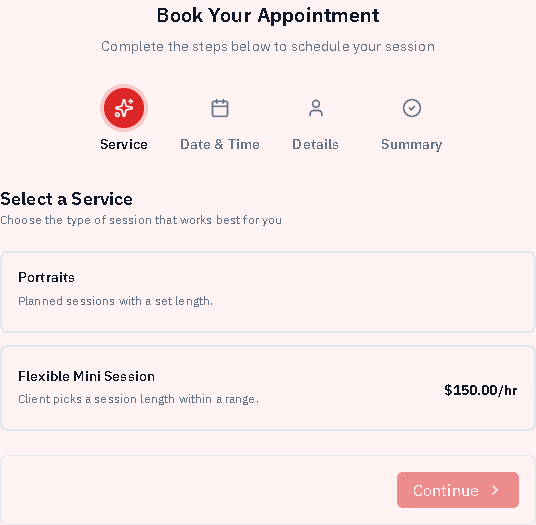
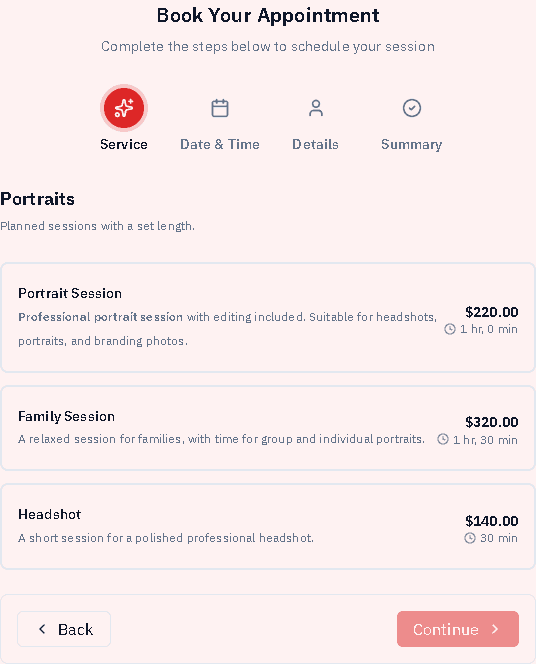
A group needs a name. The short description is optional and appears under that name on the booking page. Use Add service or Add package on the group card to put items inside it. Items you leave outside a group are their own choices on the first step.
On the booking page, each group is one option. The client opens the group, then picks a service or package inside it. Order on this tab is the order on that page.
Remove from booking (keep in Catalog)
- Open the card’s delete control (trash).
- Confirm removal from the list of available services.
- Save.
The Catalog definition remains. Clients simply cannot book it until you add it again.
After creating a service
When you save a new service in Catalog, Hacado may ask Add this service to booking availability? Choosing Add to available services puts it on this list immediately. Choosing Not now leaves it Catalog-only until you add it here.
Good to know
- Order on this tab is the order on the booking page.
- Empty groups show as empty until you add children.
- Per-service deposit, cancellation, and reschedule overrides still live on the service form; this tab only controls availability.