Brand settings
Settings → Brand (page title Site & brand) holds how clients recognize your business online and on paperwork. Related items are split into four tabs along the top: General, Brand, Social, and Styling.
Open Settings in the side menu, then Brand. Or use the Brand card on the Settings hub.
Click Save at the bottom after you finish a tab so Hacado stores your changes.
General
Use General for information that should stay consistent across emails, your site, and search listings.
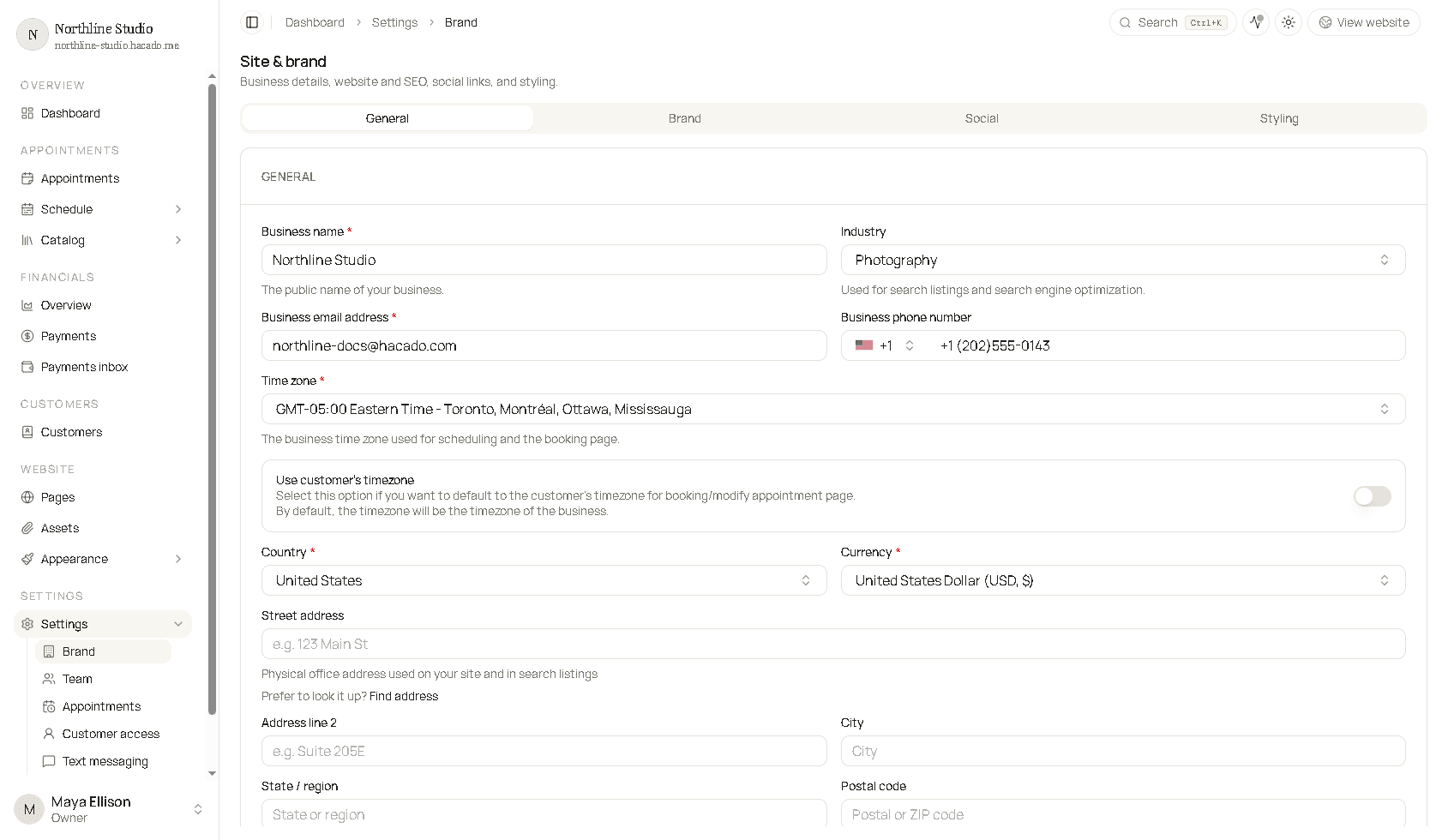
| Field | What it does |
|---|---|
| Business name | Public name of your business. |
| Industry | Helps search and listings understand what you do. |
| Business email and phone | Contact details for the business. |
| Time zone | Clock used for scheduling and the booking page. |
| Use customer’s timezone | On for mostly online work so clients see times in their zone. Off for in-person work so everyone sees your location’s clock. |
| Country and Currency | Shape how prices display at checkout. |
| Street address (and line 2, city, region, postal code) | Optional physical location on your site and in search. Use Find address for a lookup. |
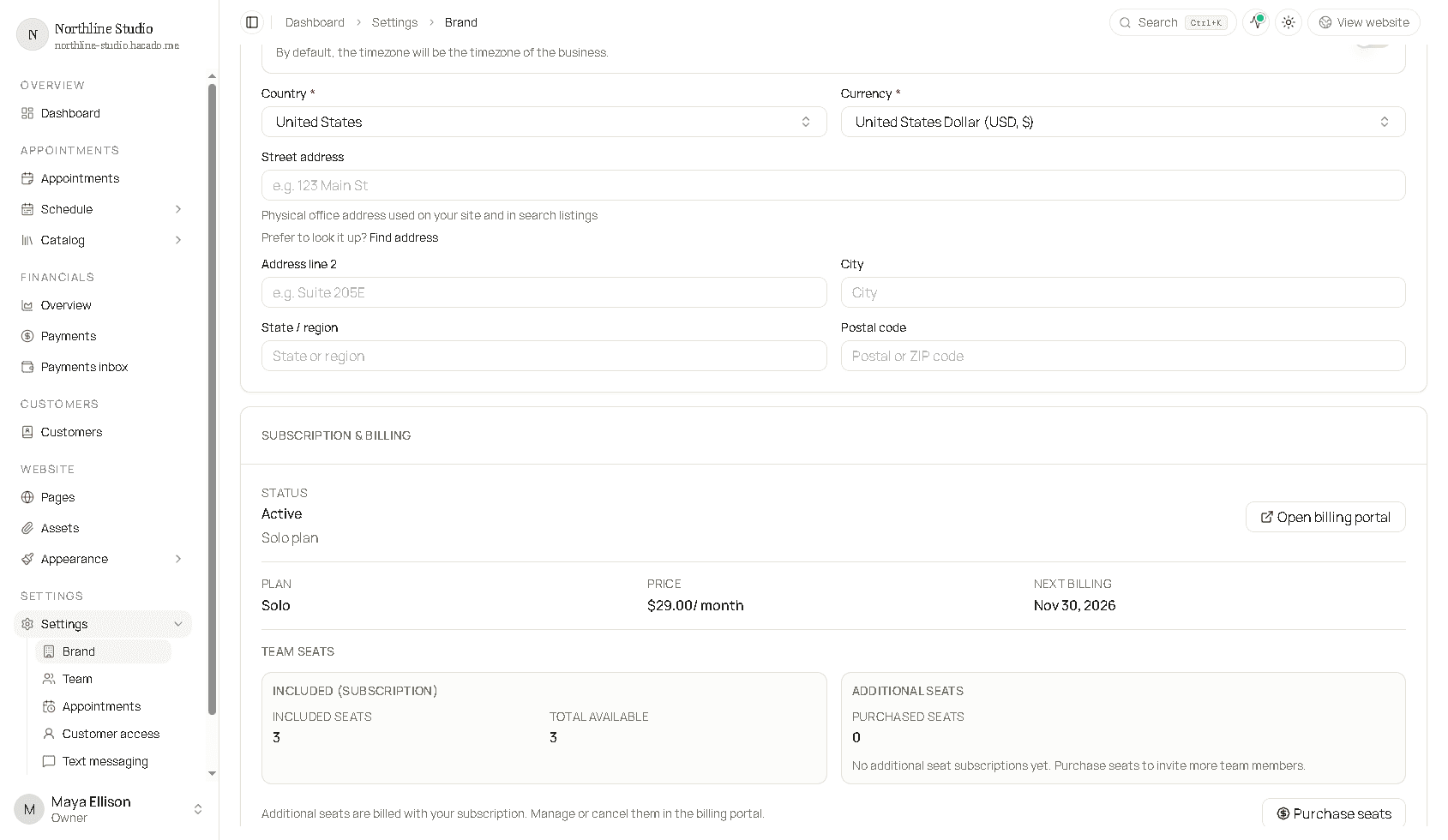
Subscription & billing
Further down the same tab, Subscription & billing shows your plan status, price, next billing date, team seats, and SMS credits. From here you can:
- Open billing portal to manage or change your plan
- Purchase seats when you need more team members
- Buy SMS credits for text messaging top-ups
Brand
Use the Brand tab for what visitors see on your booking website.
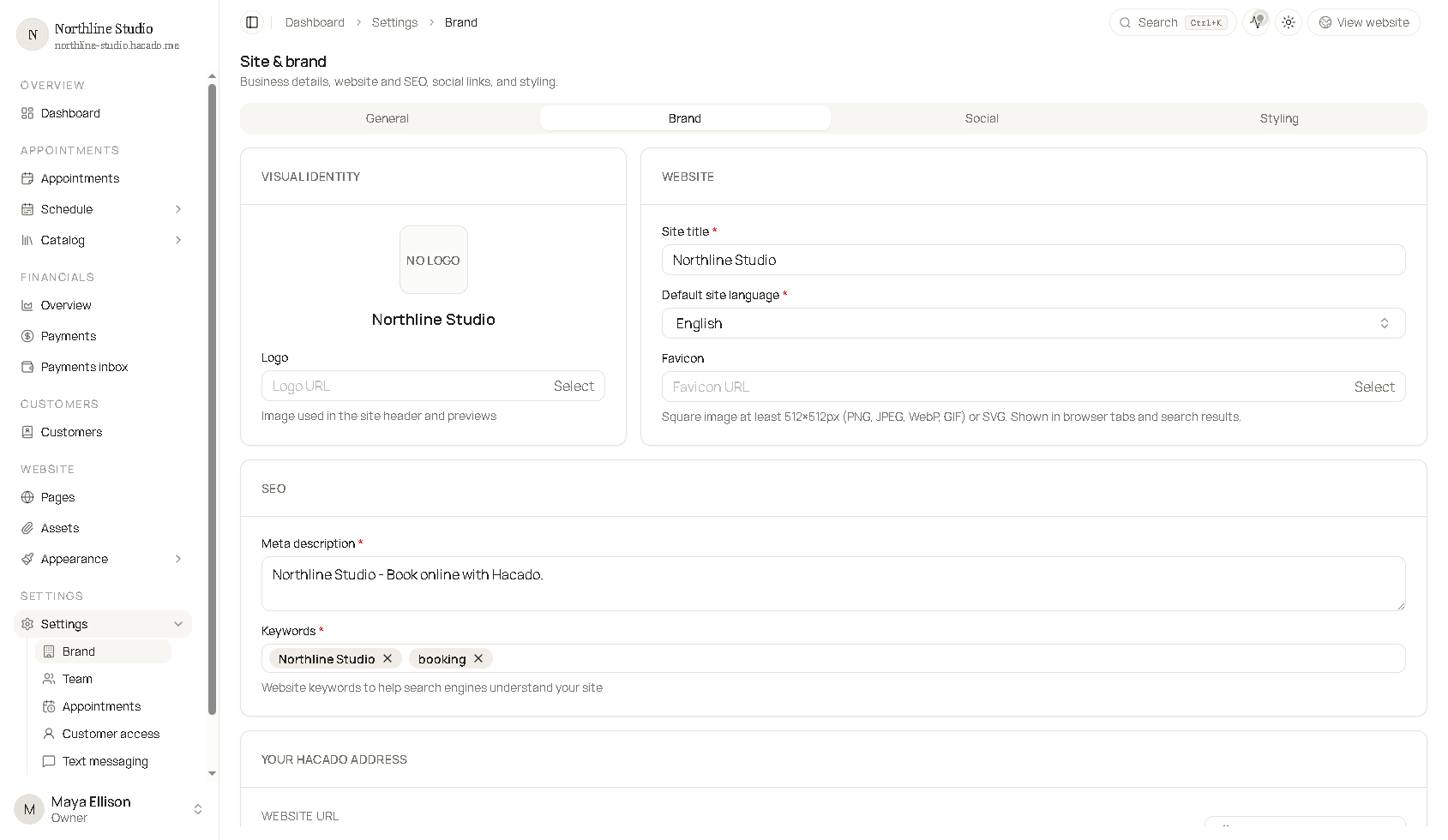
Visual identity
- Logo - click Select to pick an image from your assets. Shown in the site header and previews.
Website
| Field | What it does |
|---|---|
| Site title | Name on public pages and in the browser tab. |
| Default site language | Language clients read first. |
| Favicon | Square image for browser tabs (at least 512×512px PNG/JPEG/WebP/GIF, or SVG). |
SEO
| Field | What it does |
|---|---|
| Meta description | Short description for search engines. |
| Keywords | Words that help search engines understand your site. Add them as tags. |
Your Hacado address
This card shows the public URL of your booking site and your organization slug.
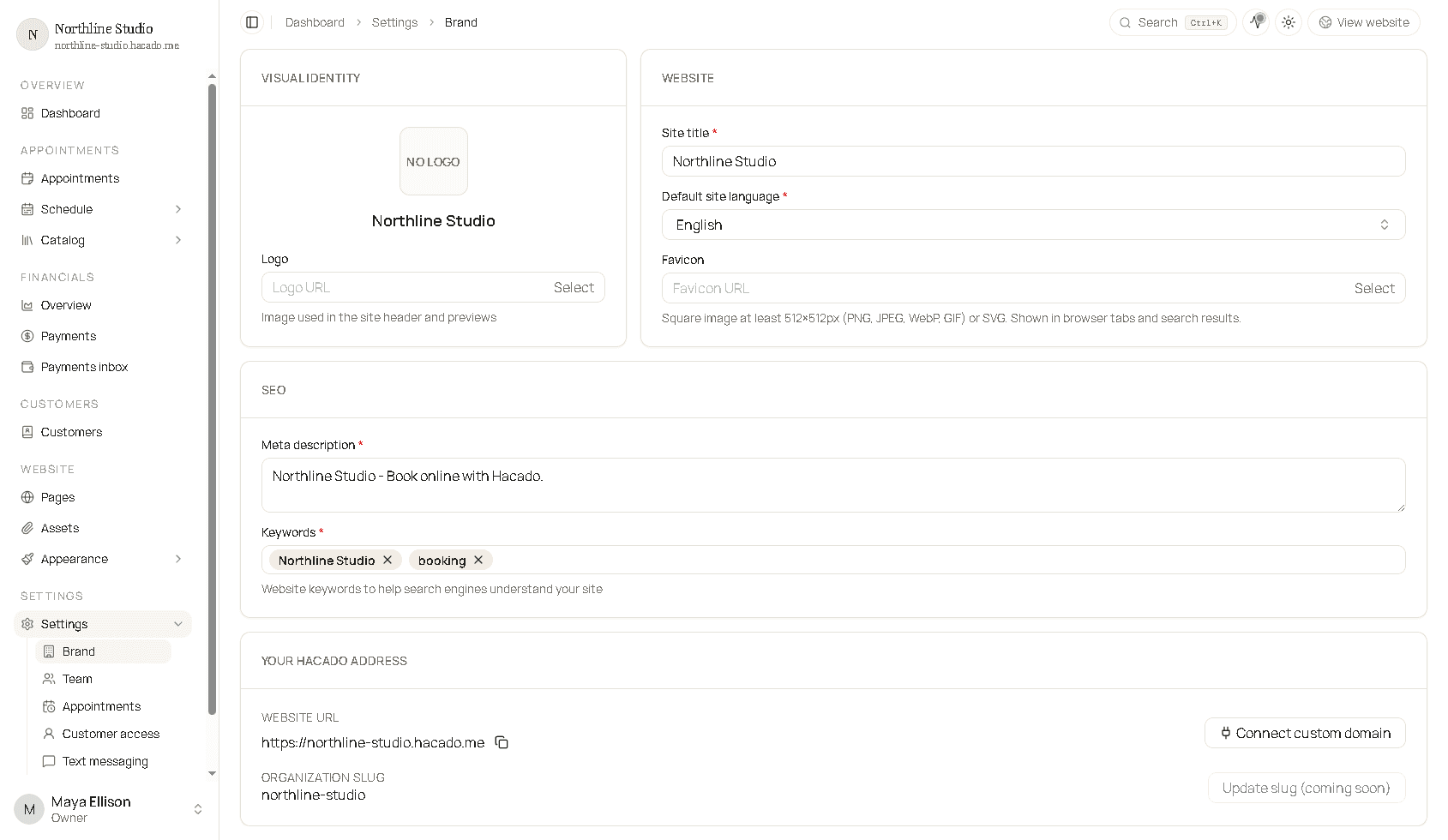
- Use the copy button next to the website URL to share your booking link.
- Connect custom domain opens the wizard to use a name you buy yourself (for example
www.yourbusiness.com). Full beginner walkthrough: Connect your own domain. - Custom domains need a plan that includes them (Solo or higher). If you see an upgrade message, open billing from the General tab.
- Update slug is listed as coming soon.
Social
Add links to profiles you want visitors to find (Instagram, Facebook, LinkedIn, and similar). Click + to add a link. These can appear on your public pages depending on your site layout.
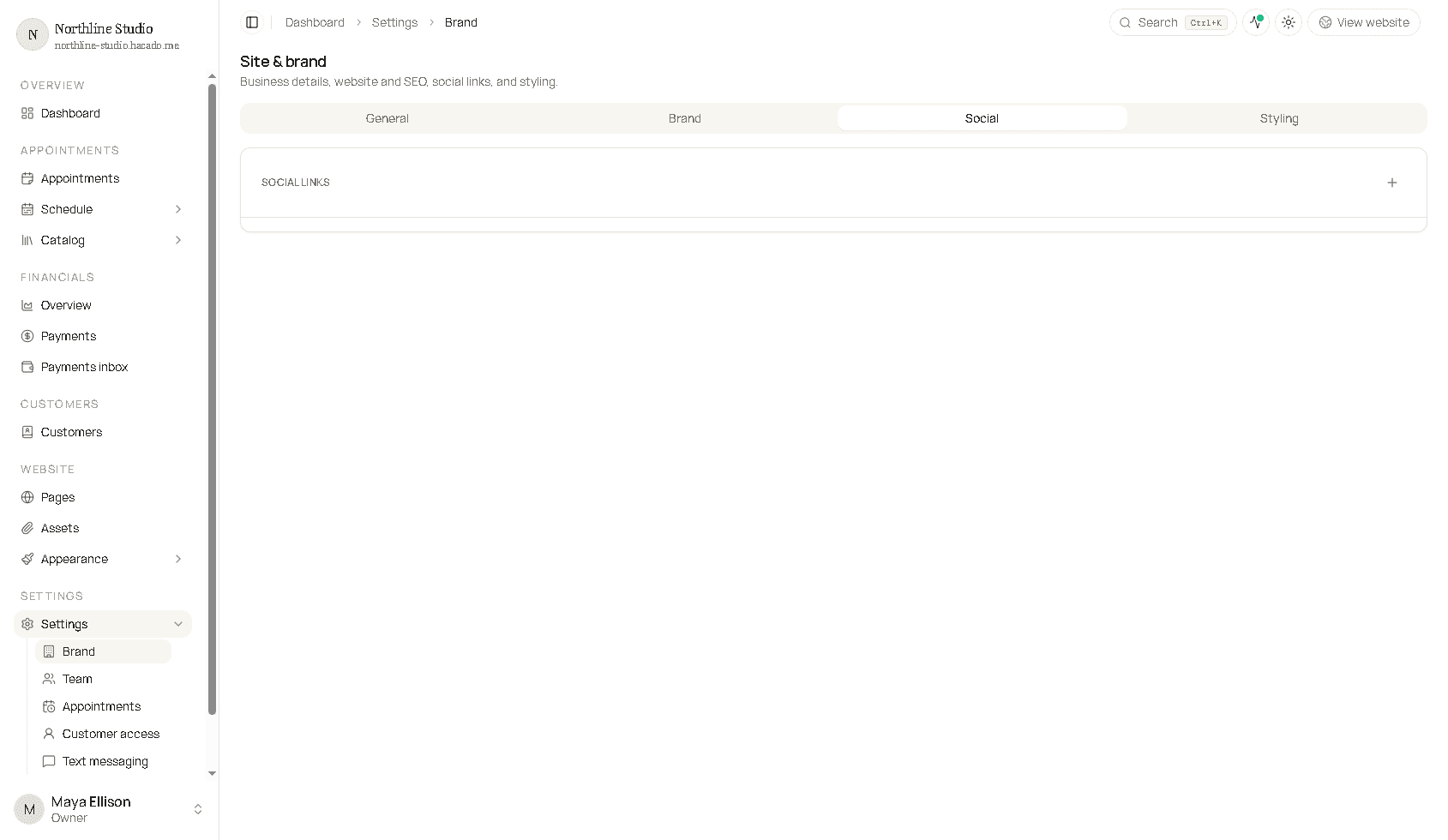
For each link, pick a Type and paste the full URL to your profile. Drag to reorder. Remove a link when you no longer want it shown.
Styling
Fine-tune fonts and colour overrides beyond what website design already set.
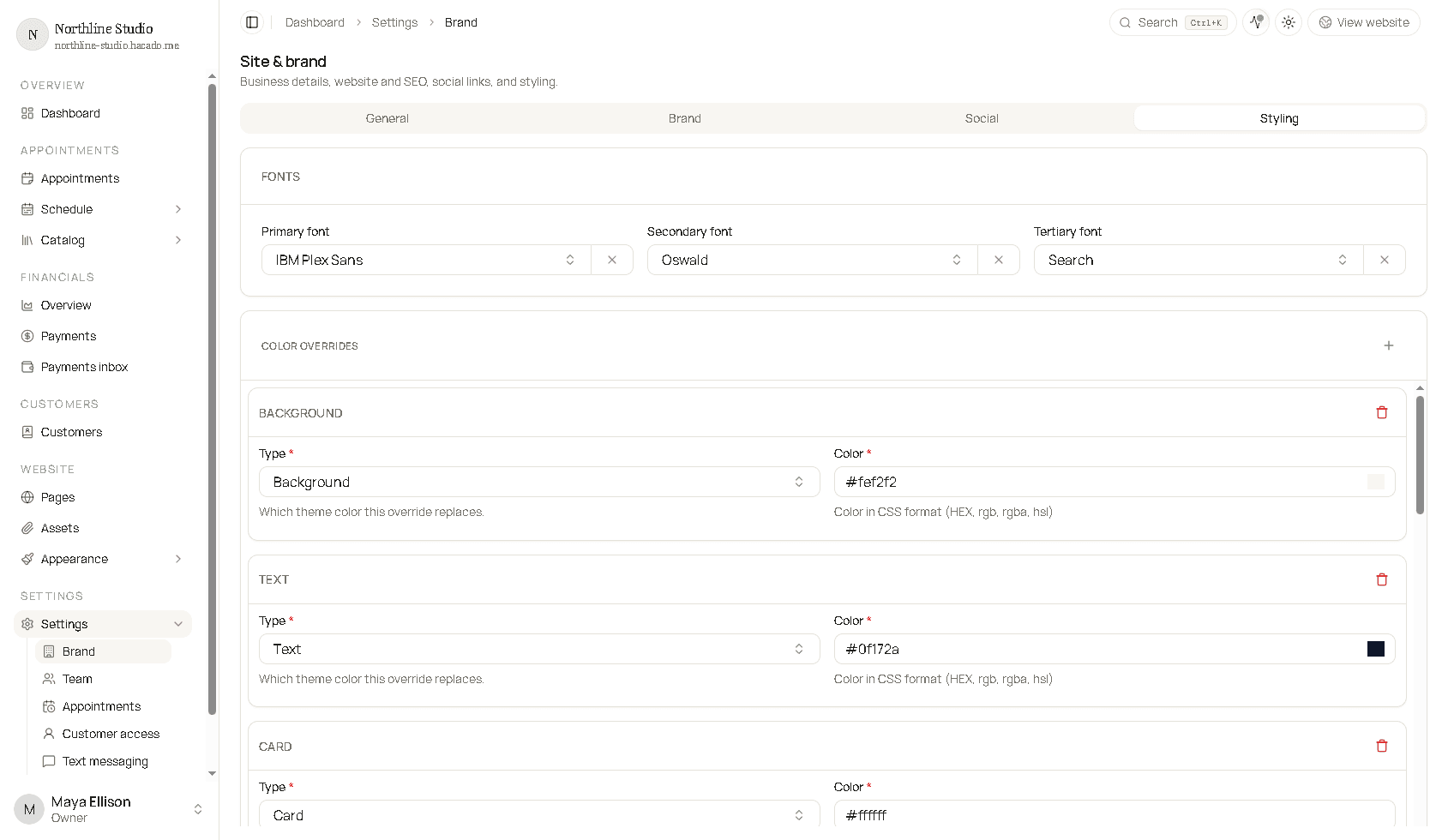
- Optionally set Primary, Secondary, and Tertiary fonts.
- Under Color overrides, click + to replace a theme colour (background, text, card, and similar) with a HEX, rgb, or hsl value.
- Optionally add Additional CSS for advanced tweaks.
Use these colours and fonts when you edit website pages so the look stays consistent.
Next steps
- Team - invite staff
- Appointments - booking behaviour
- Connect your own domain