Set your availability
Clients can only book when you are open. Your default weekly schedule tells Hacado which days and hours to offer on your booking website.
Open Appointments → Schedule → Default schedule.
The screen looks different on a wide window and on a phone. Both save the same hours.
On a computer
You get a week grid. Hours run down the left. Days run across the top.
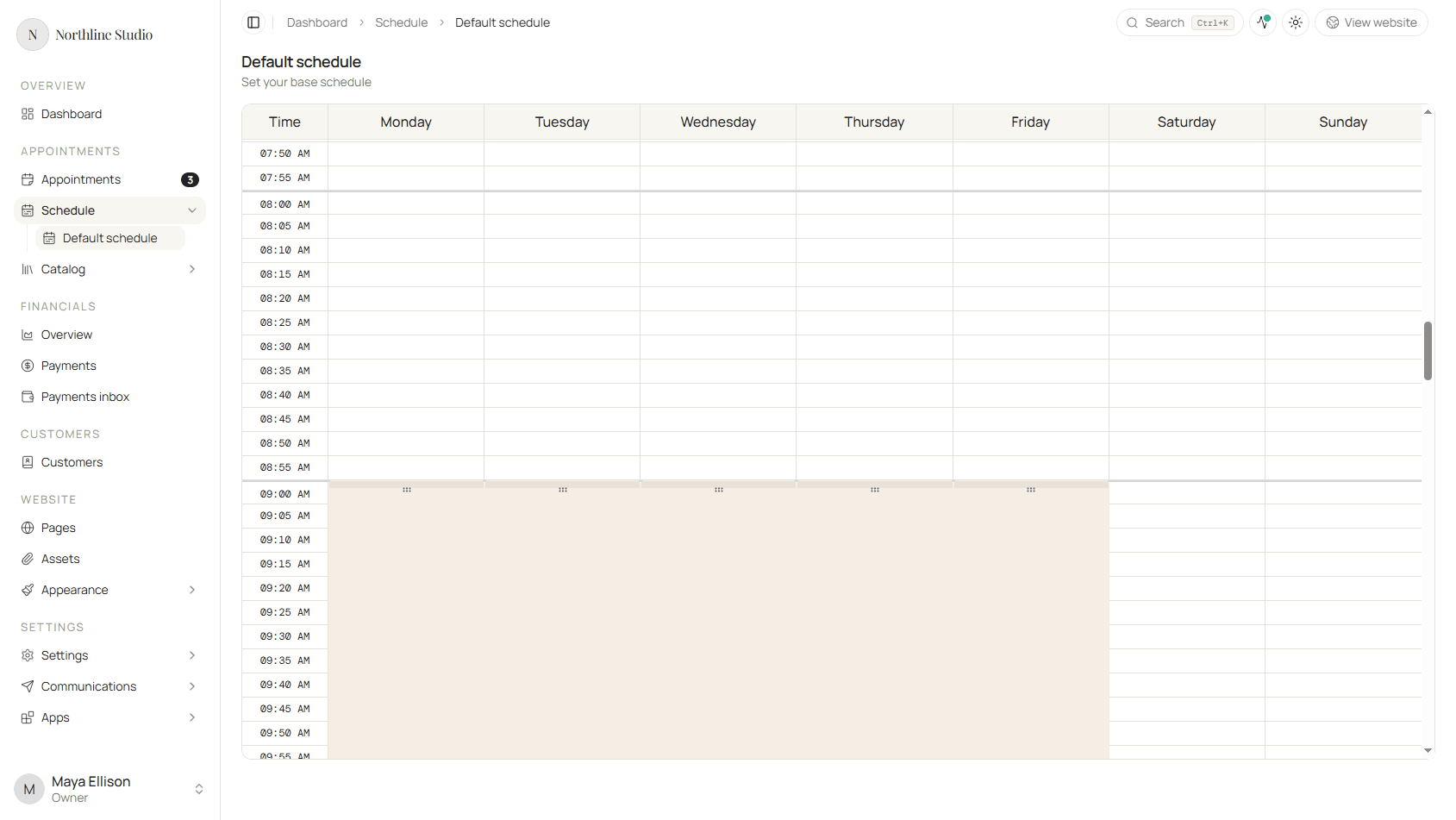
- Drag down an empty day to draw a block of hours.
- Drag a block to move it to another time or day.
- Drag the top or bottom edge to make the block longer or shorter.
- Click the X on a block to remove those hours.
- Click Save at the bottom when you are done.
A day with no blocks is a day off. Add a second block on the same day if you take a break in the middle.
On a phone
You get one day at a time in a list. Open a day to see its shifts.
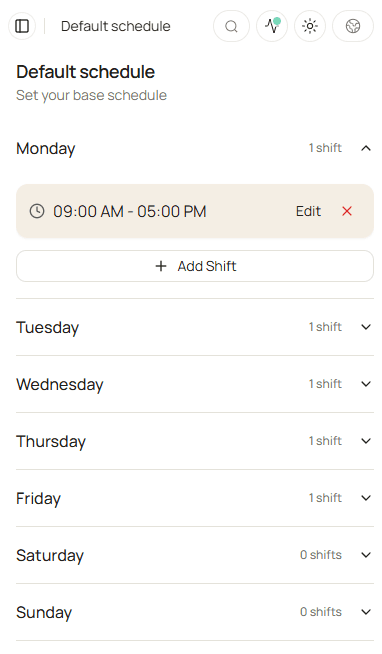
- Tap a day to open it.
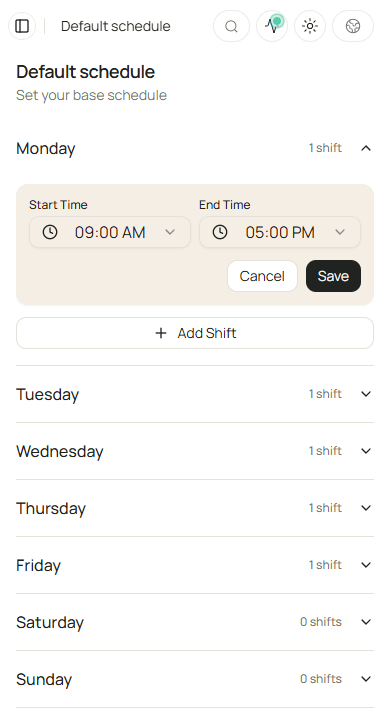
- Tap Edit on a shift to change the start and end times, then Save.
- Tap Add Shift for another block on that day.
- Tap the red X to remove a shift.
- Tap Save at the bottom of the page when you are done.
How availability works on your site
When a client opens your booking page, Hacado shows open slots based on:
- Your default weekly schedule.
- Any appointments already booked.
- Optional tools below (if you use them).
Get the default schedule right first - most small businesses do not need anything more on day one.
Optional ways to fine-tune
Install these from Settings → Apps → Store when you need them. Each has its own guide in Apps.
- Weekly Schedule - override hours for specific weeks.
- Busy Events - block time that is not a client booking.
- Google Calendar or Outlook - read busy times from a calendar you already use.
Quick check
- Every day you work has the right hours.
- Days you are closed have no shifts.
- Time zone under Settings → Brand → General matches where you work.