Team settings
Settings → Team is where an owner or admin invites people, sets what they can do, and sees how many seats the plan is using.
Before you start
- Your workspace is on the Studio plan (or higher).
- You are signed in as Owner or Admin. Coordinator and Staff do not see Team in Settings.
Open Team
- Open Settings in the side menu.
- Click Team. You can also open the Team card on the Settings hub.
The line under the title shows seats in use, for example 2 of 3 seats used. Each active member uses one seat. The owner uses a seat too.
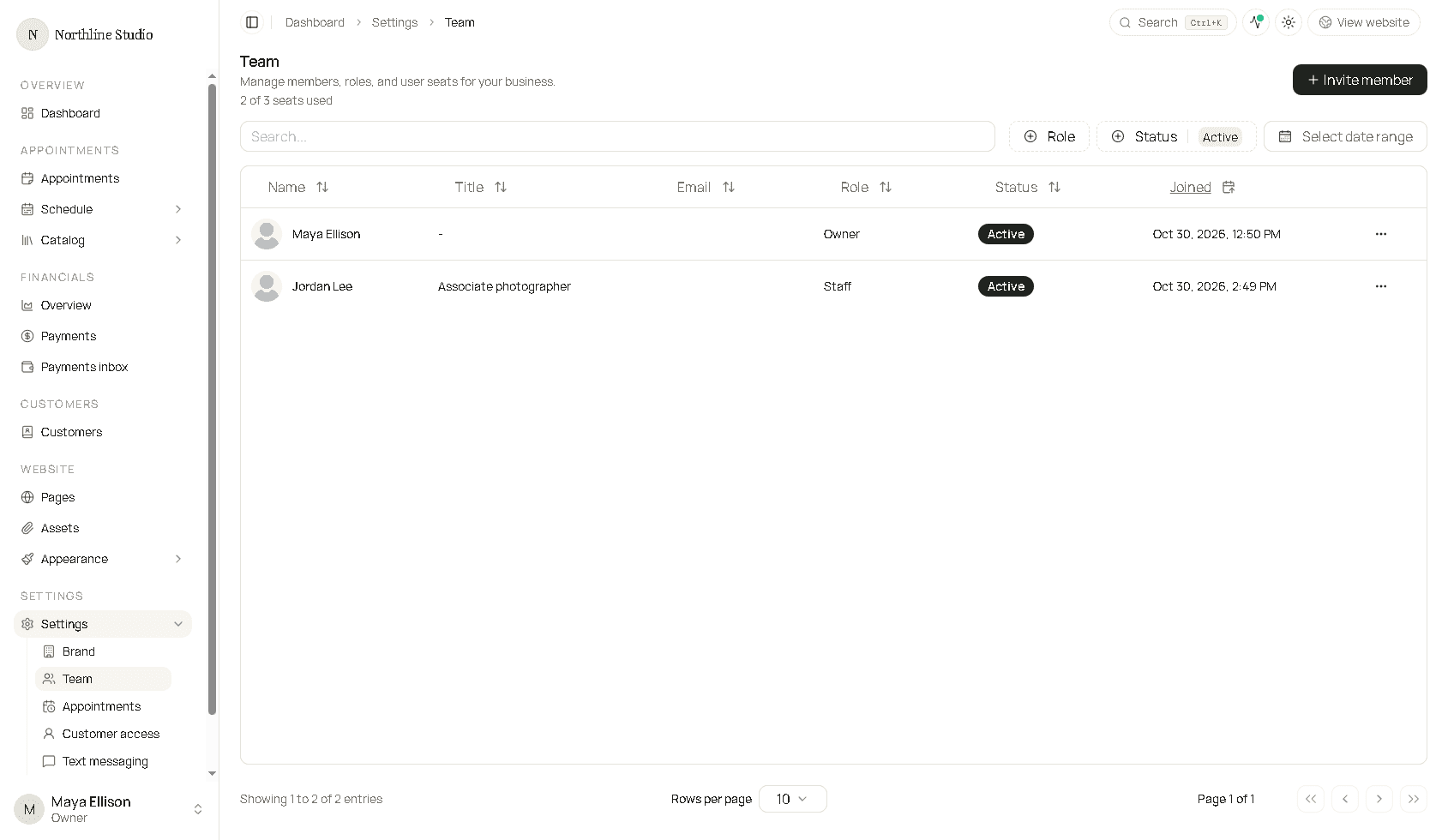
The table lists Name, Title, Email, Role, Status, and Joined.
Invite a member
You need a free seat. While a seat is free, Invite member is on the page.
- Click Invite member.
- Enter the person’s email address.
- Open Role and choose Admin, Coordinator, or Staff.
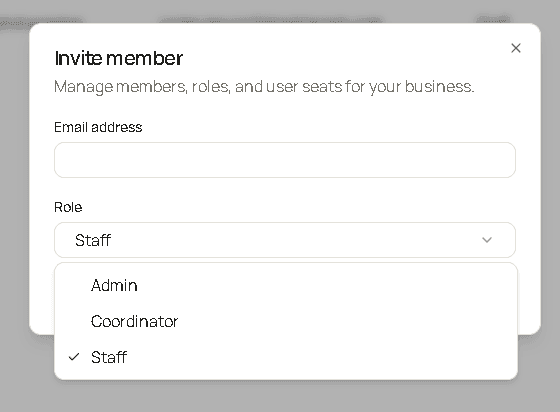
- Click Send invitation.
Send invitation stays off until the email field has an address.
The person gets a link to join. Until they accept, Pending invitations lists the email, the role, and Cancel.
You cannot invite someone who already belongs to another Hacado workspace. Use a different email.
When every seat is used
Invite member is replaced:
- Purchase seats when the plan allows extra seats. Extra seats are billed with the subscription. After checkout, the seat line updates (it can take a moment).
- Upgrade to Studio when the current plan cannot add seats.
Billing for the plan itself stays on Brand → General.
Roles
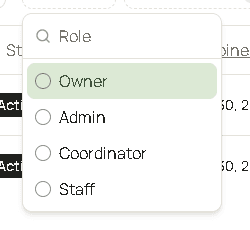
There are four roles. An invitation can assign Admin, Coordinator, or Staff. Owner is not in that list. There is one owner, and Team cannot change the owner’s role or turn the owner off.
| Role | What they can do |
|---|---|
| Owner | Runs the workspace, including billing, settings, team, catalog, appointments, and deleting the business. |
| Admin | Same day-to-day access as the owner, including billing, settings, inviting people, and changing roles. Cannot delete the business. |
| Coordinator | Manages everyone’s appointments and schedules, customers, discounts, and gift cards. Can sell packages, edit pages, and review synced payments. Can read the catalog, team, and settings. Cannot invite people, change roles, or edit settings. |
| Staff | Creates appointments and updates the ones they are allowed to change. Sees the appointment list. Reads their own schedule. Can add and look up customers, read discounts, gift cards, and packages, take a gift card payment, and sell a package. Can install apps for their own use. Cannot change settings, billing, team roles, other people’s schedules, or reassign, approve, or cancel for the whole team. |
Filter the table by role when you need one group.
Change a role
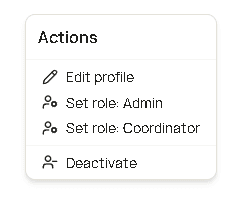
- On an active member who is not the owner, open the row menu (⋯).
- Click Set role: Admin, Set role: Coordinator, or Set role: Staff. The current role is left off the menu.
The member keeps their seat. The new role applies the next time they use the workspace.
Edit a profile
- Open the row menu (⋯).
- Click Edit profile.
Use the profile for a job title and, for video visits, the Meeting URL provider. See Creating a new service.
Deactivate a member
Deactivating signs that person out and frees their seat. Past appointments stay on the calendar.
- Open the row menu (⋯) on an active member who is not the owner.
- Click Deactivate.
If they have upcoming appointments, Hacado asks you to choose:
- Reassign appointments - opens Appointments filtered to that person so you can move the visits first.
- Deactivate anyway - turns them off and leaves those visits on their name.
Their status becomes Inactive (removed). They do not come back on their own if you later add seats. Invite them again when you want them back, and you need a free seat to do that.
The owner has no Deactivate action.
Find a member
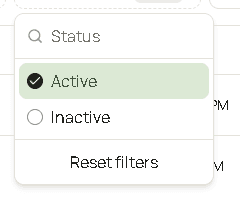
- Open Status and choose Inactive to see people who are off. Active is selected by default, so a deactivated person disappears from the list until you change it.
- Use Search to match a name.
- Click Select date range to limit the list by Joined.
- Click Reset filters to clear Role, Status, and the date range.
When the plan no longer covers the team
This runs when you downgrade, or when purchased seats drop, and the number of active members is higher than the seats you have left.
Hacado turns off the newest members who are not the owner, one by one, until the active count fits the seats. The owner stays active. Those people are signed out. Their status becomes Inactive (plan downgrade).
Upcoming appointments stay assigned to them. A banner on the dashboard says inactive members still have visits that need to be reassigned.
When seats come back
If you upgrade or buy seats so there is room again, Hacado turns Inactive (plan downgrade) members back on, oldest first, until the free seats are filled.
Inactive (removed) members stay off. A downgrade does not reactivate someone you deactivated yourself.
What happens next
- Plan and extra seats: Brand → General.
- Who can book, and whether staff may connect a calendar: Appointment settings.
Good to know
Staff can connect calendar sources for busy times only when Appointment settings → Main allows it.