How to write excellent text message templates
A text template is one short message about one thing that already happened for that customer. A confirmation, a reminder, a cancellation, a payment link, or a sign-in code each get their own template. You write the sentence once. Expressions fill in the name, the service, and the time when Hacado sends it.
Custom text templates need the Solo plan or higher. In the United States and Canada they also have to be verified. Until then, customer texts use Hacado’s built-in wording. See Text message templates and Text messaging.
The paths below are explained in Using template expressions.
What the text has to do
Say four things, in this order:
- Who it is from, with
{{config.name}}. - What happened: confirmed, a reminder, canceled, rescheduled, declined, or a sign-in code.
- Which service, and when. On a text, use the short date
{{dateTime.sms}}. - Who they will see, with
{{member.name}}. Add the job title only when that person has one.
Leave out a sale, a newsletter, a review request, and any other promotion. A text that is only a link is not sent. The rules for what a customer text may say are on Text messaging.
What you do not type
Preview shows the template you wrote. It does not show the lines Hacado adds on the way out from your own number:
- The customer’s first text gets
Msg&data rates may apply. Reply STOP to cancel, HELP for help.when that exact sentence is not already in the template. - Each text ends with
Txt STOP to unsubscribewhen it does not already end with that line.
Do not tell customers to ignore STOP. Do not paste those lines in unless you want them in your own words. Pasting the rates sentence exactly means Hacado will not add it a second time.
The number under the box is the length of the preview, not a count of those added lines.
Confirmation
Hi {{fields.name}}, {{config.name}} confirmed your {{service.name}} for {{dateTime.sms}} with {{member.name}}{{#member.jobTitle}} ({{member.jobTitle}}){{/member.jobTitle}}.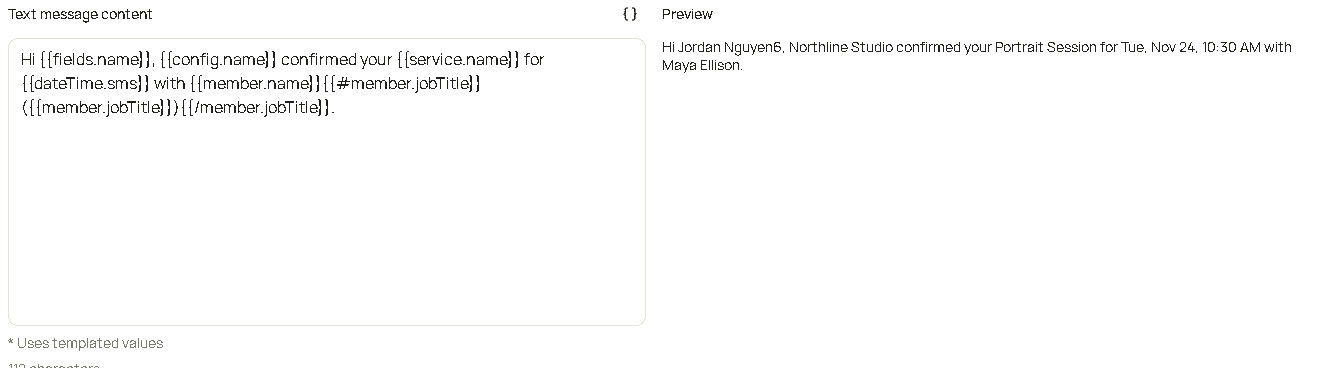
Preview here is a real appointment, so the names and time are that booking. On a new template, Preview uses the sample booking instead: John Smith, Demo service, Joe Doe, Wed, Nov 20, 9:00 AM.
The parentheses are missing in this preview because this team member has no job title. The section between {{#member.jobTitle}} and {{/member.jobTitle}} is left out when the title is empty. When the title exists, the customer sees it, including the parentheses.
Reminder
A reminder is the same facts, with less to read. It does not repeat the price. The email can carry the price.
Hi {{fields.name}}, this is a reminder from {{config.name}}. Your {{service.name}} is on {{dateTime.sms}} with {{member.name}}.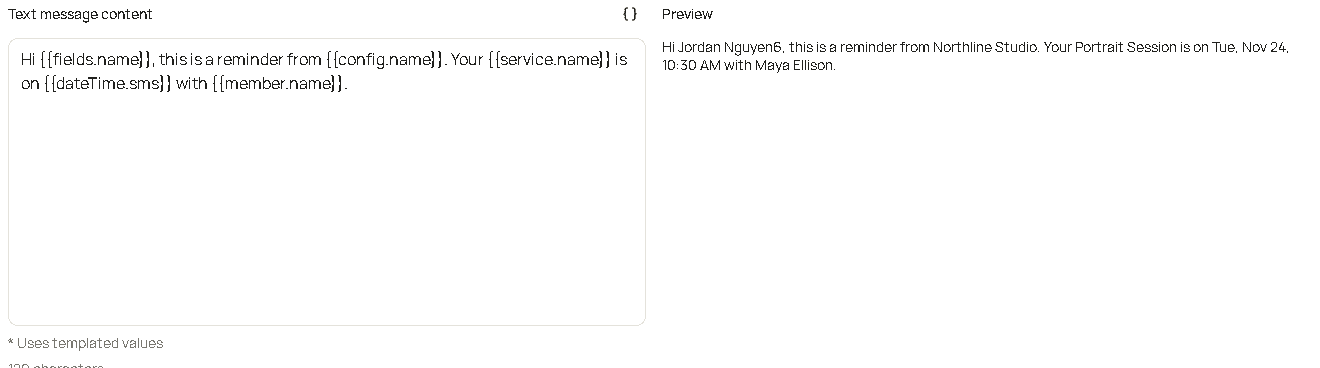
Sign-in code
A sign-in text has no appointment. Keep it to the business and the code.
{{config.name}}: your code is {{otp}}. It expires in 5 minutes.On a sign-in template, Preview shows the sample code 123456. {{service.name}} stays empty there, because that message has no booking.
Good to know
- Use
{{dateTime.sms}}in a text. Save{{dateTime.full}}for the email, where there is room for the time zone. - Use
{{fields.name}}for the name on the booking. Use{{customer.name}}when the message is not tied to one appointment, such as an auto-reply. - After you save, select the template in the app that should send it. The template does not send itself.