Customer access
Settings → Customer access controls how customers receive the one-time code they use to sign in (for example in My account or when verification is required at booking).
Open Settings in the side menu, then Customer access. Or use the Customer access card on the Settings hub.
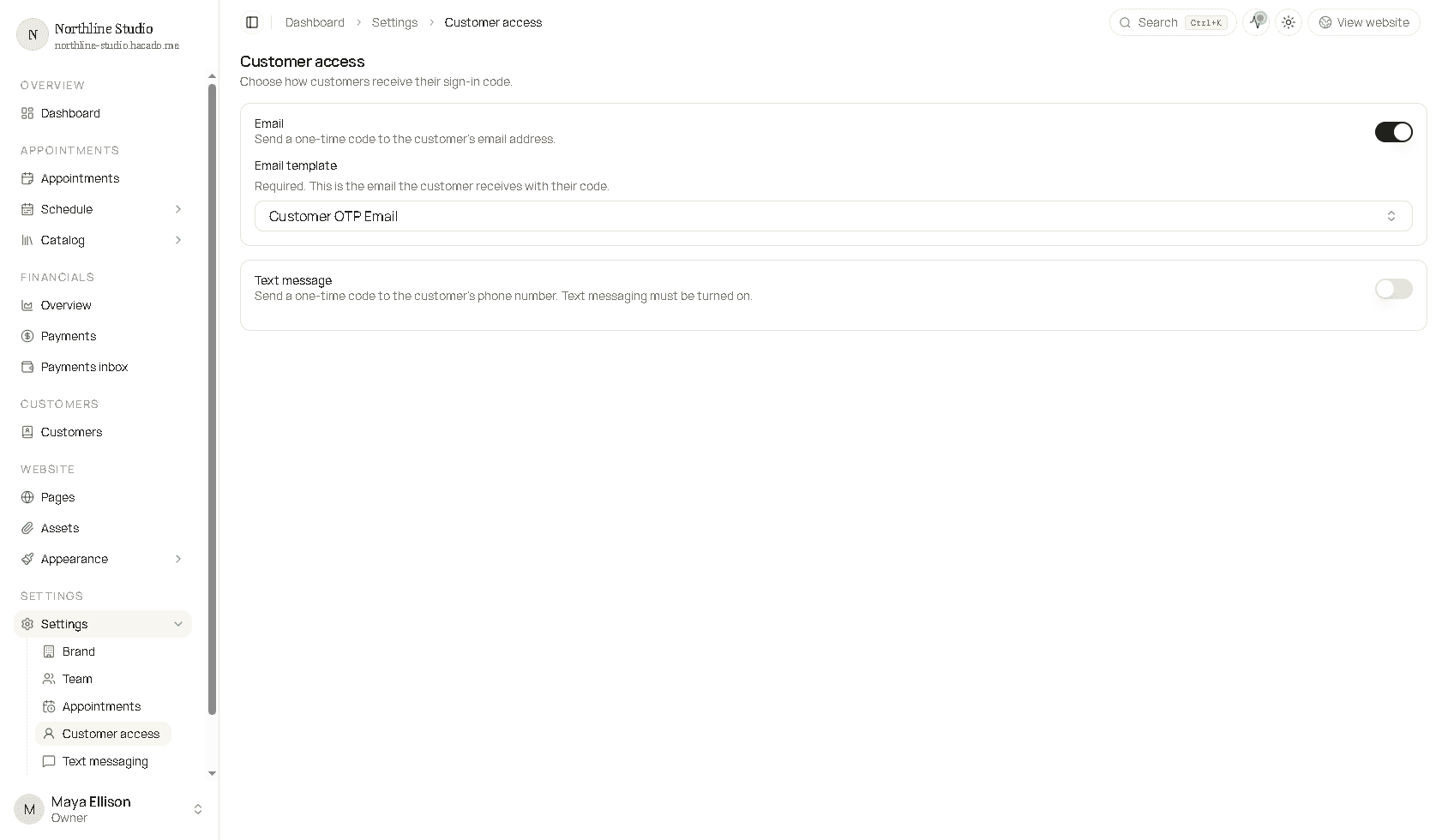
- Turn Email on to send the code to the customer’s email address.
- Choose an Email template (required). This is the message that contains the code - for example Customer OTP Email.
At least one channel (email or phone) must stay on.
Text message
- Turn Text message on to send the code by SMS.
- Text messaging must already be enabled under Text messaging. While texts are off, this option stays unavailable and sign-in uses email instead.
- When phone is on, customers receive a built-in text with their code (or a custom template when your workspace allows it).
Save
Click Save at the bottom after you change channels or the email template.
Related
- Text messaging - turn on SMS opt-in and legal pages
- Require customer verification - Main tab switch that asks for a code before pay/confirm
- Communications → Templates - edit email wording