Settings overview
Settings is where you keep long-lived business choices: how your brand looks, who is on your team, how booking works, and how customers sign in or get texts.
Open Settings in the side menu, or go to Dashboard → Settings. You land on a hub of cards. Each card opens one settings area.
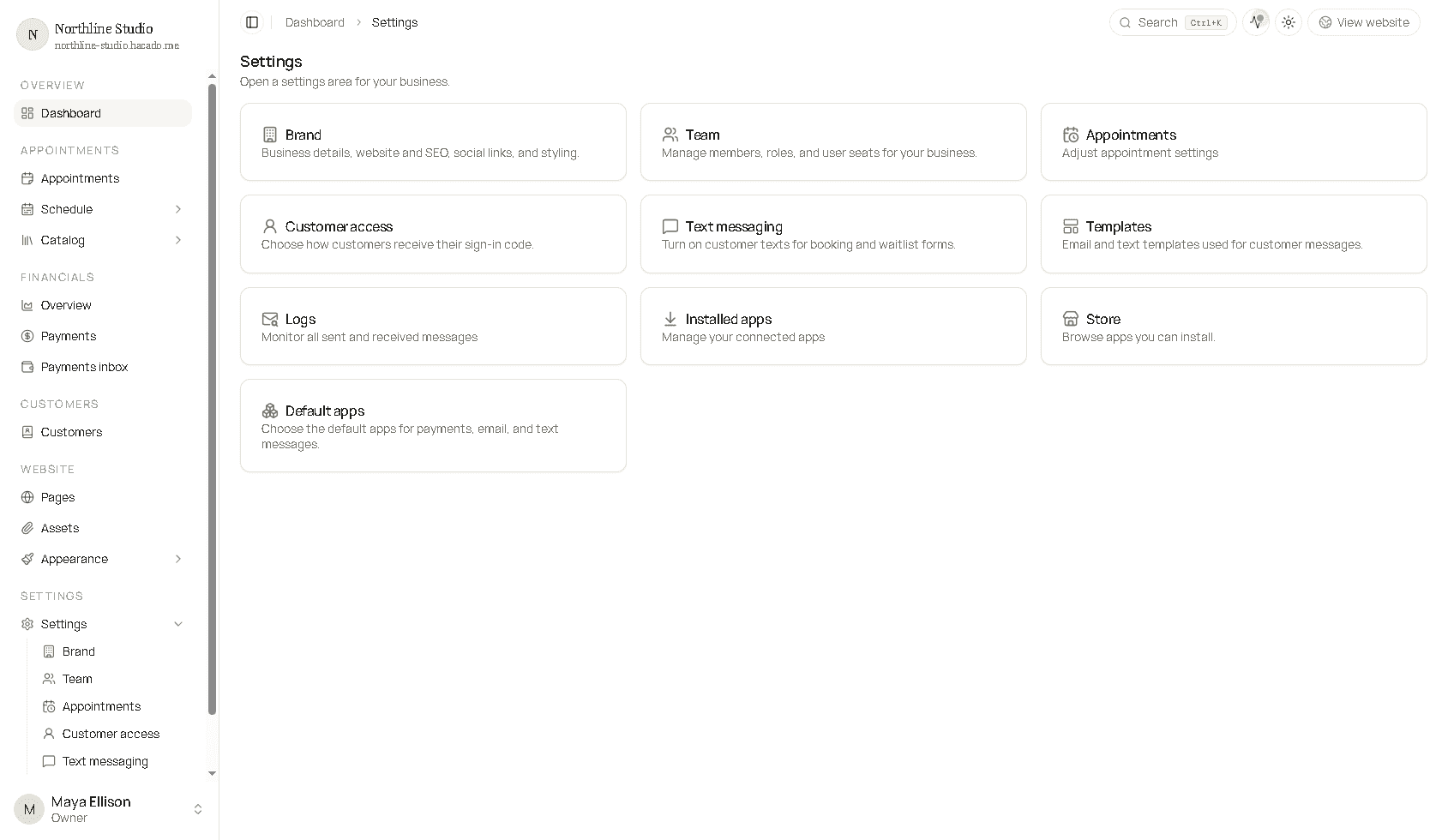
Settings cards
| Card | What it is for | Guide |
|---|---|---|
| Brand | Business details, logo, website SEO, social links, styling, booking link, billing shortcuts | Brand |
| Team | Invite members, roles, and seats. Studio plan only. Free and Solo do not include this page | Team |
| Appointments | Booking rules, deposits, cancellations, reschedules | Appointments |
| Customer access | How customers receive their one-time sign-in code | Customer access |
| Text messaging | Opt-in texts on booking and waitlist forms. Every plan. Custom templates are Solo and above | Text messaging |
| Templates | Email and text wording for customer messages | Templates |
| Logs | Sent and received message history | Under Communications |
| Installed apps / Store / Default apps | Connect calendars, payments, email, and more | Apps |
Related (not on the Settings hub, but next to booking):
- Default schedule - weekly hours under Appointments → Schedule in the side menu
- Services and packages - which Catalog items clients can book (tab inside Appointment settings)
How to save changes
Most Settings forms have a Save button at the bottom. Open a tab or card, make your edits, then Save before leaving. Unsaved changes are lost if you navigate away.
Custom domain
Your public booking site starts on a Hacado address such as https://yourname.hacado.me. Connecting a name you buy yourself (for example www.yourbusiness.com) is optional and covered step by step in Connect your own domain.
Good to know
- Outside tools (Stripe, Zoom, Google Calendar, and similar) live under Apps, not inside Brand tabs.
- Your personal password and profile are under your account menu, not the Settings hub.