Listing customers
The Customers list shows everyone who has booked or been added manually. Use it to find a person, open their profile, merge duplicates, or remove records you no longer need.
Open Customers in the side menu.
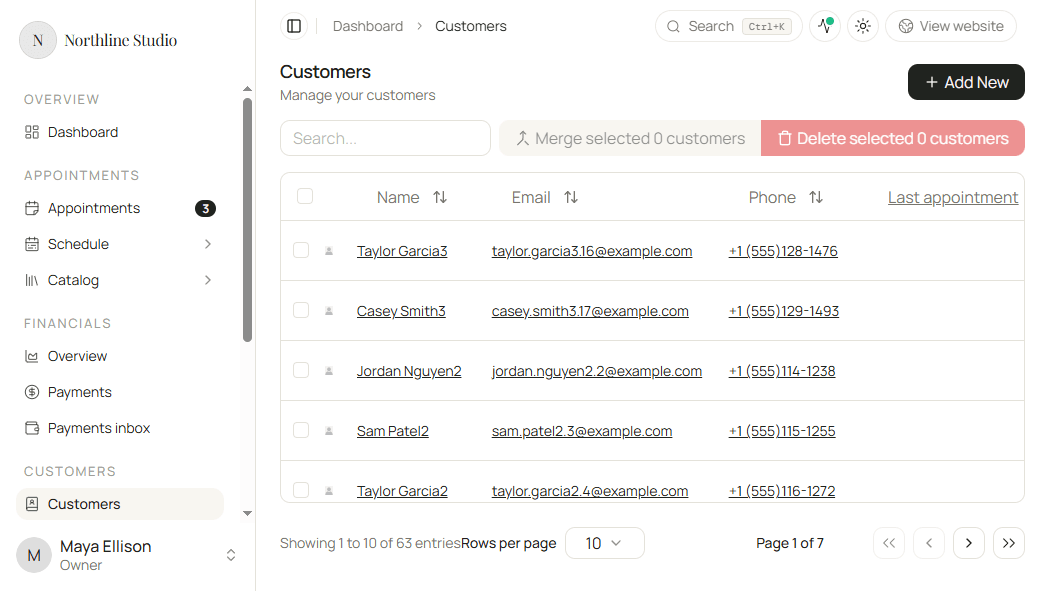
Columns
| Column | What it shows |
|---|---|
| Name | Display name (click to open the profile) |
| Primary email | |
| Phone | Primary phone |
| Last appointment | Most recent past visit when one exists |
| Upcoming appointment | Next booked visit when one exists |
| Appointments | Count of appointments linked to this customer |
Rows can also show an avatar or initials.
Search
- Click the Search… box above the table.
- Type part of a name, email, or phone.
The list updates to matching rows. Clear the box when you want everyone again.
Add a customer
- Click Add New.
- Fill the form and save.
See Creating a customer.
Open a customer
Click the customer Name (or choose Edit from the row menu) to open the profile on the Details tab. See Working with a customer.
Merge selected customers
Use merge when the same person appears more than once (for example they booked with a different email, then you added them by hand).
- Check two or more customer rows.
- Click Merge selected.
- Choose the Target customer - the profile that remains.
- Confirm Merge selected.
Hacado moves history onto the target and combines known names, emails, and phones where needed. The other selected profiles are removed.
Delete selected customers
- Check one or more rows.
- Click Delete selected.
- Confirm in the dialog.
You cannot delete a row that is already marked deleted. If delete fails because appointments are still linked, resolve or reassign those appointments first, then try again.
Row menu
- Open the menu on a customer row.
- Choose Edit or Delete.
- Edit opens the customer profile.
- Delete asks for confirmation, then removes that customer.
Good to know
- Merging is the safer fix for duplicates than deleting, because appointments and messages stay on one profile.
- Search matches primary contact fields and known alternate values when those are stored on the profile.