Appointment settings
Settings → Appointments controls how booking works for the whole workspace: how far ahead clients can book, deposits and tips, and whether clients may cancel or reschedule online.
Open Settings in the side menu, then Appointments. Or use the Appointments card on the Settings hub.
Tabs along the top:
| Tab | Guide section |
|---|---|
| Main | Main |
| Services and packages | Separate page: Services and packages |
| Payments | Payments |
| Cancellations | Cancellations |
| Reschedules | Reschedules |
Click Save at the bottom after you finish edits.
Main
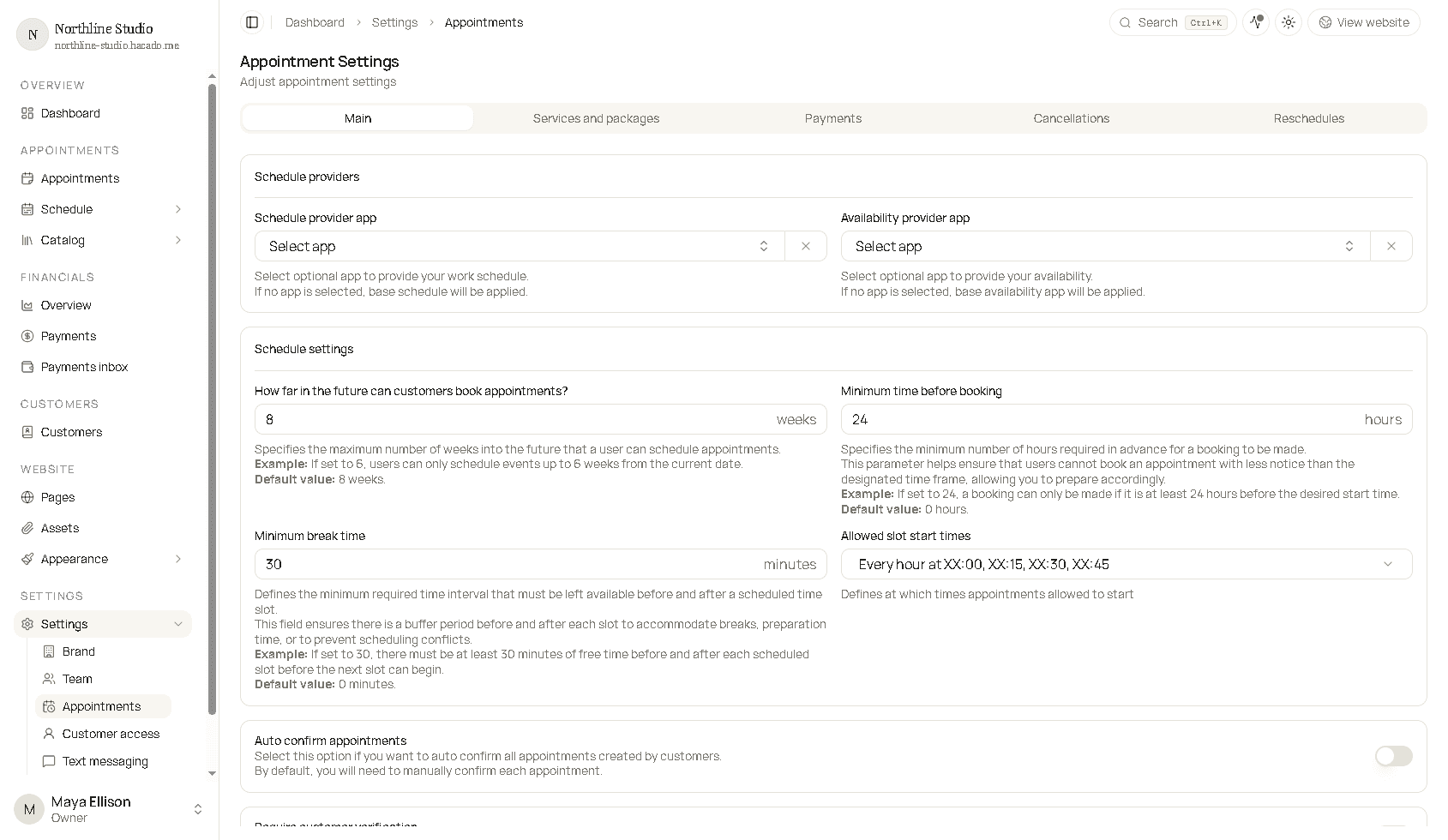
Schedule providers
Optional apps that drive when you are free:
| Field | What it does |
|---|---|
| Schedule provider app | Optional app that supplies your work schedule. If empty, the default schedule is used. |
| Availability provider app | Optional app that supplies availability. If empty, the base availability app is used. |
Install and connect calendar-related apps from Apps first, then select them here.
Schedule settings
| Field | What it does | Example |
|---|---|---|
| How far in the future can customers book? | Maximum weeks ahead clients can pick a slot. Default 8. | Set 6 → only the next 6 weeks are bookable. |
| Minimum time before booking | Hours of notice required. Default 0. | Set 24 → no same-day bookings inside 24 hours. |
| Minimum break time | Minutes of free time required before and after each booking. Default 0. | Set 30 → 30-minute buffers around appointments. |
| Allowed slot start times | When appointments may start (every hour, every 15 minutes, custom times, and similar). | Every hour at XX:00, XX:15, XX:30, XX:45. |
If you choose Custom for slot starts, add specific times with the time picker tags.
Switches and promo codes
| Setting | What it does |
|---|---|
| Auto confirm appointments | On: new customer bookings confirm without you. Off: you confirm each one. Services can override this. |
| Require customer verification | Clients must verify email or phone with a one-time code before paying or confirming. Prepaid packages always need a verified session. |
| Allow staff to manage calendar sources | On: staff can connect personal calendars on their profile for busy-time checks. Off: those calendars are ignored. |
| Show promo code field | Never, Only if has active discounts, or Always during booking. |
Payments
Workspace defaults for deposits and tips. Individual services and customers can override these.
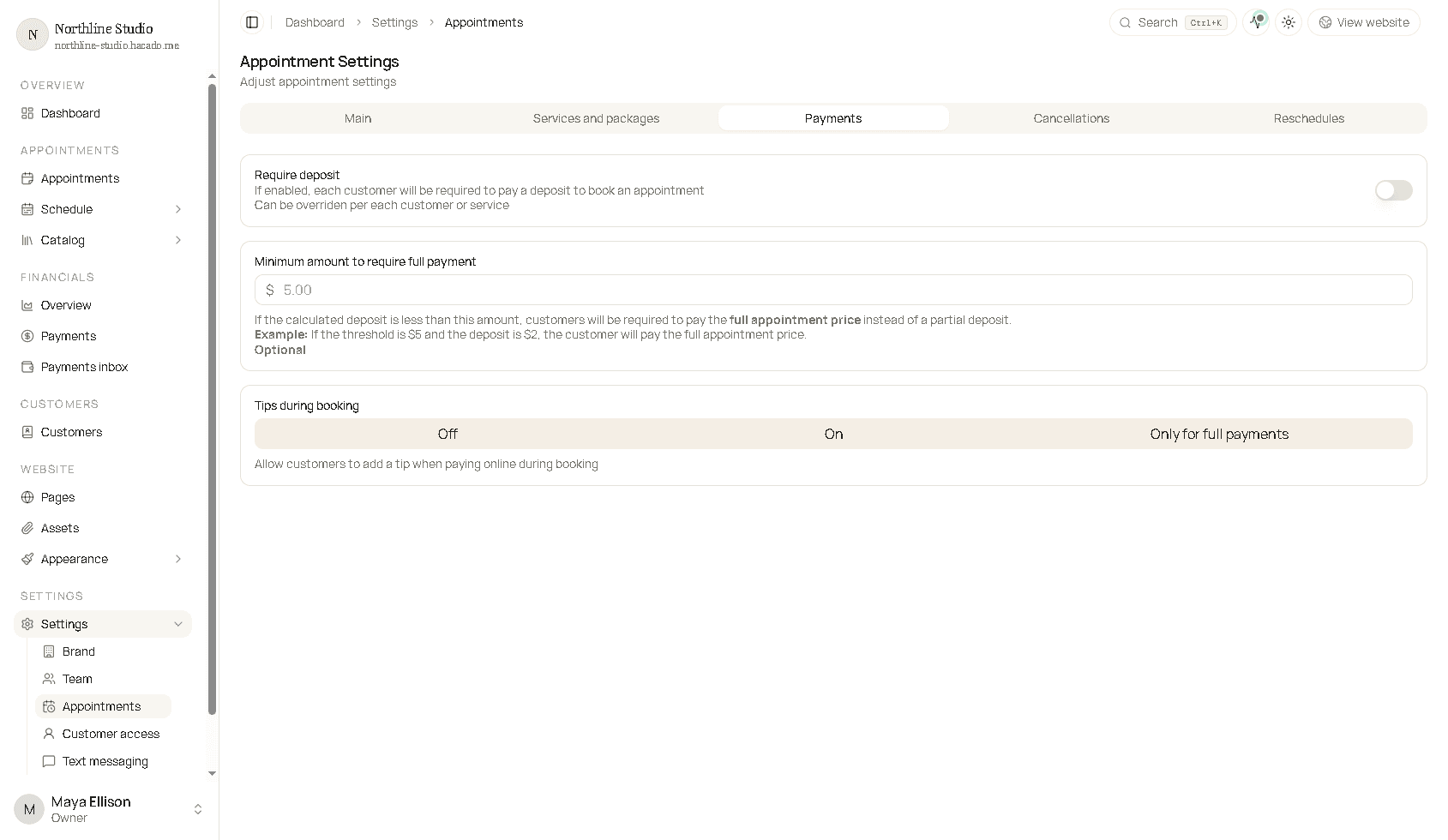
| Setting | What it does |
|---|---|
| Require deposit | On: clients pay a deposit to book (needs a payments app under Default apps). Can be overridden per customer or service. |
| Deposit amount | Appears when deposits are on - percentage of the appointment price. 100 means pay in full up front. |
| Min appointments to skip deposit | Optional. After this many completed visits, deposit is not required unless forced for that customer. |
| Minimum amount to require full payment | If the calculated deposit is below this currency amount, Hacado asks for the full price instead. |
| Tips during booking | Off, On, or Only for full payments. When tips are on, set up to four tip percentage presets. |
Payments features need a plan and a connected payments app. If you see an upgrade hint, open billing from Brand → General.
Cancellations
Rules for when clients cancel themselves online. Two columns:
| Column | Applies when |
|---|---|
| For appointments without deposit | The booking did not collect a deposit. |
| For appointments with deposit | The booking collected a deposit. |
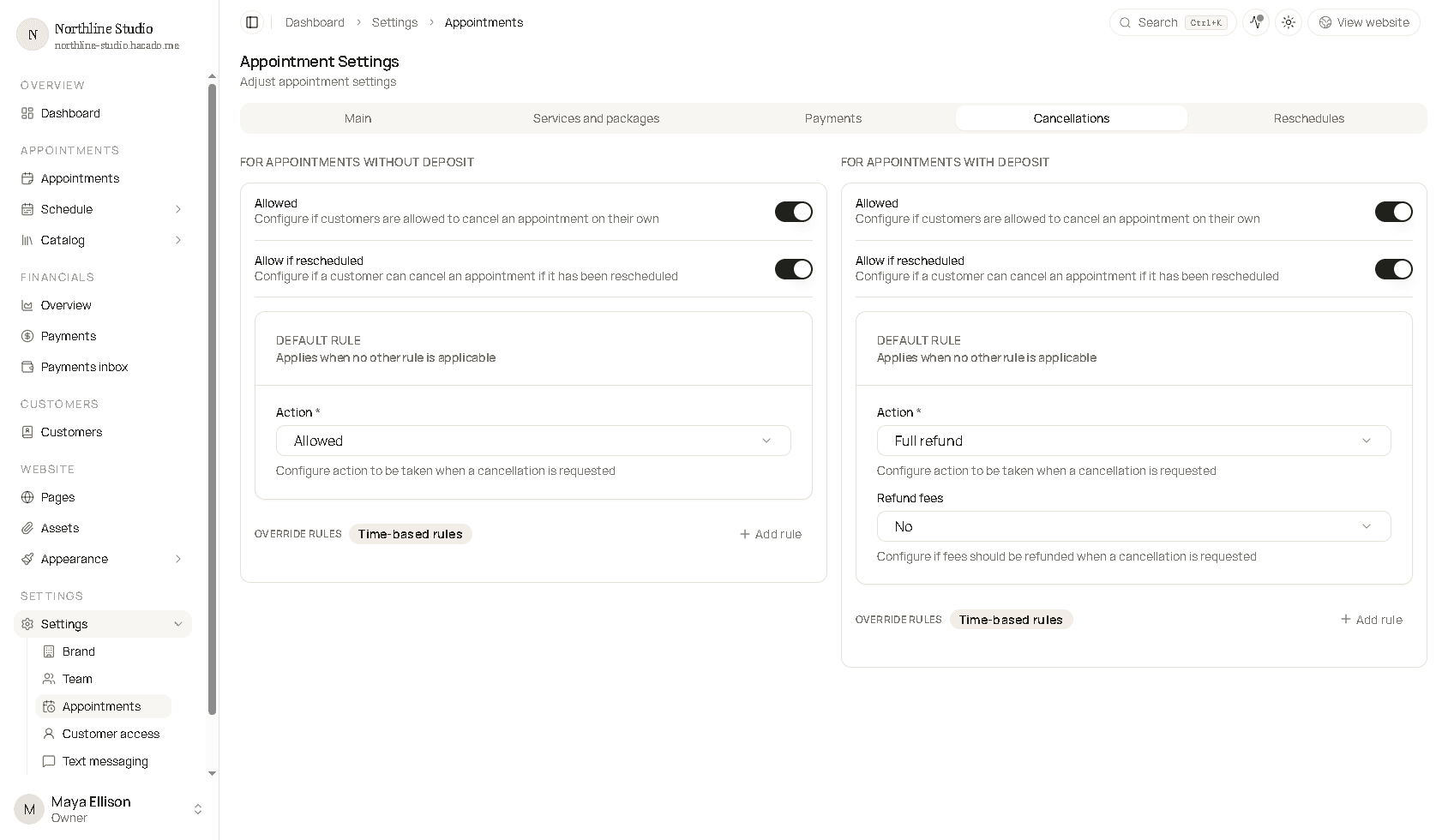
For each column:
- Allowed - clients may cancel under these rules.
- Allow if rescheduled - whether they can still cancel after a previous reschedule.
- Default Rule - used when no override matches (typically the strictest / closest-to-appointment case).
- Override Rules - time-based rows with Earliest applicable time. Hacado picks the matching override with the largest earliest time that is still less than or equal to how far away the appointment is.
Cancellation actions
Without deposit: Not allowed · Allowed · Payment required (percentage or fixed amount).
With deposit: Not allowed · Forfeit deposit · Partial refund · Full refund · Payment required · Payment to full price required.
Optional: Use price before discounts for percentage calculations; Refund fees when using deposit refunds.
The same earliest-time logic is explained with examples in Creating a new service → Cancellations when a service overrides these workspace defaults.
Reschedules
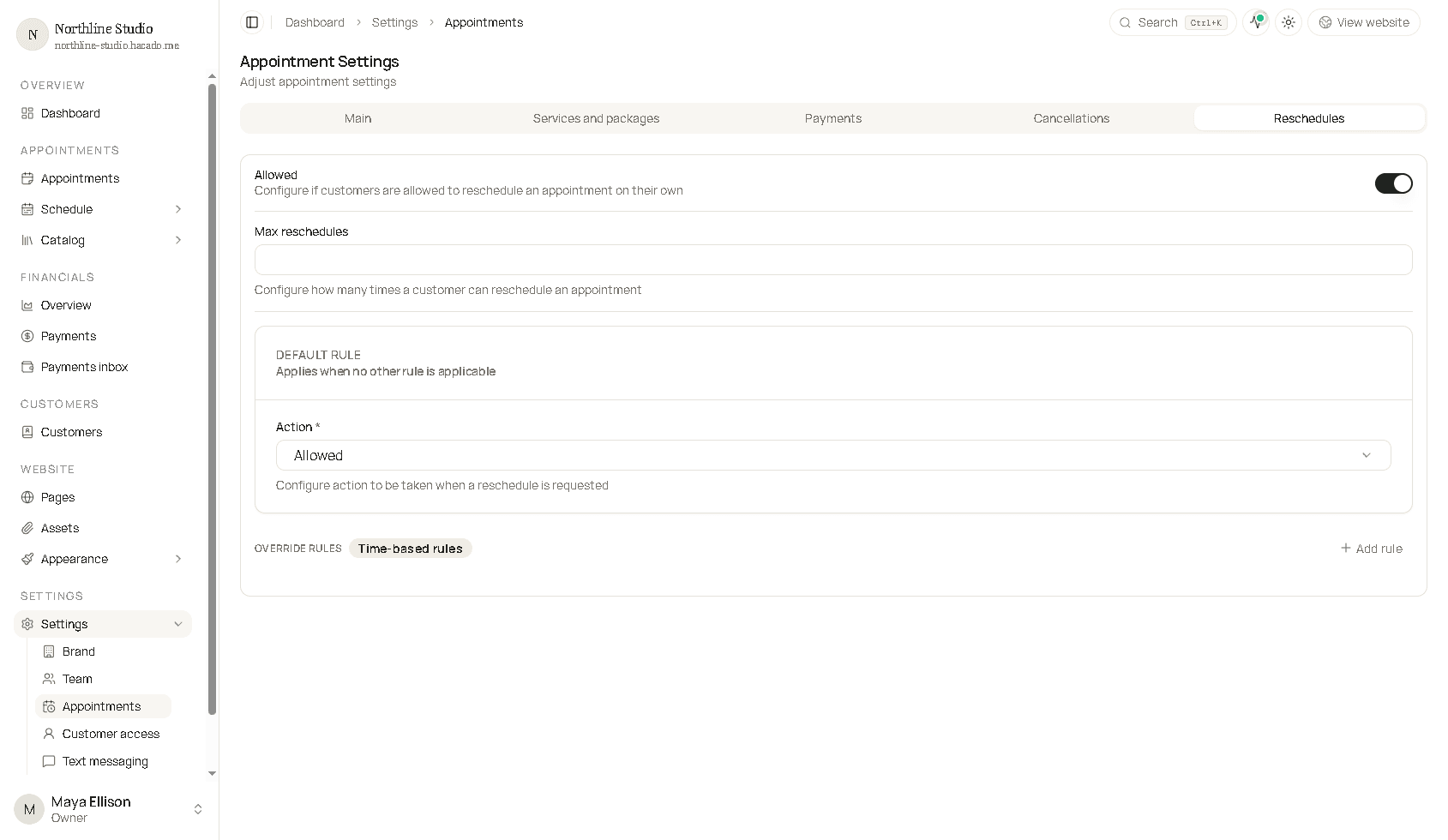
- Turn Allowed on so clients may reschedule online.
- Optionally set Max reschedules (for example 2) - after that count, further moves are blocked.
- Set the Default Rule and any Override Rules the same way as cancellations (earliest applicable time + action).
Reschedule actions
| Action | Effect |
|---|---|
| Not allowed | Client cannot reschedule in this window. |
| Allowed | Reschedule free. |
| Payment required | Fee to reschedule (percentage or fixed amount). |
Example: Default = Not allowed, override at 3 days = Allowed → clients can move the booking when it is at least 3 days away.
Related
- Services and packages - which Catalog items appear on the booking page
- Default schedule - baseline weekly hours
- Catalog services - per-service overrides for payments, cancellations, and reschedules