Updating an existing discount
Change a discount when the code, value, dates, or limits no longer match your promotion. Edits apply the next time someone uses the discount. Past appointments keep what they already stored.
Open the discount
- Open Appointments → Catalog → Discounts.
- Click the discount name, or open the row menu and choose Update.
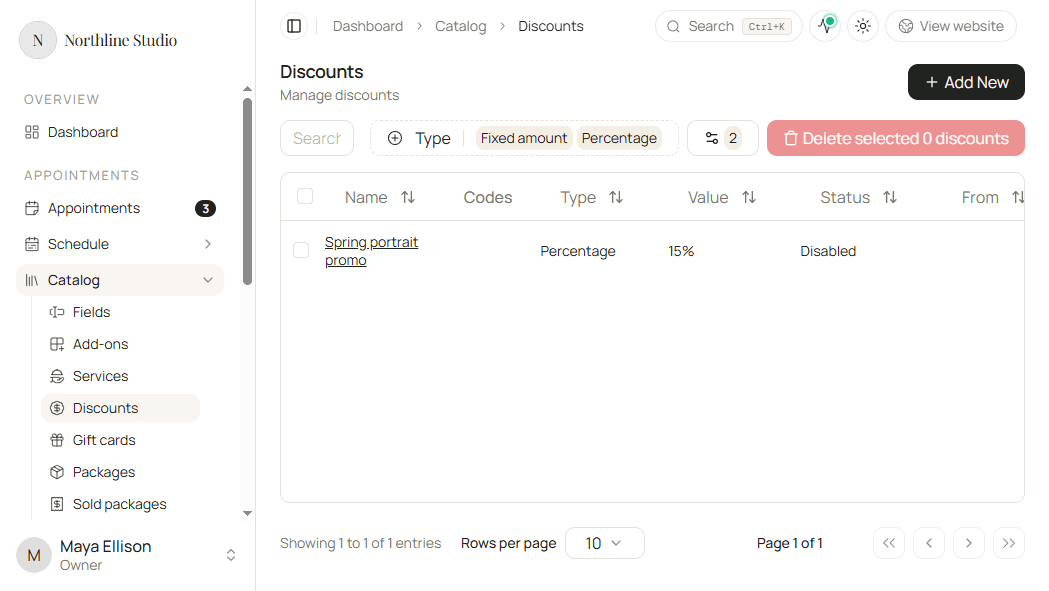
The form shows the same sections as create: Details, Dates, Maximum uses, Promo codes, and Limit to.
Change details
- Update Name if you need a different unique name.
- Switch Status between Active and Disabled to turn the promotion on or off without deleting it.
- Change Type between Percentage and Fixed amount when the discount model changes.
- Update Value to match the new type.
Change dates and usage
- Edit Start date, End date, Earliest eligible appointment date, or Latest eligible appointment date.
- Clear a date field when that bound should no longer apply.
- Update Maximum total uses or Maximum uses per customer, or clear them for no cap.
Change promo codes and limits
- Add, edit, or remove codes under Promo codes (still up to 10).
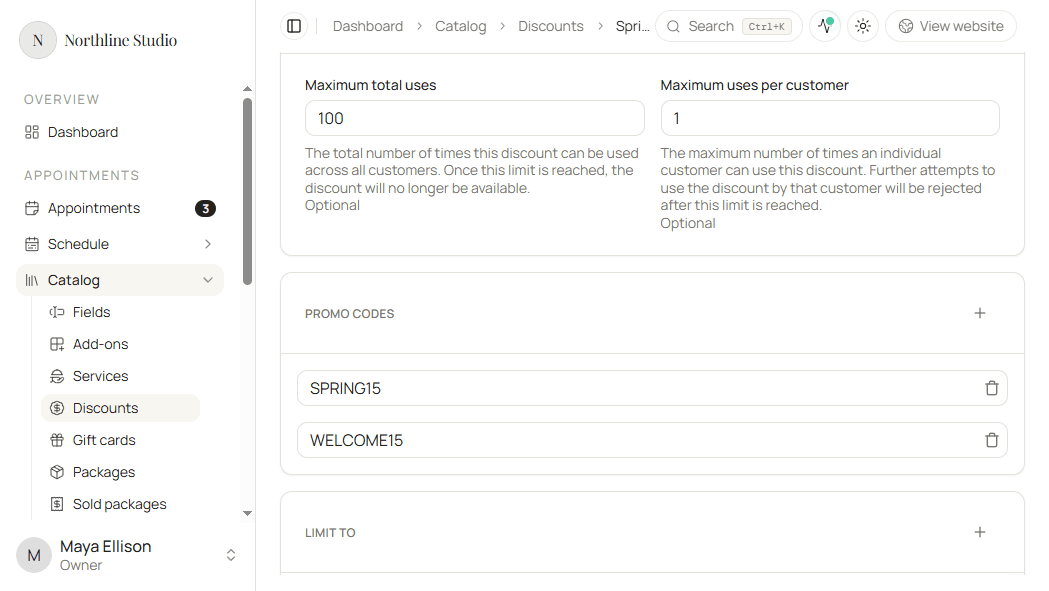
- Add or remove Limit to cards, and change which services, add-ons, or packages each card includes. Multiple cards are Or; see the Limit to examples in create.
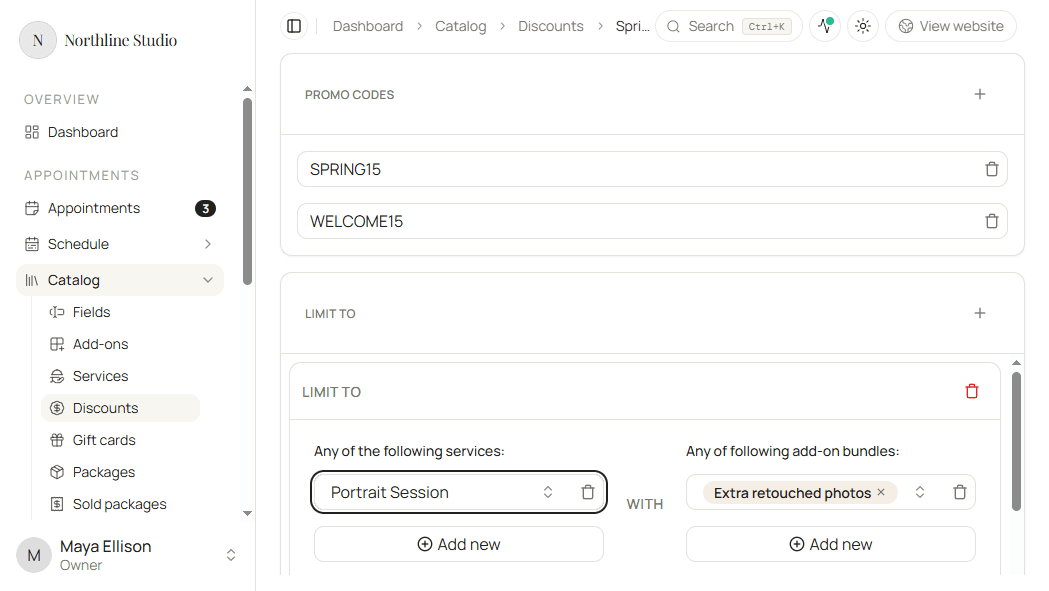
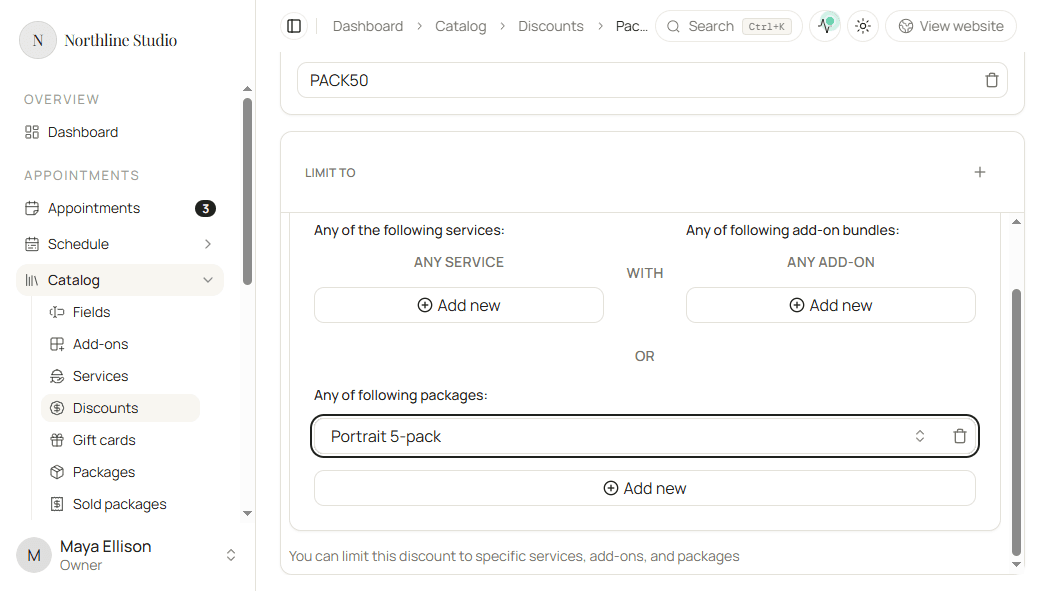
Full create-time detail for every field and Limit to rule is in Creating a new discount.
Save
- Click Save.
Hacado keeps you on the discount page and confirms that your changes were saved.
Good to know
Set Status to Disabled when you want to pause a promotion without removing its codes or limits.