Deleting a gift card
Delete a gift card only when Hacado allows it. Many cards must stay for payment history.
When delete is allowed
You can delete a gift card when all of these are true:
- It is not in use (no payments have been made with the card).
- It was not paid with an Online method.
- It does not have a Payment link that is already Paid.
- It is not app-owned (created by an app such as Gift Card Studio). App-owned cards show a message that they can be deleted only from that app.
When delete is blocked, Delete is hidden, disabled, or replaced with a message that names the source app.
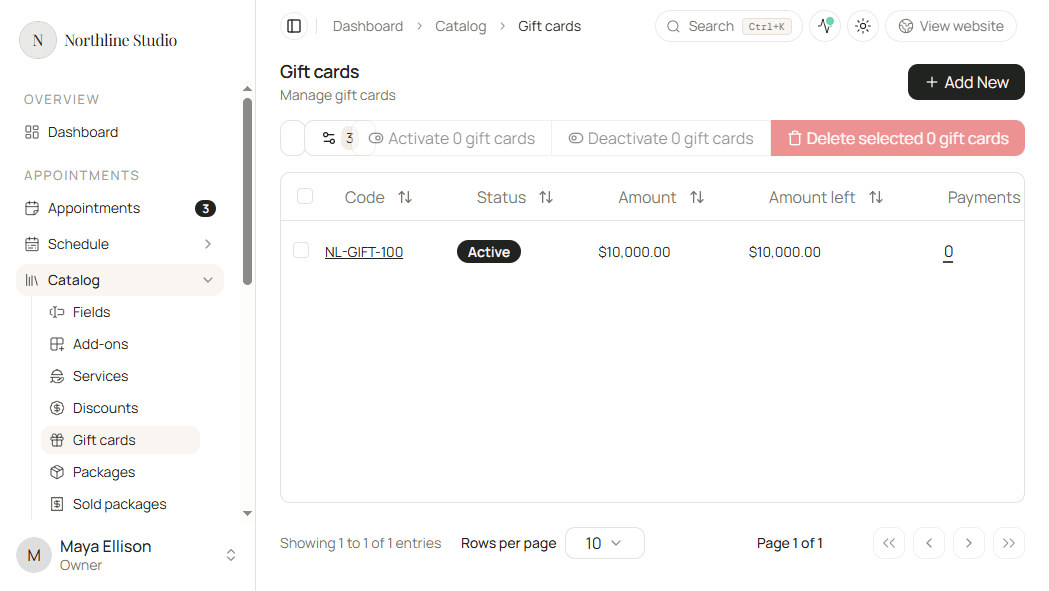
Delete one gift card
- Open Appointments → Catalog → Gift cards.
- Open the row menu on the gift card.
- Click Delete when it is available.
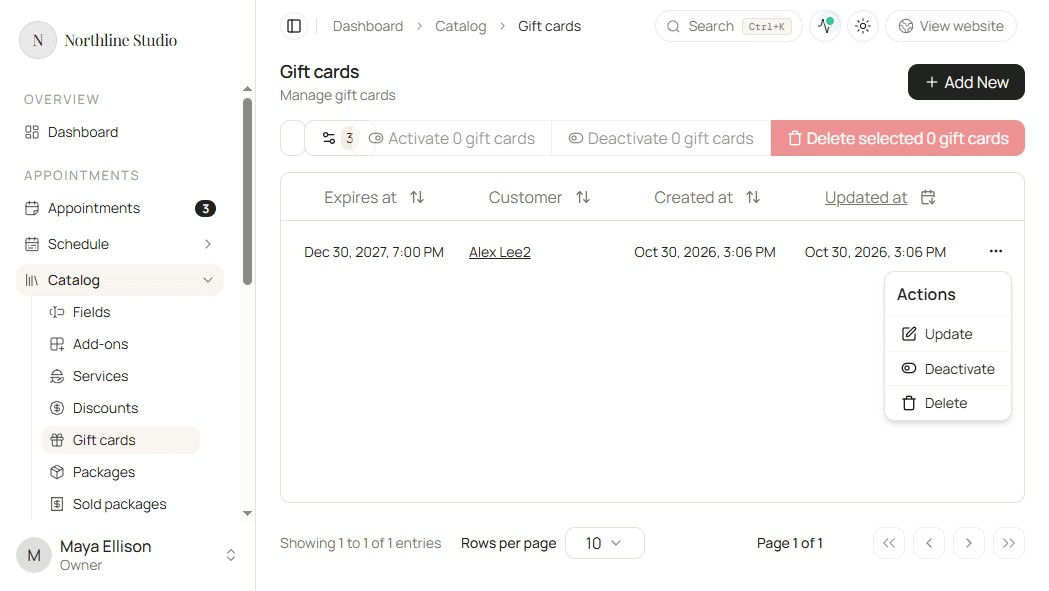
- Confirm in the dialog, or cancel to keep the card.
Delete several gift cards
- Check only cards that are allowed to be deleted.
- Click Delete selected.
- Confirm in the dialog.
What happens next
- The gift card leaves the Gift cards list.
- You cannot undo a delete. Issue a new card if the client still needs credit - see Creating a new gift card.
Good to know
If you only need to stop redemption, deactivate the card instead of deleting it.